Setting Up Deductions
Deduction and Prepayment Credit Terms
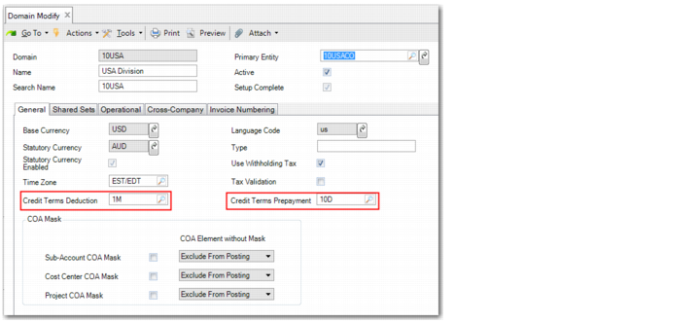
Set up deduction credit terms by domain using the Credit Terms Deduction field in the Domain record. When deductions are created, the domain-level deduction credit terms are used instead of the customer’s default credit terms. The due date of the deduction is then calculated using the domain credit terms. The credit term you specify for the domain cannot be a staged credit term and cannot include discounts.
If you have not defined deduction credit terms for the domain and then try to save a deduction in, for example, Customer Payment Create, the system displays an error message.
See
Credit Terms and Due Dates for information on how the system calculates due dates for rejected deductions that become due items on the customer’s account.
Domain Modify
Defining Daybooks
When setting up deductions, define one or more Customer Deduction type daybooks that are used for two purposes:
• A daybook of type Customer Deduction, where the system posts deductions you create in Customer Payment Create, Banking Entry Create, and Petty Cash Create.
A customer invoice of type Deduction is created after you save a payment that has a deduction. The invoice uses the daybook linked to the customer daybook deduction profile associated with the bank GL account used for the payment. This daybook is also used where automatic write-offs are allowed and occur in the same transaction as the deduction.
• A daybook of type Customer Deduction, associated with the deduction category where the system posts reviewed, approved, and written-off standard deductions.
If you want to differentiate between the deduction creation and approved write-off deduction transactions, you can use different Customer Deduction type daybooks. However, you can also use the same daybook for both types of transaction.
Creating Profiles
In order to set up deductions, define two types of profile: a customer account profile for deductions and a customer deduction daybook profile.
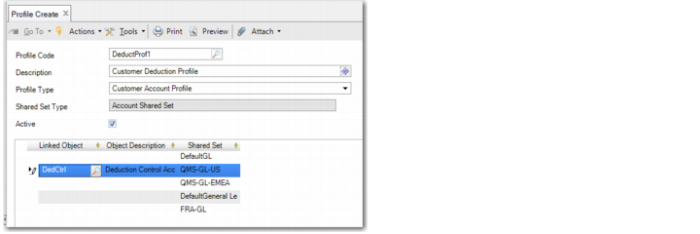
Specify the customer account profile for deductions in the customer record in Customer Create (27.20.1.1) or Customer Modify (27.20.1.2). If the customer shared set is shared across domains with different GL account shared sets, the profile indicates the customer control account to use for deduction postings in each domain.
Profile Create, Showing a Customer Account Deduction Profile
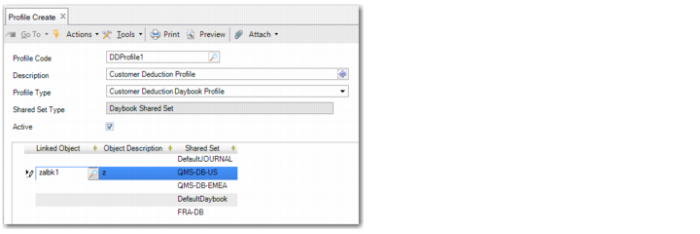
You associate the customer deduction daybook profile with the entity bank account used for deductions. The system posts deductions you create in Customer Payment Create, Banking Entry Create, and Petty Cash Create to the daybook indicated by the profile. If the GL shared set is shared across domains that use different daybook shared sets, the customer deduction daybook profile indicates the daybook to use for deduction postings in each domain.
Profile Create, Showing a Customer Deduction Daybook Profile
Associating Deduction Profiles with Customer Records
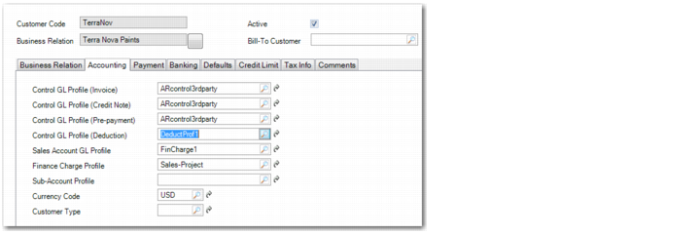
Use the Control GL Profile (Deduction) field in Customer Create or Customer Modify to assign customer account deduction profiles to customers.
Customer Modify
Associating a Deduction Daybook Profile with a Bank Account
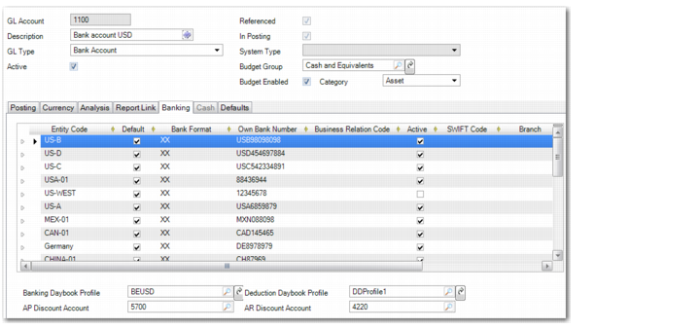
Use GL Account Create (25.3.13.1) or GL Account Modify (25.3.13.2) to associate a deduction daybook profile with the entity bank account used for deductions.
GL Account Modify, Customer Daybook Deduction Profile
Defining Accounts
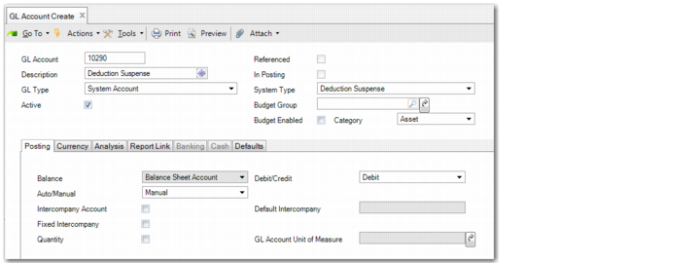
Define one Deduction Suspense system account and one or more expense accounts to which approved standard deductions are posted.
The Deduction Suspense system type account is used to transfer the balance from the payment posting to the deduction posting. The transfer occurs within the same transaction so the Deduction Suspense account always has a zero balance.
GL Account Create, Deduction Suspense Account
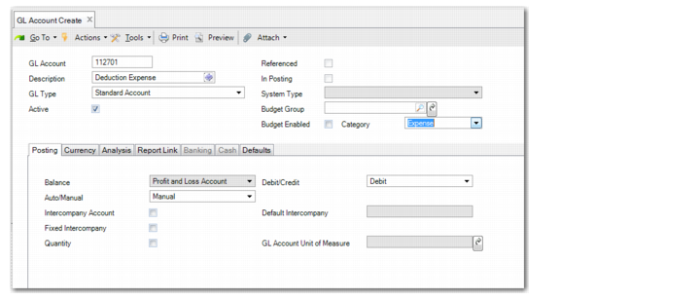
Create one or more expense accounts to which the system posts automatic write-off and approved standard deductions. The account must be a Standard account with a category of Expense and can have sub-account, cost center, project, or SAF analysis. If the account uses analysis, specify the appropriate analysis codes in the deduction category.
GL Account Create, Expense Account
Creating Deduction Categories
Use Deduction Category Create (27.6.16.1) to create deduction categories that enable you to assign characteristics to a deduction. The category designates the type of deduction, the expense account to which the deduction is posted when approved, and whether you can write off low-value amounts without review and approval.
Deduction categories are partially stored at system level and partially stored at domain level. The deduction code, the description, and the deduction type are stored at system level. The values for the other fields are stored in the current domain. Therefore, if you reuse a category in another domain, specify the expense account, COA analysis elements, and daybooks that are relevant to that domain.
Deductions are removed as a lump sum in Customer Payment Create, Banking Entry Create, or Petty Cash Create.
Note: Promotional deductions are handled using a different business process than standard deductions.
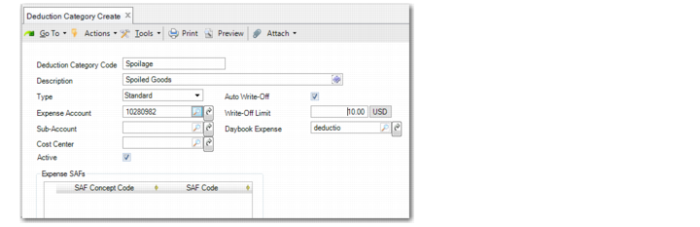
Deduction Category Create
Deduction Category Code
Specify a maximum of 20 alphanumeric characters for the deduction category code. The deduction category code must be unique within the system. This field is mandatory.
Description
Specify a maximum of 40 characters for a description of the deduction category. This field is optional.
Type
Choose Standard or Promotion from the drop-down list. The default value is Standard.
Standard: Indicates deductions used within the Financials module.
Promotion: Indicates promotional deductions created in Financials and processed in a dedicated trade promotion management module.
Important: If the deduction category is used in a posting, you cannot update the deduction category type
Expense Account
Specify the expense account to which approved deductions are posted.
This field is only enabled for deduction categories of type Standard and is mandatory.
If you select the Auto Write-Off field, the system automatically writes off deductions within the deduction limit for the specified deduction category to the expense account associated with the deduction category.
Sub-Account
Specify a sub-account for the deduction category. This field is only enabled for deduction category types of Standard and if the specified expense account uses sub-account analysis.
Cost Center
Specify a cost center for the deduction category. This field is only enabled for deduction category types of Standard and if the specified expense account uses cost center analysis.
Active
Indicate if the deduction category is active. You can only assign active deduction categories to deductions.
Auto Write-Off
Select this field to automatically write off deduction amounts that are less than a predefined limit. This field is only enabled for deduction categories of type Standard.
Selecting the Auto Write-Off field enables the Write-Off Limit field, where you can define the maximum amount that can be written off without approval.
Write-Off Limit
Specify the maximum deduction amount that can be written off without approval. The write-off limit is denominated in the base currency.
If the deduction amount is greater than the write-off limit, it must be approved. Zero means no limit.
This field is only available if you select the Auto Write-Off field.
Daybook Expense
Specify the expense daybook to which approved write-off deduction transactions are posted.
The daybook must be of type Customer Deduction. This field is mandatory.
Expense SAFs
This field is only enabled for deduction category types of Standard and if the specified expense account, cost center, or project uses SAF analysis.
Deduction Category Excel Integration
Use Deduction Category Excel Integration (27.6.16.5) to export data to Excel spreadsheets for analysis or reporting. You can also use Excel to create new data and import it to the database, where it is validated before being saved. Excel Integration lets you create data across multiple domains. Therefore, you can use Deduction Category Excel Integration to create or maintain deduction categories that are used in several domains.
If you right-click and select Load Deductions, the system loads all deduction categories. You can then modify and save the deduction categories. If you import data for an existing deduction category, the data for the deduction category is updated.
If you right-click and select Export to Excel for Maintenance, the system downloads the deduction categories, and exports them to an Excel file for maintenance. Specify the name and location of the exported Excel file. You can also select Export to Excel for Maintenance when the grid is empty. In this case, the system creates an empty Excel sheet with the relevant database field names as headings for creating data.
If you right-click and select Import from Excel, you can select and load an Excel file containing deduction categories. The Excel file must be in the correct format for import and must have the correct database field names as column headings.
Modifying Deduction Categories
Use Deduction Category Modify (27.6.16.2) to modify a deduction category. You cannot modify the deduction category code, but you can modify deduction category details stored in the current domain; for example, the daybook, expense account, and write-off settings.
If the deduction category has been used in a posting, you cannot update the deduction category type.
Deleting Deduction Categories
Use Deduction Category Delete (27.6.16.3) to delete a deduction category.
If the deduction category has been used in a posting, you cannot delete it.