Reviewing Deductions
Use Deduction Review to review both standard and promotional deductions. Standard deductions are editable; promotional deductions are read-only.
During the deduction review process, you can approve standard deductions and write off the deduction to the expense account associated with the deduction category. You can also reject the deduction, causing the deduction amount to become a due item on the customer’s account. You can also change the deduction category associated with the deduction during the review process.
You can also change the status of a deduction to Approved for Credit, which indicates that a credit note must be created (manually) for the amount. When the credit note is created, you can use Open Item Adjustment Create to adjust the credit note against the deduction balance.
The table shows deduction statuses and the next statuses to which the deduction can transition.
Permitted Deduction Status Transitions
|
|
Next Status
|
|
Current Status
|
Pending
|
Auto Write-Off
|
Approved Write-Off
|
Approved for Credit
|
Rejected
|
Credited
|
|
Pending
|
|
|
|
|
|
|
|
Auto Write-Off
|
|
|
|
|
|
|
|
Approved Write-Off
|
|
|
|
|
|
|
|
Approved for Credit
|
|
|
|
|
|
|
|
Rejected
|
|
|
|
|
|
|
|
Credited
|
|
|
|
|
|
|
Auto Write-Off, Credited, Rejected, and Approved Write-Off standard deductions are read-only in Deduction Review.
Important: You cannot change the status of a deduction to Credited in Deduction Review. A credited deduction is an Approved for Credit deduction that has been adjusted against a credit note in Open Item Adjustment Create.
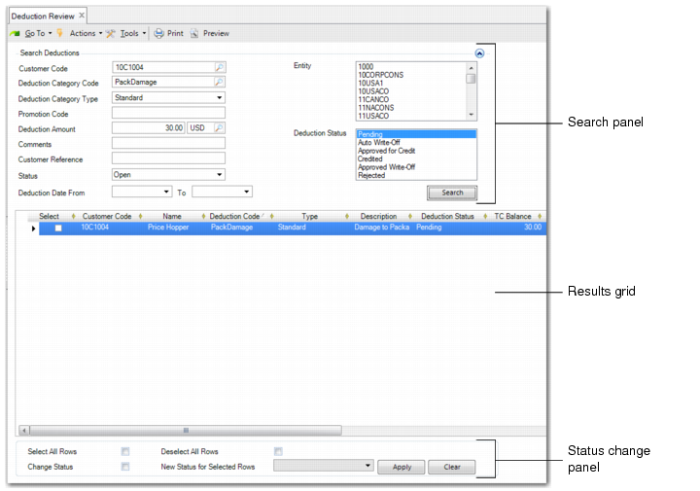
Deduction Review consists of three screen areas: a search panel for retrieving deductions to review, a results grid that displays the deductions that match the search criteria, and a status change panel where you can change the status of Pending and Approved for Credit deductions.
Deduction Review
Click Search to retrieve all deductions that meet the search criteria.
Customer Code
Specify the customer code for which you want to review deductions. This field is optional.
If you do not specify a customer code, deductions for all customers that meet the other selection criteria are displayed.
Entity
Select the entities from which you want to retrieve and display deductions that match the selection criteria.
Deduction Category Code
Specify the deduction category code for which you want to review deductions. This field is optional.
If you do not specify a deduction category code, deductions for all category codes that meet the other selection criteria are displayed. Define deduction category codes in Deduction Category Create. See
Creating Deduction Categories.
Deduction Category Type
Indicate the type of deductions that you want to review. This field is optional. Choose Standard or Promotion from the drop-down list. The default value is Standard.
• Standard: Indicates deductions used within the Financials module.
• Promotion: Indicates promotional deductions processed in a dedicated trade promotion management module.
Promotion Code
For promotional deductions, specify the promotion code that the deduction is associated with. This field is optional.
Deduction Amount
Specify an amount to retrieve and review deductions with matching amounts. This field is optional.
If you do not specify an amount, deductions for all amounts that meet the other selection criteria are displayed.
Comments
Specify text to retrieve deductions where this text was recorded as a comment. This field is optional.
Deduction Status
Select one or more deduction statuses to retrieve deductions with matching statuses.
• Pending: If the category does not allow automatic write-off, the status of the line is Pending. You can change the status of a Pending deduction in Deduction Review.
• Auto Write-Off: Deductions where the deduction amount is below the automatic write-off limit and where the deduction is automatically written off to the expense account associated with the deduction category. You cannot change the status of a deduction with the status Auto Write-Off.
• Approved for Credit: A deduction that has been made available for adjustment in Open Item Adjustment Create. Using Deduction Review, you can change the status of an Approved for Credit deduction.
• Credited: The status of a deduction that has been adjusted against a credit note in Open Item Adjustment Create. You cannot change a deduction to the status Credited in Deduction Review. However, you can filter and view deductions with this status. You cannot change the status of a Credited deduction.
• Approved Write-Off: Deductions above the automatic write-off limit that have been approved in Deduction Review and written off to the expense account associated with the deduction category. You cannot change the status of an Approved Write-Off deduction.
• Rejected: Deductions rejected in Deduction Review that have become a due item on the customer’s account. You cannot change the status of a Rejected deduction.
Customer Reference
Specify the customer reference recorded on the deduction to retrieve and review matching deductions. This field is optional.
Status
Specify the type of deductions to display. The options are:
All: The system retrieves open and closed deductions that match the other search criteria.
Open: The system retrieves open deductions that match the other search criteria. A deduction is open if some of the detail lines are Pending, Approved for Credit, or Rejected.
Closed: The system retrieves closed deductions that match the other search criteria. A deduction is closed when all the deduction detail lines are written off, automatically written off, or credited.
If you change the status of a customer payment with deductions to Initial or Bounced, the deduction detail lines are set to Closed. See
Changing the Status of a Payment with Deductions.
Deduction Date From–To
Specify a date range to retrieve deductions created during that period.
To change the status of multiple rows in the grid, select the rows that you want to modify. You can then use the following fields:
Note: You can also edit the status in the grid for individual rows as needed.
Select All Rows
Select all deductions in the grid.
Deselect All Rows
Deselect all deductions in the grid.
Change Status
Select this field to enable the New Status for Selected Rows field.
New Status for Selected Rows
Choose a new status for the deduction from the drop-down list and click Apply to apply the status to the selected rows.
Using Deduction Review, you can apply the following types of deduction status changes:
Click the appropriate button:
• Click Apply to apply the new status to the deduction lines.
• Click Clear to clear the contents of the grid.
• Click Save to save the deductions with new statuses.
Deduction Details
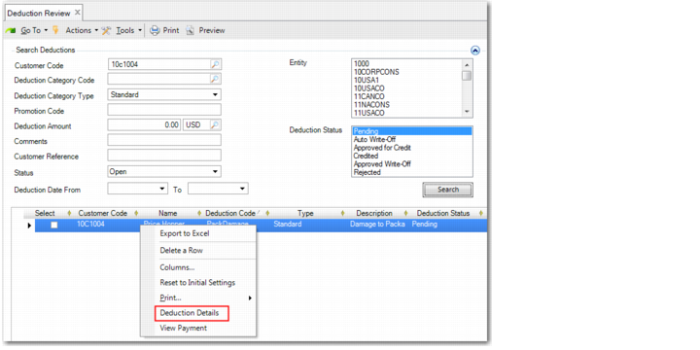
If you right-click on a deduction line in the grid, the system displays a menu with the option Deduction Details.
Deduction Review, Right-Click Menu
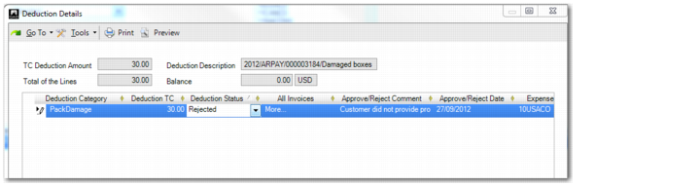
When you click Deduction Details, the system displays the Deduction Details window, where you can modify the deduction categories, modify amounts, and add lines, provided that the total deduction amount stays the same. You can only modify lines with the status Pending or Approved for Credit. The Deduction Details window is read only for the other statuses.
If you add a deduction detail line with a standard deduction category code where automatic write-off is enabled, the system sets the status of the deduction detail line to Pending by default. You can subsequently change the status of the detail line to other statuses that can follow on from Pending—Approved Write-Off, Approved for Credit, or Rejected.
After you close the Deduction Details screen, updated deduction detail lines are displayed in the Deduction Review grid.
Deduction Review, Deduction Details Window
Many of the fields in the Deduction Details window were previously described in
Specifying Deduction Details.
Deduction Category
You can modify the deduction category and add lines with new deduction categories, as needed.
Deduction TC
You can modify the deduction line amount and add new lines with other deduction amounts. However, the total deduction amount must remain the same.
Status
Use the drop-down list to change the status of a deduction line.
Approve/Reject Comment
Specify a comment if you have approved or rejected a deduction line. This field only becomes editable if you change the status of a deduction line to Approved Write-Off or Rejected.
Approve/Reject Date
If you change the status of a deduction line to Approved Write-Off or Rejected, the system automatically updates this field with the system date.
Approving Deductions for Write Off
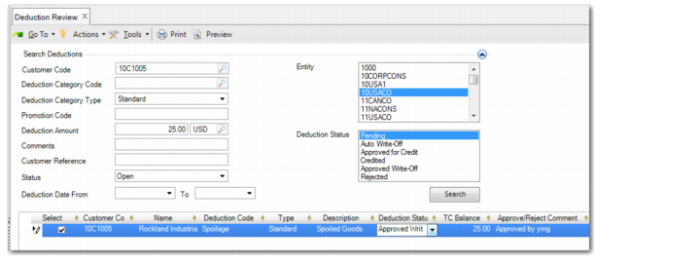
In Deduction Review, you can change a Pending or Approved for Credit deduction to Approved Write-Off. This means that the deduction is written off to an expense account, without the need to create a credit note for the customer.
You can specify the entity code. You can also view the original banking entry (or payment) to review the invoices and entities associated with the payment. If the deduction detail line has an invoice specified, the entity of the invoice defaults, but you can update the default. If the deduction detail line has no invoice specified, the entity of the payment defaults, but you can update the default.
In the Deduction Details screen, you can specify a posting date when you write off a deduction detail line. The default value for the posting date is the system date.
Deduction Review, Approved Deduction
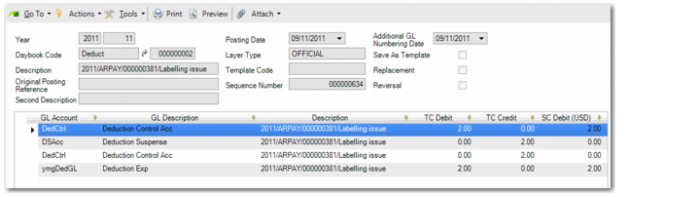
Journal Entry View
If the expense entity you specify in Deduction Review is different than the entity of the deduction open item, the system creates a cross-company journal entry. You must have access privileges for the entity of the expense posting.
In the entity specified in Deduction Review, the expense account for the deduction category is debited and the AR cross-company control account is credited. If the entity you specify in Deduction Review is the same as the entity of the deduction open item, the expense account for the deduction category is debited.
Approving a Deduction for Credit
In Deduction Review, you can change the status of a Pending deduction to Approved for Credit.
Changing a line to Approved for Credit has no accounting impact. This status indicates that a credit note must be manually created for the deduction amount. When the credit note is created, you can use Open Item Adjustment Create to adjust the credit note against the deduction balance. When the deduction open item is adjusted, the deduction status is automatically updated to Credited.
Note: If a deduction does not have the Approved for Credit status, you cannot adjust it in Open Item Adjustment Create.
The system can accommodate cases where the credit note is not for the full Approved for Credit detail amount as described in the following example.
Example:
Using Deduction Review, you change a Pending deduction to Approved for Credit.
The deduction is for $75. However, a credit note is manually created for $50. In Open Item Adjustment Create, you adjust the credit note for $50 against the deduction balance of $75. In this case, the deduction detail line is automatically split. The deduction line for $50 adjusted against the credit note is assigned the status Credited and the remaining deduction line for $25 remains at the status Approved for Credit.
Reversing Approved for Credit
If you accidentally change the status of the wrong deduction to Approved for Credit, you can revert the line back to the Pending status using Deduction Review.
Rejecting a Deduction
In Deduction Review, you can change the status of a Pending or Approved for Credit line to Rejected.
The total remaining balance of the deduction must have the status Rejected. If other detail lines for the same deduction have the status Pending or Approved for Credit, you cannot reject the deduction line.
You cannot modify the entity code or customer code when rejecting deductions.
The rejected deduction becomes a due item on the customer’s account and is treated as a normal customer invoice. The rejected deduction invoice can be included in transactions in Customer Payment Create, Customer Payment Selection Create, Banking Entry Create, Petty Cash Create, and Open Item Adjustment Create.
Credit Terms and Due Dates
When the rejected deduction becomes an outstanding invoice on the customer’s account, the system recalculates the due date for the invoice using the deduction credit terms defined at domain level.