Customer Aging Analysis Current Report
The Customer Aging Analysis Current report (27.17.6) lists all current outstanding open items, such as invoices, credit notes, and prepayments. The report output is divided between items that are not yet due and those that are past due (1 month, 2 months, 3 months, and more than 4 months).
This report calculates aging for all due customer open items by the number of periods overdue at the specified date. All payments up to the day the report is generated are included.
You can display the offset period in days or months.
The following are the report selection criteria:
|
• Customer Codes
|
|
• Customer Balance
|
|
• Business Relations
|
|
• Invoices within Terms
|
|
• Aging Type
|
|
• Reporting Currency
|
|
• Aging Offset
|
|
• Summary Info By
|
|
• Date for Aging Calculation
|
|
• Add Comments
|
|
• To GL Cal Year
|
|
• Customer Type
|
|
• To GL Period
|
|
• Sort By
|
|
• Entity
|
|
• Payment Group
|
|
• Control GL Account
|
|
• Salesperson
|
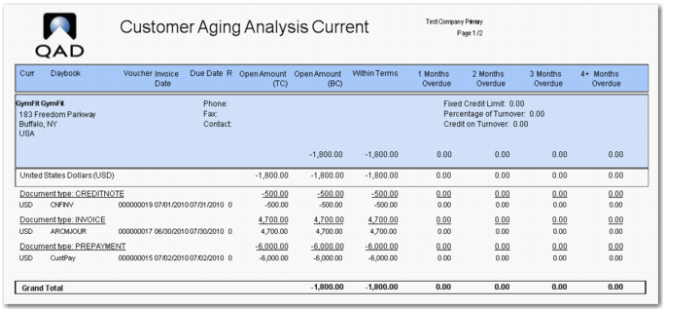
Customer Aging Analysis Current Report shows an example of a Customer Aging Analysis Current report when the report is run for the system date.
Customer Aging Analysis Current Report
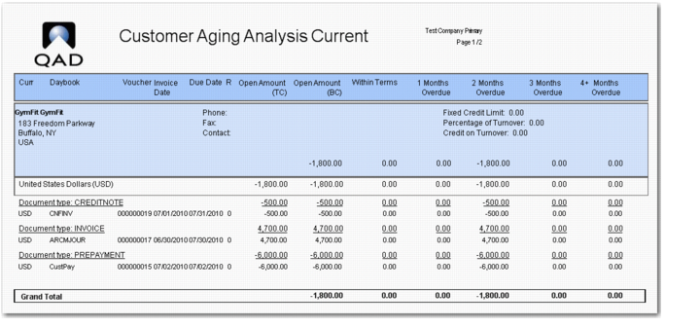
Customer Aging Analysis Current Report, Aged Two Months shows the report output when the report is run on the same system date, but with the Date for Aging Calculation field set to two months from the system date. Note that the credit note and invoice are now in the 2 Months Overdue column. The prepayment was not allocated so this remains as an open item. The prepayment is aged and also appears in the 2 Months Overdue column.
Customer Aging Analysis Current Report, Aged Two Months
Customer Aging Analysis History Report
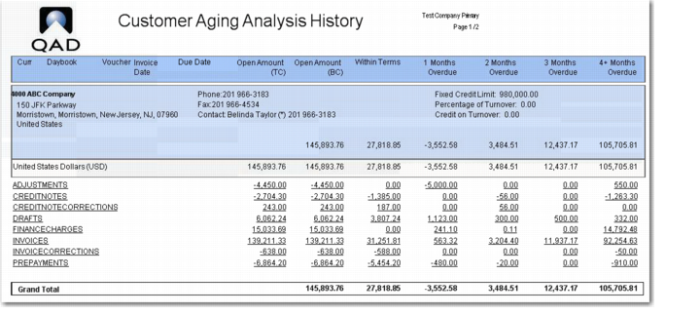
The Customer Aging Analysis History report (27.17.7) lists overdue items payments up until the end of the specified period. Overdue items are listed by type and the amount overdue. The items are then categorized by the amount of time by which they are overdue (1 month, 2 months, 3 months, and more than 4 months).
Important: You must set the Invoices within Terms selection field to Yes to list prepayments and adjustments on the report. The Age Prepayments/Adjustments selection field only affects whether prepayments and adjustments are aged—it does not affect whether to display prepayments and adjustments on the report.
The report has the following selection criteria in addition to those listed for the Customer Aging Analysis Current report:
• Currency Code
• Daybook Codes
• Cost Center Codes
• Age Prepayments/Adjustments
• Detail Level
• Customer Totals Only
• Full Details
• Transaction Summary by Customer
Customer Aging Analysis History Report
Customer Aging Analysis by Group Current Report
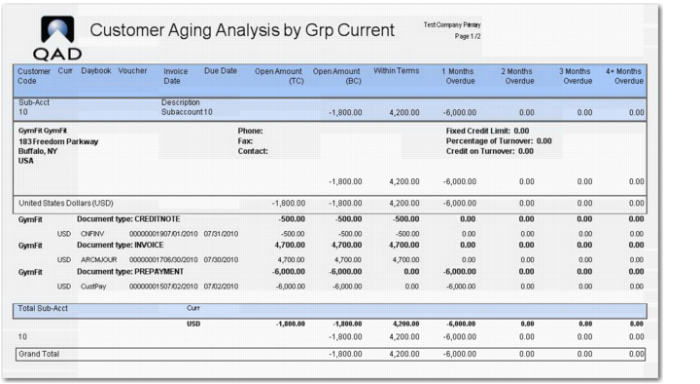
The Customer Aging Analysis by Group Current report (27.17.8) groups aging analysis data by sub-account, cost center, project, or customer type.
The report has the following selection criteria in addition to those listed for the Customer Aging Analysis Current report:
• Sub-Account Codes
• Group By (all, Customer Type, Cost Center, Project)
• Project Codes
• Detail Level
• Customer Totals Only
• Full Details
• Transaction Summary by Customer
Customer Aging Analysis by Group Current Report
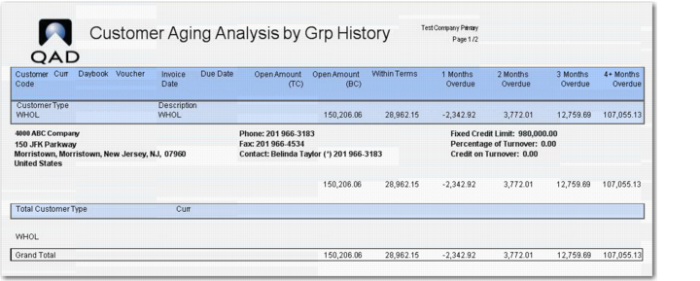
Customer Aging Analysis by Group History
The Customer Aging Analysis by Group History report (27.17.9) groups the data generated in Aging Analysis historically by sub-account, cost center, project, and customer type.
The report has all the same selection criteria as the Customer Aging Analysis by Group Current report, in addition to an Age Prepayments/Adjustments selection field.
Customer Aging Analysis by Group History Report