Customer Billing Workflow
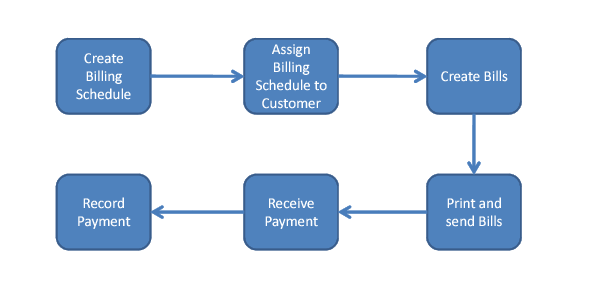
Typical billing workflow is illustrated in
Billing Workflow. Usually, the steps are:
1 Create a billing schedule. For example, you can define schedules to generate bills once a month on a particular day or several times a month or even weekly. You can define multiple billing patterns, depending on your needs.
2 Assign each customer a billing schedule, which specifies a default billing pattern for that customer. As part of this step, you can also assign an employee as the default bill collector.
3 Create a bill or bills for the customer based on the billing schedule. You can also update or override due dates and the assigned collector.
4 Test print bills to verify they are correct and then confirm print the bills to send them to the customer.
5 Receive payment from the customer. You may receive the payment in full or in part.
6 Record the payment to close the bill or to adjust the outstanding balance.
Billing Workflow
Billing Schedule Create
Billing schedules are created at system level. Using Billing Schedule Create (27.3.1.1), you can create billing schedules that define when to send bills to a customer and how the system calculates the due date of a bill.
Billing Schedule Code
Enter a meaningful code of up to 20 characters that describes the billing schedule.
Description
Enter a description of the billing schedule of up to 40 characters. For example, enter the dates on which the billing is to take place.
Active
To activate the billing schedule, select this field.
Pattern
Select a pattern, which is either a day in the month or weekly. If you select Day In Month, the Day In Month tab is active. If you select Weekly, the Weekly tab is active.
Select Invoice Based on
This field indicates which invoices are selected for billing. There are two options. If you select Invoice Date, the invoices included on the bill are invoices that are created in the active period. If you select Invoice Due Date, the invoices on the bill are invoices that fall due in the period.
Day In Month
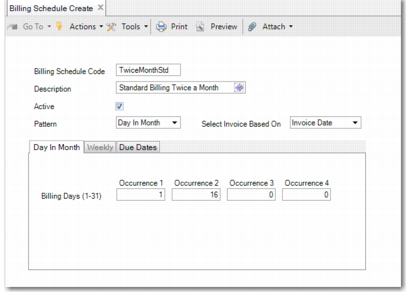
When you decide to create a bill based on particular days of the month, the Day In Month tab is active. You can create a monthly billing pattern with up to four occurrences. The invoices are selected based on the invoice date. To make the billing schedule valid, you must also complete the Due Dates tab.
In
Twice Monthly Billing Schedule, billing occurs twice a month.
Twice Monthly Billing Schedule
Note: When you enter 31 in an occurrence field and the month does not have 31 days, a bill is created on the last day of the month instead.
Weekly
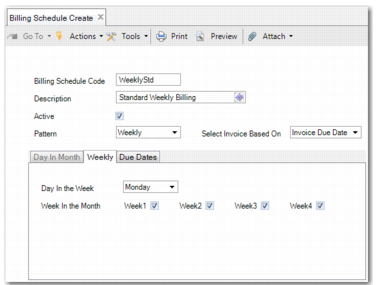
When you decide to create a bill weekly, on the same day of the week, the Weekly tab is active. There are two fields on this tab.
Day In the Week
Select the day of the week on which to bill the customer. The day you choose applies to all weekly occurrences.
Week In the Month
Select the weeks in the month to bill the customer. If you select all four weeks of the month, billing is assumed to take place on a weekly basis. Therefore, when a month has five occurrences of the selected day, the bill is created is five times.
Weekly Billing Schedule displays a weekly billing schedule. This schedule selects invoices based on the invoice due date.
Weekly Billing Schedule
Due Dates
The Due Dates tab enables you to specify the date on which the bill becomes due.
Bill Due Date
This field contains two options. To set the bill due date to the same date as the latest invoice in the selection, select Latest Invoice Due Date. When you select Latest Invoice Due Date, the Bill Due Date fields are disabled. To specify a rule for calculating the bill due date, select Months Delay and Due Day to specify a rule for the bill being due.
If you choose Months Delay and Due Day, you specify the Months Delay and Due Day for each billing occurrence.
Example: On the Day In Month tab, you have specified two billing occurrences in the month, on the 1st and the 16th. On the Due Dates tab, to specify that the billing due date is a month later, the Months Delay Occurrence 1 field must contain a value of 1. The Due Day Occurrence 1 field contains 31 in the Due Day field and 1 in the Months Delay field and 15 in the Due Day field for Occurrence 2.
Update Invoice Due Date
If you want to update the invoice due date to the Billing Due Date, select this field. You can verify the updated invoice date in Customer Invoice View (27.1.1.3).
Note: Whether you select this field or not, the bill date overrides the date on the credit terms of an invoice.
In
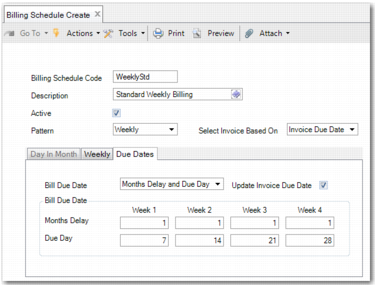
Due Dates, the due dates are set for a weekly schedule. The Months Delay field specifies that the bill is due in the following month. The Due Day field specifies the day of the month when each bill becomes due.
Due Dates
Note: To make the billing schedule valid, you must also complete the Due Dates tab. For weekly billing, the Due Day field must contain a value.