Set Bill Date
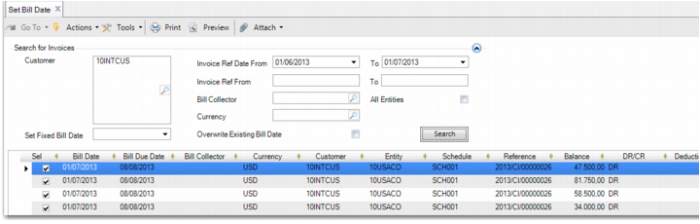
Set Bill Date (27.3.2.6) enables you to select invoices to include on a bill and assign a bill date to them according to the customer billing schedules. You can also overwrite an expected bill date for some or all of the invoices attached to a bill.
Note: Set Bill Date does not create a bill record. You create the bill in
Bill Create.
The top part of the menu screen enables you to specify search criteria for the invoices and bill you want to update.
Customer
Use the lookup to select a customer or customers. You can create bills for all your customers by leaving this field blank.
Invoice Ref Date From/To
Select an invoice reference date. This date refers to the Invoice Date or Invoice Due Date, depending on the billing scheduling settings. You can view these settings in the Select Invoice Based On field in Billing Schedule View. If you select a date range for which holidays have not yet been set up, a warning is displayed.
Bill Collector
Specify the bill collector for the invoices. The default bill collector is set on the Payment tab in Customer Modify.
Currency
Specify the currency of the invoices.
Overwrite Existing Bill Date
Use this field in connection with the Set Fixed Bill Date field. Select this field when you want to recalculate to the date in the Billing Schedule based on the date in Set Fixed Bill Date. To reset the bill date to the original date, clear the field and click Search.
All Entities
Select this field to search for customer invoices in multiple entities with the same customer shared set.
Set Fixed Bill Date
To set a fixed bill date, choose a day from the calendar and click Search. This date updates the Bill Date for all invoices to the new date in the Bill Date column. However, the date must be within the time period defined in the Invoice Ref Date From/To fields. You can clear the Selection field for any invoices you do not want to bill on the new date.
When you click Search, the grid displays the invoices that fall within the search criteria. The important columns are Bill Date and Bill Due Date. The dates in these columns are calculated based on the settings created in Billing Schedule Create. Only customers with a billing code are displayed in the list. The grid also displays the Invoice Date. All invoices that fall in this period are displayed. If a bill due date falls on a holiday or at the weekend, it is moved to the next available day.
When you are satisfied with the selected invoices on the bill and the bill due date, click Save.
Set Bill Date