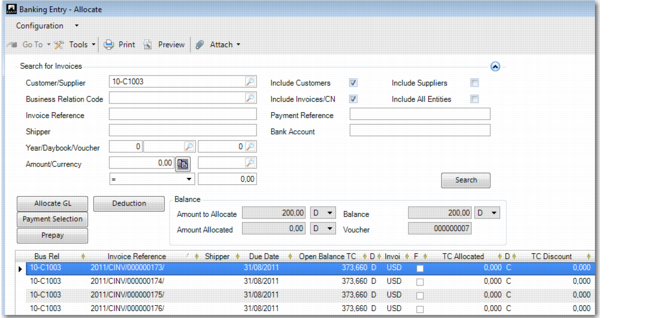
Allocate to Invoice
Use this option to select invoices to which you want to allocate the entry amount.
Banking Entry, Allocate to Invoice
Field Descriptions
Search for Invoices
Use the following search criteria to retrieve the customer or supplier invoices:
Customer/Supplier
Choose a specific customer or supplier, depending on the field selected. If multiple fields or no fields are selected, this field is unavailable.
Business Relation Code
Select open items for the specified business relation. You can further refine the search using the Include Customers and Include Suppliers fields. Any combination of the fields is valid when a business relation is selected.
Include Customers
If you select this field and have specified a business relation, only the open items of customers linked to that business relation display. If you select this field and have not specified a business relation, the Customer/Supplier field shows customers only.
This field is selected by default if the amount to allocate is positive.
Include Suppliers
If you select this field and have specified a business relation, only the open items of suppliers linked to that business relation display. If you select this check box and have not specified a business relation, the Customer/Supplier selection field shows suppliers only.
This field is selected by default if the amount to allocate is negative.
Include Invoices/CN
Select this field to include invoices and credit notes in the results.
Include All Entities
Select this field to extend the search to all entities defined in the system. Whenever an open item for another entity is selected, a cross-company posting is triggered.
Invoice Reference
Specify a payment reference that appears on the invoice.
Customer Shipper
For selecting customer invoices created from Invoice Post and Print, specify a shipper reference number.
Payment Reference
Specify an optional payment reference number for selecting invoices to allocate. If you are in the Single Euro Payments Area (SEPA), this reference is a SEPA reference number.
Bank Account
Enter a customer or supplier bank account number.
Year/Daybook/Voucher
Specify a GL calendar year, daybook, or voucher number. Any combination of the three subfields can be used. Click the lookup to select a daybook type.
Amount, Currency
Use the Amount and Currency fields to search for specific open balance amounts in a specific currency. Use the Copy Allocation Amount button to copy the original allocation amount into this field.
Use the operators to specify an amount range within which to search:
• When the operator is set to =, the system searches for the open balances that equal the value in the Amount field.
• When the operator is set to <= or >=, the system searches for open balances higher or lower than the value in the Amount field.
Example: When the amount is set to <= $1000, the search returns open items with amounts less than $1000.
Amount to Allocate
This amount defaults from the statement line.
Amount Allocated
This field displays the amount to allocate.
Balance
This field displays the difference between the amount to be allocated and the amount on this invoice as a credit or debit.
Voucher
This field displays the reference number for this allocation.
Bill Year/Number
Enter the year and number of the bill that this amount belongs to. This field is added using Design Mode.
Click Search to display all items that meet the search criteria in the grid.
Grid
Business Relation Code
This field displays the business relation of the customer or supplier for whom the open item was created.
Invoice Reference
This field displays the invoice reference number.
Shipper
This field displays a shipper reference number that appears on invoices created through Invoice Post and Print.
Due Date
This field displays the due date of the open item.
Amounts can be positive or negative. To obtain the most current view of the movement, the amounts must always be interpreted in combination with the Debit/Credit (D/C) indicator.
Allocation Type
This field displays the type of allocation being performed.
Open Balance
This field displays the current open balance in the transaction currency.
Debit/Credit
This field indicates whether the open item is a debit or credit.
Invoice Currency
This field displays the open item currency.
Full Allocation
Select this field to allocate the full amount of the entry to the invoice. The result is reflected in the Amount Allocated field in the Balance area of the screen. Use the TC Allocated field to make a partial allocation.
TC Allocated
Enter the amount to allocate to the invoice. If you are not allocating the full amount, enter the partial amount here.
The system automatically splits the allocated amount into a TC Paid Amount and a TC Discount amount, based on the credit terms and the payment date.
TC Discount = TC Allocated * Discount% / 100
TC Paid = TC Allocated – TC Discount
The relevant rounding method is then applied to the result.
Note: For invoices with tax, the payment amount also contains a tax component. If the tax rate has Discount Tax at Invoice set to Yes, the discount amount at the time of payment only applies to the tax base amount.
Debit/Credit
This field indicates whether the open item is a debit or credit.
TC Discount
This field displays the discount that applies for early payment, based on the credit terms.
You can always overwrite the discount amount proposed by the system by entering the amount yourself. Then, TC Allocated is recalculated as TC Paid + TC Discount.
TC Paid
Enter the amount to pay, excluding the discount. The system recalculates the TC Allocated amounts as TC Paid + TC Discount.
New Balance
This field displays the balance of the open item after the movement is allocated.
Debit/Credit
This field indicates whether the open item is a debit or credit.
Entity Code
This field displays the code of the entity in which the open item was created.
Cost Center/Project/Sub-Account
Click to optionally select a cost center, project, or sub-account for analysis on this allocation. This option is available for prepayments only.
Creating a Deduction
You can record a deduction if a customer pays less than the amount owed. Reasons for deductions can include rounding differences, reductions due to quality issues, perceived entitlements based on commercial agreements, damaged goods, spoilage, improper packaging or labeling, or any other reason for which a customer may pay less.
The process for entering deductions is similar to that for creating prepayments. However, unlike prepayments, you can enter many deductions for a single payment transaction. Click on the Deduction button to open Banking Entry–Deduction.
Deductions and how to record them are described in detail in
Processing Deductions.
Allocating Payment to Invoices with Staged Credit Terms
You can allocate payment to invoices with staged credit terms using two different approaches:
• You can apply the payment at the invoice level, and the payment and allocation values are rolled down to the staged payment.
• You can apply the payment at the staged payment level, and the payment, allocation, and discount amounts are rolled up to the invoice line.
Example:
Invoice Line that Includes Staged Payments shows an outstanding customer invoice for 10 USD that includes staged credit terms. The staged payment details are shown on the level 2 grid line for the invoice.
The values you enter at the staged level are rolled up to update the TC Allocated, TC Paid, TC Discount, and New Balance values at the invoice level.
Invoice Line that Includes Staged Payments
As shown in
Payment Amounts for First Staged Payment Due, you use the staged payment fields at level 2 and enter a TC Paid amount of 4 USD and a TC Stage Discount amount of 1 USD for the first staged payment due against the invoice. The TC Stage Allocation field at level 2 now displays 5 USD—the total amount to allocate against the invoice for that payment stage.
The TC Paid field for the invoice now displays 4 USD, the TC Allocated field displays 5 USD, the TC Discount field displays 1 USD, and the New Balance field displays 5 USD because 5 USD is being allocated to the outstanding invoice amount of 10 USD. These values indicate that the payment values for the first payment stage have been rolled up to the invoice level.
Payment Amounts for First Staged Payment Due
As shown in
Payment Amounts for Second Payment Stage Due, you use the level 2 fields and enter a TC Paid amount of 3 USD and a TC Stage Discount amount of 0.40 USD for the second payment stage (open amount of 3.40 USD). The TC Stage Allocation field for the second payment stage now contains 3.40 USD—the total amount to allocate against the invoice for the second staged payment.
On the invoice line, the TC Paid field for the invoice now contains 7 USD, the TC Allocated field contains 8.40 USD, the TC Discount field contains 1.40 USD, and the New Balance field contains 1.60 USD—the new outstanding balance. This indicates that the paid, allocated, and discount values for the first and second staged payments have been rolled up to the invoice level.
Payment Amounts for Second Payment Stage Due
Example:
You enter payment for an invoice with staged payments at the invoice line level, as opposed to the staged payment level. The invoice of 10 USD must be paid in two stages—one for 66% of the amount and the other for 34% of the amount. The stage for 66% is due first.
On the invoice line, you enter a TC Paid value of 6 USD. This value is rolled down to the staged payment level and automatically allocated against the staged payment due for 6.60 USD (66% of the invoice value). The TC Paid value you enter at the invoice line is always allocated against the first payment stage due.
Payment Specified at Invoice Line
As shown in
Payment Specified at Invoice Line, Amount Applied to Two Stages, if you enter a TC Paid value on the invoice line that is greater than the open balance of the first staged payment, the amount over the first staged payment is applied to the staged payment with the next nearest due date.
Payment Specified at Invoice Line, Amount Applied to Two Stages
The following are the key fields used to allocate payment to invoices with staged credit terms:
TC Stage Allocation
Enter the total payment amount to apply to the staged payment. This amount is the sum of the values in the TC Stage Paid and TC Stage Discount fields for that grid row.
TC Stage Discount
Specify the discount amount to apply to the payment stage.
TC Stage Paid
Enter the amount to deduct from the staged payment. For customer payments, this is the actual amount you received from the customer’s bank, excluding discounts.
TC Default Payment Amt
This field displays the open balance for each payment stage.
TC Default Discount Amt
If the stage payment condition includes discount terms, the discount amount applicable is displayed in this field.
Stage Discount Percentage
This field displays the discount applicable for the staged payment, if any.
Stage Due Date
This field displays the date on which the staged payment is due. The date is calculated using the invoice date and the staged credit term details.
Stage Discount Due Date
This field displays the date on which the discount on the staged payment is due. The date is calculated using the invoice date and the staged credit term details.
Configuring the Allocation Screen
The screen that displays when you select Allocate to Invoice includes a Configuration option. Select this option to display a settings screen.
Default Allocation Settings
Use the Default Allocation Settings window to determine which data in the bank entry line should default into the corresponding selection criteria in the allocation screen. Your settings are saved on your client computer so that the next time you create a bank statement line, the value of each selected field is copied from the line to the Filter section of the allocation screen. This can greatly streamline the allocation process.
The bank account passed to the next screen is the customer’s bank account specified in the Reference Details option, and the currency is the external currency specified in the Value Details option.
Example: You select the Amount field in Default Allocation Settings. When you create a banking statement line for $10,000 and then choose Allocate to Invoice, $10,000 displays in the Search Criteria for Invoices so you can quickly find the matching invoice.