Errors in Transaction Processing
The system processes transaction messages automatically when there is a complete match between the bank file and the system records for the following data:
• Customer or supplier identification. The identification can be a name, a code, or a bank number.
• Payment number or payment reference. For message types that change the status of a payment to Paid or Bounced, the system must be able to locate the original payment.
• Invoice reference list. For the Create Customer Payment message type, the list of paid invoices or credit notes is added.
• Amount. For message types that change the status of a payment to Paid or Bounced, the amount must match the original payment amount.
For the message type Create Customer Payment, the amount must equal the open balances total for invoices specified in the Invoice Reference List.
• Currency. The transaction message currency must match the currency of the original payment.
When one of these values does not match, the transaction line is displayed in red on the grid and the error is detailed.
For the Create Customer Payment message type, when the customer record exists, but the invoice reference list or amount does not match, the system creates a customer payment with the status Initial. However, if you have changed this setting in Payment Processing Configuration Maint, the system may create a prepayment or an unallocated banking entry.
Bank File Process Error Message
You can use the customer, supplier, bank number, invoice, or payment number lookups on the grid to manually select the correct value and process the transaction message.
The system also displays errors for the following occurrences:
• The customer bank account number is not defined for this customer.
• Your bank account number has not been linked to this customer.
• Your bank account is not linked to the payment format that contains the mapping for this transaction code.
• The correct payment status has not been defined for this customer.
The system does not process a transaction for which there is an error. When you process transactions in batch and an error is encountered, none of the transactions in the batch are processed.
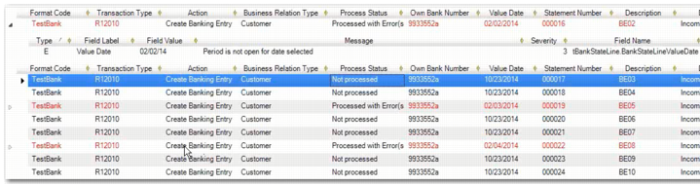
Lines that process with errors are red in color and identified by an arrow to the left of the line, as displayed in
Bank File Process Error Message. To view the error message associated with the line, click the arrow. The message indicates why the line failed to process. You can manually configure the missing or incorrect data and load the file again for reprocessing.
Note: Where the action taken for a bank line is different from the specified action, an information message is returned, indicating that a manual step is required later.