Imported Bank File Report
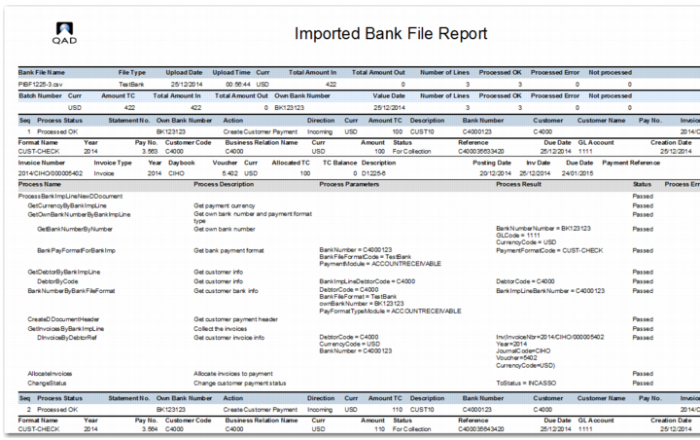
The Imported Bank File Report (31.1.11) displays details on the status and allocation of imported bank files or batches of files. The level of detail—summary or detail—included in the report enables it to be used for audit purposes and for troubleshooting. The following are the report parameters:
Bank File Name
Enter the name of an imported bank file you want to report on. You must complete at least one of the Bank File Name, Batch ID, or File Processing Date selection criteria; you cannot leave all three fields blank.
Batch ID
Enter the batch ID of an imported bank file you want to report on. You must complete at least one of the Bank File Name, Batch ID, or File Processing Date selection criteria; you cannot leave all three fields blank.
File Processing Date
Enter a date range for the bank files to report on. You must complete at least one of the Bank File Name, Batch ID, or File Processing Date selection criteria; you cannot leave all three fields blank.
Entity
Specify an entity.
Own Bank Number
Enter the bank number. The bank number should be for the selected entity.
Action Type
Choose from Create Customer Payment, Pay Customer Payment, Pay Supplier Payment, Bounce Customer Payment, Bounce Supplier Payment, Create Banking Entry, Acknowledge Bank Receipt, Other.
Line Status
Choose from Processed OK, processed with Error, not Processed.
Show Payment Details
Choose Yes or No. If you select Yes, the report displays the payment details for customer and supplier payments, and for banking entries allocated to payments.
Show Processing Info
Choose from All Lines, Error Lines Only, None. If you choose None, only payment information is displayed.
Processing Info Level
When you choose to show processing information, you can choose the level of detail to show; Full Detail or Summary.
User ID
To search for bank files imported by a particular user, enter the user ID.
Result Action
You can run a report based on the action taken by the Process Incoming Bank Files Function. Choose from Create Customer Payment, Pay Customer Payment, Pay Supplier Payment, Bounce Customer Payment, Bounce Supplier Payment, Create Banking Entry, Acknowledge Bank Receipt, Other, Create Prepayment, Create Initial Customer Payment.
Is Different Action
Choose Yes or No. If you select Yes, the report displays those records where the resulting action is different to the one specified by the record.
Note: To display the detail processing log on summary level or detail level, you must activate the Process Incoming Bank File Log. You can activate this log on the General tab of Domain Modify (36.1.1.1.2).
Imported Bank File Report
The report displays different types of detail, depending on whether the record was a successfully processed customer payment, supplier payment, or banking entry, or if the record was unprocessed or processed with errors. The report contains up to five sections.
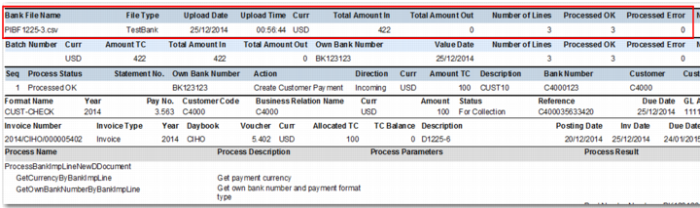
Bank File Name
The bank file name section displays details of the imported bank file, including an overview of the processing result.
Imported Bank File Report, Bank File Information
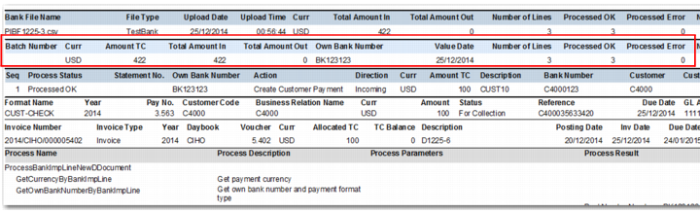
Batch Number
This section of the report identifies the batch number of the bank file you have imported. This section also contains other details such as the currency, total amounts involved, and own bank account number.
Imported Bank File Report, Batch Information
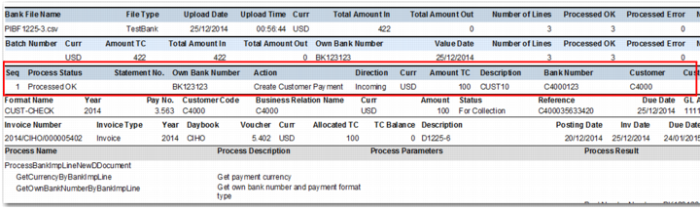
Sequence
For each line in the bank file, a sequence line displays details of how the line was processed. It indicates other details such as whether the line processed successfully, which bank account was involved, and the action type that was taken as a result of processing the line.
Imported Bank File Report, Line Information
Bank File Processing Result
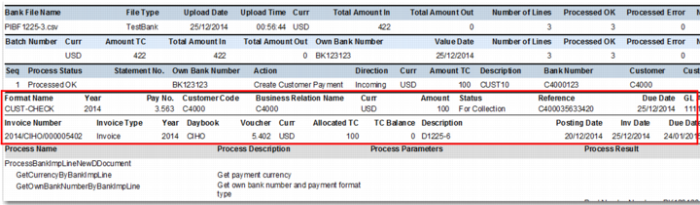
The bank file processing result area contains two parts. The Format Name line contains header information, such as the business relation name, currency, amount, and payment reference. The second line contains the details of the payment, as displayed in
Imported Bank File Report, Processing Result. You can hide this line using the report filter by setting Show Payment Detail to No.
Imported Bank File Report, Processing Result
Bank File Processing Log
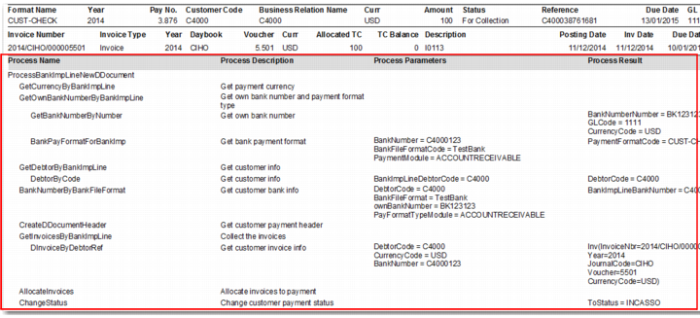
This part of the report is only visible when logging is enabled for the domain in Domain Modify. It displays details of the processes that have run for this bank line, along with the result of the process. You can control whether this section is displayed using the Show Processing Info filter criteria. You can choose to display results for no lines, all lines, or only those that contain errors.
The Processing Info Level filter criteria enables you to specify whether to display processing information at summary or detailed level. In
Imported Bank File Report, Log with Details/Summary, the processing info level is set to detailed.
Imported Bank File Report, Log with Details/Summary