Updating the Supplier Payment Reference
Supplier Payment Reference Modify lets you record the supplier payment reference (boleto bancário number) on an invoice or stage.
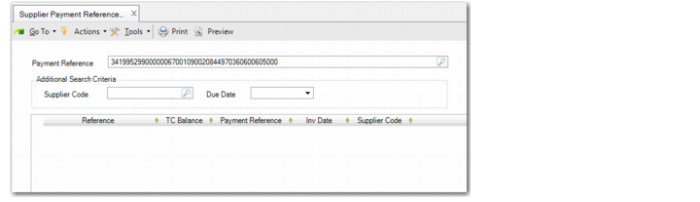
Enter the 44-digit supplier payment reference in the Payment Reference field. The last 10 digits of the reference indicate the payment amount. You also have the option to use a scanning device to scan in the
supplier payment reference directly from the barcode on the printed
boleto bancário. See
Scanning the Boleto Bancário Barcode.
Supplier Payment Reference Modify, Matching Invoice
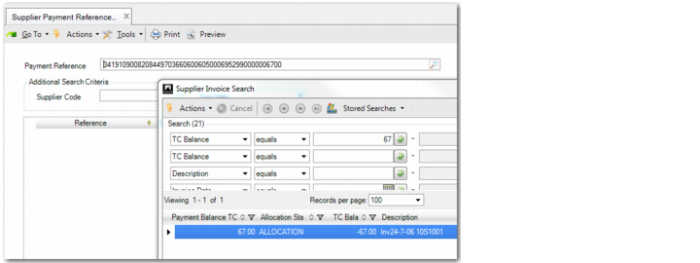
When you click the Search button in Supplier Payment Reference Modify, the system reads the last 10 digits of the number and retrieves invoices and invoice stages with matching payment amounts.
Supplier Payment Reference Modify, Matching Invoice
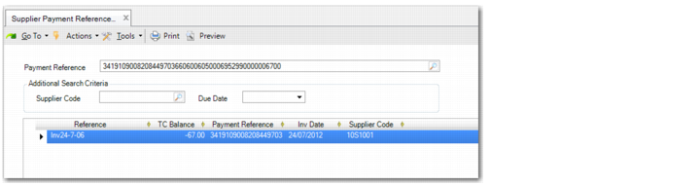
When you select an invoice or invoice stage, the Payment Reference field in the grid is populated with the supplier payment reference. If you select more than one invoice or stage, the Payment Reference field in the grid is updated for all selected invoices or stages. To select more than one invoice or stage in Supplier Invoice Search; hold the Ctrl key, use your mouse to click and select multiple lines, and then press Enter.
Supplier Payment Reference Modify, Updated Grid Line
Supplier Payment Reference Modify contains the following fields:
Payment Reference
Specify the supplier payment reference as it appears on the boleto bancário.
Note: If you manually enter a 44-digit number, the system expects the payment amount in positions 10 to 19. When you click the Search button, the system reformats the 44-digit reference so that the payment amount is in the last 10 digits of the reference.
Supplier Code
Specify a supplier code to retrieve payments for that supplier. This field is optional.
The system uses the supplier code you enter together with the payment reference and, optionally, the due date, to refine the results retrieved when you click the Search button.
Due Date
Specify a due date to retrieve matching payments. This field is optional.
The system uses the due date you enter together with the payment reference and, optionally, the supplier code, to refine the results retrieved when you click the Search button.
Grid Fields
Reference
Displays the reference recorded for the invoice in Supplier Invoice Create.
TC Balance
Displays the open balance for the invoice or stage.
Payment Reference
When you select an invoice or stage, the Payment Reference field in the grid is populated with the supplier payment reference you specified in the header field. This field is blank if you have not yet selected invoice or stage lines to update.
Invoice Date
Displays the date on which the invoice was recorded in the system.
Supplier Code
Displays the code for the supplier who issued the invoice.
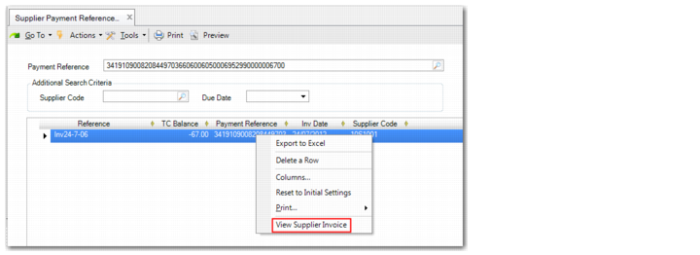
When the grid has been updated with a matching invoice or stage, you can use the right-click menu to access and view the associated supplier invoice record.
Supplier Payment Reference Modify, Right-Click Menu
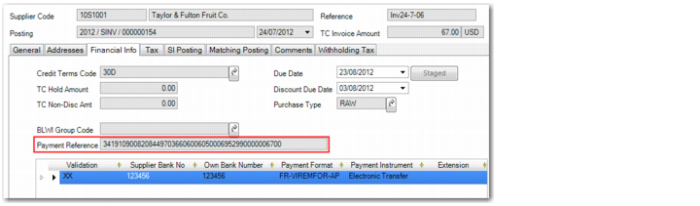
When you click Save in Supplier Payment Reference Modify, the Payment Reference field on the invoice record is populated with the payment reference. In Supplier Payment Reference Modify, the Payment Reference field and the grid are cleared.
Supplier Invoice View, Financial Info Tab
If there are unsaved payment references in the grid and you click the Close button, a warning is displayed prompting you to indicate if you want to save the changes in the screen.
Important: If you change the supplier payment reference in the header after invoice or stage lines have been retrieved and then click Save, all lines in the grid are updated with the new supplier payment reference, and not the reference displayed in the header when the lines were retrieved.