Creating a Report Structure
You use the Budget Create (25.5.1.1) activity to create a budget structure for use as a report structure. Only minimal budget data is needed in the header, including the budget code and description.
General Tab
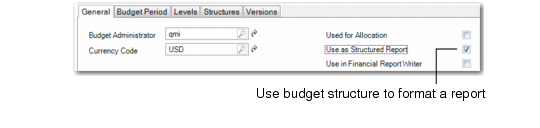
On the General tab, select the Use as Structured Report field. When you select Use as Structured Report, the system validates and categories the report structure data differently than for general budget data. Also, the report structure is available in the selection criteria of the reports. No other fields in the General tab are required when defining a report structure.
Budget Create, Use as Structured Report Field
Periods Tab
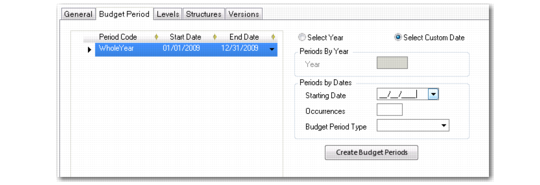
Use the Budget Period tab to define a minimum of one period for the report structure; you can create a single period for the entire year.
Note: If you define a report structure to include budget data in addition to GL and chart of account details, you must define the period to coincide exactly with the budget time frame.
Budget Create, Budget Period Tab
Levels Tab
Use the Levels tab to define the number of levels to include in the report structure hierarchy. Report structures are defined top-down, so include subtotals at the highest levels in the hierarchy.
The GL account level is mandatory and must be the first COA element you include in the report structure hierarchy, after the subtotal levels. The other COA elements are not mandatory, but if you use them, define them in the sequence Sub-Account, then Cost Center/Project.
You cannot define subtotal levels within the COA elements. Therefore, if you define subtotals at levels 1 and 2, and GL accounts at level 3, you cannot define a subtotal again at level 4.
A report structure can contain a maximum of 15 levels. You use the Topic Level field in the report Selection Criteria to indicate the level of detail that you want the structured report to contain. For example, Level 1 indicates that amounts are shown for topics on the top level only.
Note: You cannot define SAFs as report structure levels.
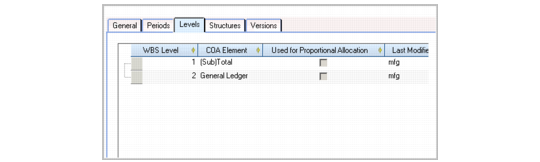
Budget Create, Levels Tab with Structure Hierarchy
Structures Tab
Use the structure tab to link a COA element or subtotal to each level topic, as described in
Budgeting.
Budget Create, Levels Tab with Structure Hierarchy shows that there are two levels in the report structure, and that GL accounts are at level 2. In
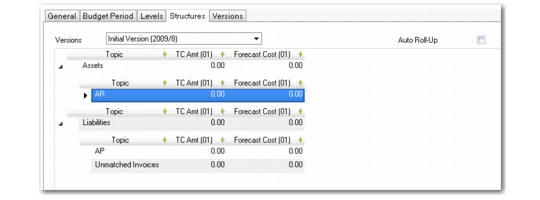
Budget Create, Structures Tab with Report Structure, Assets and Liabilities are subtotal levels, and cannot have accounts linked. The AR, AP, SIREC, and Result of Current Year level 2 topics have linked GL accounts.
If the structure includes lower COA levels, you must link the elements in a one-to-one combination with one GL account, one sub-account, and one cost center or project in the hierarchy of a topic. You cannot use ranges or lists when linking sub-accounts, cost centers, or projects.
Budget Create, Structures Tab with Report Structure
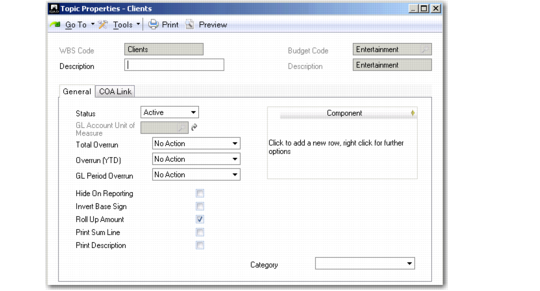
The Topic Properties screen used to link COA elements or alternate COA elements to budget and report structures contains several fields that are specific to report structures: Description, Hide on Reporting, Invert Base Sign, Roll Up Amount, Print Sum Line, Print Description, and Category.
Budget Create, Topic Properties, General Tab
Description
Specify a description of the topic that you can optionally print on structured reports. You can enter up to 120 characters.
When using Budget Create to define a report structure, you can choose to print the topic description when reports based on this structure are printed. You indicate your topic printing preference using the Print Description field on the Topic Properties General tab.
The Description field and Print Description field are only enabled if the Use as Structured Report field is selected on the General tab of Budget Create.
Hide on Reporting
Select the field to hide topics on the report.
Invert Base Sign
The Invert Base Sign field lets you change how debit and credit amounts are represented for a report structure topic.
The display sign of an amount on a topic is derived as follows.
Invert Base Sign Rules
Topic Balance | Invert Base Sign? | Operator Displayed |
Debit | No | + |
Debit | Yes | - |
Credit | No | - |
Credit | Yes | + |
Roll Up Amount
Select the field to indicate whether the current topic level can be rolled up to a higher level. This field is particularly useful when using report structures to create regional reports because in some regional accounting systems, such as the Chinese Accounting System, accounts cannot be rolled up above budget level.
Print Sum Line
Select the field to print a header and footer line for the linked accounts. In some regional reports, account subjects can require a header line and a footer line; for example, “Current Asset” or “Current Asset Sum.” If you select the field, the system inserts a sum line and the original line is appended with a colon.
Print Description
Select this field if you want to print the topic description on reports based on this structure.
You specify a topic description using the Description field in the Topic Properties header.
The Description field and Print Description field are only enabled if the Use as Structured Report field is selected on the General tab of Budget Create.
Category
Select an option to indicate the GL category of accounts linked to the current level in the budget or report structure. When creating a report structure for a regional report, you can only link accounts of the same category. If you link accounts from more than one GL category to a structure level, you receive an error.
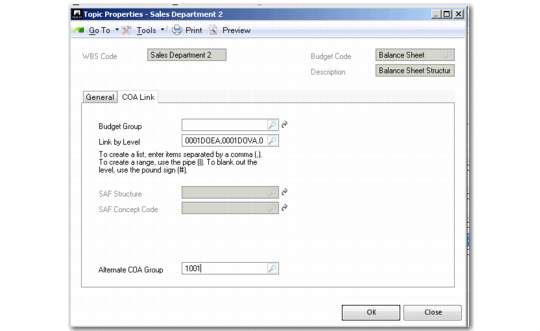
Topic Properties, COA Link Tab
Alternate COA Group
Specify an alternate COA group on which to base the report output. This step is sometimes required when creating a regional report based on an alternate COA structure, such as the Chinese Balance Sheet. When creating a regional report, you can still link some topic to non-alternate COA elements—it depends on how your alternate COA is configured.
An alternate COA group code functions in a similar way to a budget group code, and links level 1 alternate COA accounts. When a level 1 alternate COA account is assigned to a group code, all lower-level alternate COA accounts in that structure are then automatically mapped to the group code.