Automatic Reversal
Reversing Journal Create (25.13.1.14) lets you create a journal entry that reverses automatically in the next GL period; you do not have to manually reverse the transaction. You also have the option to use correction of accounting for the reversing journal entry.
When you create a posting in Reversing Journal Create (25.13.1.14), both the original and reversing journal entries are created.
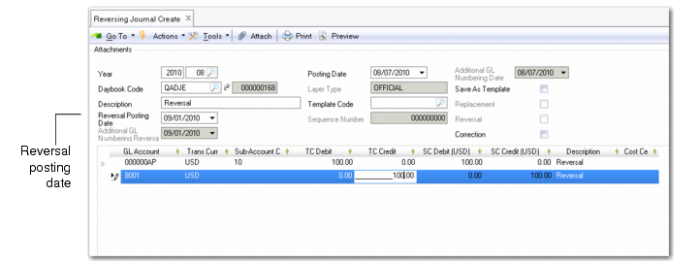
Reversing Journal Create
Reversing Journal Create is based on Journal Entry Create and contains many of the same fields. However, the following two fields are exclusive to reversing journal entries:
Reversal Posting Date
The reversal posting date defaults to the first day of the GL period following the original journal entry posting date. However, you can change the default date, and specify a new date.
Note: The reversing posting must always be posted to a future period. The posting occurs even if the posting GL period is not yet open.
Correction
Select this field to reverse the journal entry as a correction. When you create a correction, the postings are netted out, and the balance becomes zero.
Example:
A company uses temporary workers during December 2014, and the cost estimate is $18,000. The actual invoice will not be received until January 2015. In order to correctly reflect the costs for 2014, the cost for temporary staff must be included in the year 2014 books.
The company creates an automatically reversing journal entry on December 31 for the estimated cost of $18,000. On January 1, the posting is automatically reversed.
The financial statements for 2014 now correctly reflect the cost of temporary staff.
Automatic Reversal Using Excel
There are two ways of creating automatic reversal journal entries using Excel integration. You can use Journal Entry Cross Co Excel Integration (25.13.1.10) or Journal Entry Excel Integration (25.13.1.6).
Note: It is recommended that you use Journal Entry Cross Co Integration. For full details of the functionality available with Journal Entry Cross Co Excel Integration, see
Intercompany and Cross-Company Transactions.
To generate automatic reversal postings, you must enter the correct values in the relevant columns of the Excel file.
Journal Entry Cross Company Excel Integration Auto Reversal Excel Settings displays the auto reversal Excel file settings for Journal Entry Cross Co Excel Integration.
Journal Entry Cross Company Excel Integration Auto Reversal Excel Settings
Column Position | Column Name | Field Name | Normal | As Correction |
AV | Automatic Reversal | tPostingMultiCy.PostingIs
AutoReversal | TRUE | TRUE |
AW | Automatic Reversal Type | tPostingMultiCy.Posting
AutoReversalType | ORIGINAL ENTRY | ORIGINAL ENTRY |
AX | Reversal Posting Date | tPostingMultiCy.Posting
AutoReversalDate | reversal date | reversal date |
AZ | Correction | tPostingMultiCy.Posting
IsCorrection | FALSE | TRUE |
Journal Entry Excel Integration Auto Reversal Excel Settings displays the auto reversal Excel file settings for Journal Entry Excel Integration.
Journal Entry Excel Integration Auto Reversal Excel Settings
Column Position | Column Name | Field Name | Normal | As Correction |
AO | Automatic Reversal | tPosting.PostingIsAutoReversal | TRUE | TRUE |
AP | Automatic Reversal Type | tPosting.PostingAutoReversalType | ORIGINAL ENTRY | ORIGINAL ENTRY |
AQ | Reversal Posting Date | tPosting.PostingAutoReversalDate | reversal date | reversal date |
AS | Correction | tPosting.PostingIsCorrection | FALSE | TRUE |