Modifying Reporting Daybooks
Reporting Daybook Modify (25.13.1.15) lets you change the reporting daybook code on financial transactions created using customer and supplier invoice and payment functions, Banking Entry Create (31.1.1), Open Item Adjustment Create (25.13.5), Petty Cash Create, and Invoice Post and Print (7.13.4).
For invoice-type transactions, the reporting daybook normally matches the posting daybook. However, if a transaction was posted using an incorrect daybook, you can use Reporting Daybook Modify to modify the reporting daybook to ensure that the transaction is reported on correctly. You can also use Reporting Daybook Excel Integration (25.13.1.16) to update the reporting daybook.
After using Reporting Daybook Modify, you can use the Reporting Daybook Exception report (25.8.13) to identify transactions for which the reporting daybook has been modified.
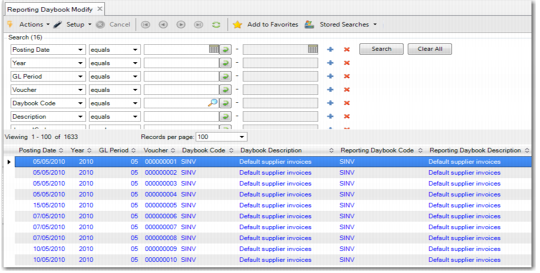
When you open Reporting Daybook Modify, a browse opens listing all invoice type transactions for the current domain. You can use the selection criteria to refine the list and locate the transaction for which you want to modify the reporting daybook.
If you want to view the original transactions, right-click on the relevant transaction and select a related view. Otherwise, you can double-click on the transaction to display the reporting daybook information.
Reporting Daybook Modify
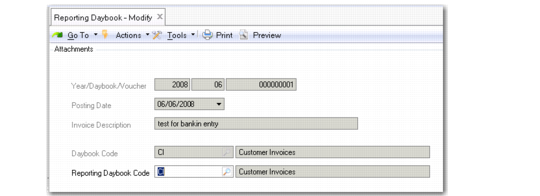
When you double-click the transaction you want to modify, the system displays the following window:
Reporting Daybook Modify (25.13.1.15)
Year/Daybook/Voucher
This field displays the posting reference. The system generates a posting reference for all invoices, credit notes, open item adjustments and banking entries based on the combination of the entity, year, and daybook.
Posting Date
This field displays the date on which the transaction was posted. This date defaults from the invoice or transaction creation date.
Description
This field displays a description of the posted transaction.
Daybook Code
This field displays the daybook code associated with the posted transaction.
Reporting Daybook Code
Select the reporting daybook that you want to apply to the transaction. You can only specify a reporting daybook that has the same daybook type as the original daybook.