Creating Business Relations
Use the Business Relation activities (36.1.4.3) to create, view, modify, and delete business relation records. You can also use the Excel Integration option to export records to or load records from an Excel spreadsheet.
Business relations can be saved in draft format when Draft Instances is selected in System/User Settings, Change System Setting. When you save a record in draft format, none of the system validations are executed. You can then return later to complete the record by choosing the Business Relation Browse Drafts activity (36.1.4.3.6) and selecting the record you want to finish from the list. For more information on drafts, see
Introduction to QAD Enterprise Applications User Guide.
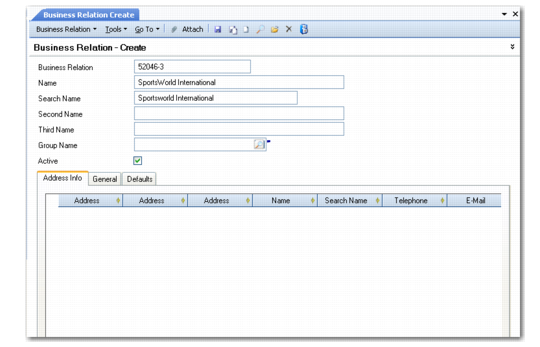
Business Relation Create
Field Descriptions
Business Relation
Enter a code (maximum 20 characters) to identify the business relation. You can use numerical or alphanumerical codes. To simplify searches, you should adopt a convention that is easily understood.
If you leave the Business Relation field blank, the system automatically generates a number for the record based on the sequence defined in Business Relation Autonumber Create. See
Autonumbering Sequences.
Name
Specify the full name (maximum 36 characters) of the business relation. This field sets the default name for linked addresses such as customers and suppliers. Name defaults from the Business Relation field.
Search Name
Specify an alternate name (maximum 28 characters) for finding the business relation. This can be useful for sorting and filtering. Search Name defaults from the Business Relation field.
Second Name
Optionally, enter an extended name (maximum 36 characters) when the Name field is not large enough to contain all information.
Third Name
If needed, enter a third name, required for some regional reports.
Group Name
Specify a corporate group to associate with the business relation for reporting. Click the Go To button to create a corporate group. See
Corporate Group.
Active
Indicate if this is an active record.