Trial Balance View
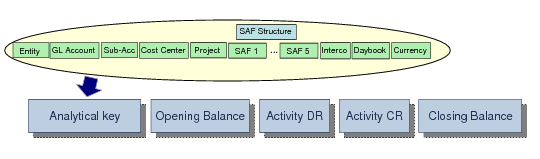
The Trial Balance View (25.15.2.9) lets you view balance details for combinations of analytical elements that meet the selection criteria. You can use the view to ensure that the total of the debit balances equals the total of the credit balances for the selected GL periods.
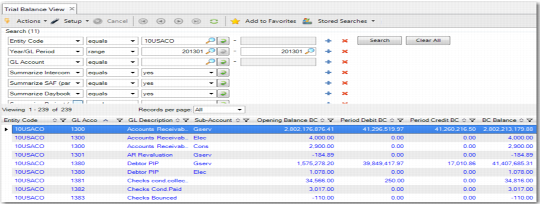
As shown in
Filtering, the Trial Balance View contains some additional filtering options relative to GL Transactions View Extended.
Filtering
The Opening Balance BC column can have two values, depending on the GL account. If the GL account is a Balance Sheet account, the Opening Balance BC column contains the Life To Date (LTD) balance. The LTD balance is the sum of all transactions for all years and months prior to the selected GL period.
If the GL account is a P&L account (also called an Income Statement account), the Opening Balance BC column contains the Year To Date (YTD) balance. The YTD balance is the sum of all transactions in the selected year for the months prior to the selected GL period. For example, if the selected GL period is 2014/11, the YTD balance includes all transactions from January 2014 until the end of October 2014.
If the selection criteria includes the last GL period of the previous year and contains all accounts, and if the year-end closing is not finalized, the view displays the Result of Previous Year value.
The Period Debit BC and Period Credit BC columns contain the sum of all transactions in the selected period. In addition, the Balance BC column contains the closing balance at the end of the selected period. This value is calculated as:
(Opening Balance BC + Period Debit BC) – Period Credit BC
Trial Balance View (25.15.2.9)
Trial Balance View Filters and Columns lists the columns and filters in the Trial Balance View.
Trial Balance View Filters and Columns
Columns | Filters |
Active GL Account | Balance Sheet Account |
Balance Sheet Account | Base Currency |
Cost Center | BC Balance |
Currency | Cost Center Analysis |
Daybook Code | Cost Center Code |
Daybook Type | Cost Center Description |
Entity Code | Currency |
GL Account | Daybook Code |
GL Category | Daybook Type |
GL Type | Entity Code |
Intercompany Code | Fixed IC |
Layer Code | GL Account |
Layer Type | GL Category |
Only Balances with SAFs | GL Description |
Project | GL Type |
SAFs 1 - 5 | Intercompany Code |
SAF Concepts 1 - 5 | Layer Code |
SAF Structure | Layer Type |
Sub-Account Code | SC Balance |
Summarize Cost Center | Opening Balance BC |
Summarize Currency | Opening Balance SC |
Summarize Daybook | Opening Balance TC |
Summarize Entity | Period Credit BC |
Summarize Project | Period Credit SC |
Summarize SAF | Period Credit TC |
Summarize Intercompany Code | Period Debit BC |
Summarize Sub-Account | Period Debit SC |
Year/GL Period | Period Debit TC |
| Project Analysis |
| Project |
| Project Description |
| SAF Analysis |
| SAFs 1 - 5 |
| SAF Concepts 1 - 5 |
| SAF Structure |
| Sub-Account Analysis |
| Sub-Account |
| Sub-Account Description |
| TC Balance |
Trial Balance View Right-Click Options
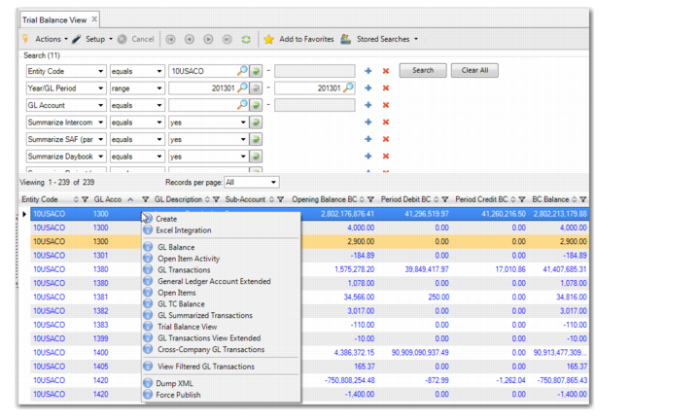
Right-Click Options shows the related views that are available as right-click options from the Trial Balance View.
Right-Click Options
The Trial Balance View contains many of the same right-click options as the GL Transactions View Extended. See
GL Transactions View Extended Right-Click Options for information on these options. The following option is unique to the Trial Balance View:
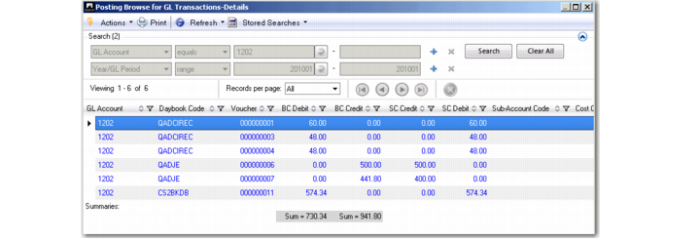
• GL Transactions-Details
Opens the Posting Browse for GL Transaction details, shown in
Posting Browse for GL Transaction Details.
Posting Browse for GL Transaction Details
Trial Balance View Summarize Filters
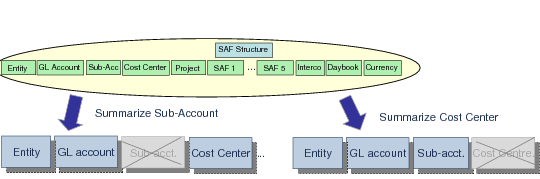
The Trial Balance View contains a number of summarization filters, such as Summarize Sub-Account, Summarize Cost Center, Summarize Project, Summarize SAFs, and Summarize Daybook.
The summarization filters determine the level of analytical information that the search results display. The results are summarized to exclude the level of analytical detail that you have selected to summarize on. Using the example in
Summarize Filters, if you select Summarize Sub-Account, the detail lines display data for entities, GL accounts, and cost centers only.
Summarize Filters
Example:
A company has two cost centers (CC1 and CC2) and three projects (Prj1, Prj2, and Prj3). At the end of last month, the following cost data is returned:
Cost Center | Project | Cost |
CC1 | Prj1 | 10000 |
CC2 | Prj1 | 20000 |
CC1 | Prj2 | 25000 |
CC2 | Prj3 | 4300 |
CC2 | Prj3 | 2100 |
To view the cost-control performance of each cost center, and to ignore project information, select Summarize Projects. The results are as follows:
Cost Center | Project | Cost |
CC1 | | 35000 |
CC2 | | 26400 |
Similarly, you can see the performance by project by choosing Summarize Cost Centers. The results are as follows:
Cost Center | Project | Cost |
| Prj1 | 30000 |
| Prj2 | 25000 |
| Prj3 | 6400 |
If you want to see the total performance on cost control, select Summarize Cost Centers and Summarize Projects. The results are as follows:
Cost Center | Project | Cost |
| | 61400 |
SAFs
When filtering on SAF codes, all positions of a SAF structure (GL SAF, cost center SAF, and project SAF) are searched. The system searches using the SAF codes provided, and their corresponding SAF concepts; for example, SAF 1 and SAF Concept 1.