Manual Reversal
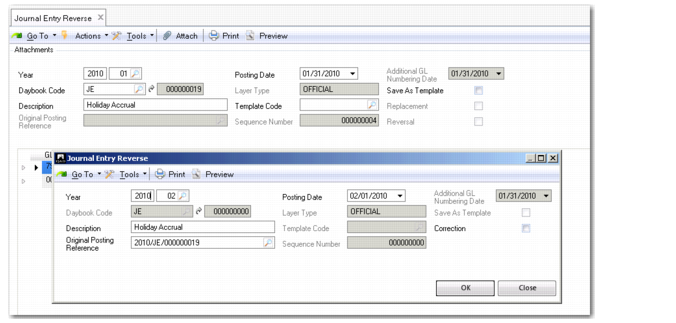
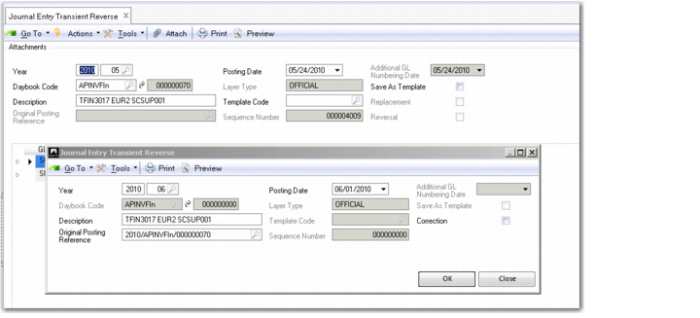
Use the Reverse option in Journal Entry (25.13.1.5) to manually select entries for reversal. The initial reversing screen displays a summary of the entry details. Reversals are usually processed on the first day of the GL period that follows the original posting period. The year, period, and posting date, therefore, default to these values.
Journal Entry Reverse
Click OK to accept these settings and to display the main Journal Entry Reverse screen.
Journal Entry Reverse
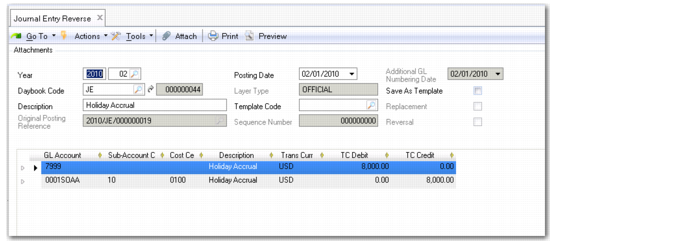
The Journal Entry Reverse screen displays the amended posting date, and reversed credit and debit amounts. Click Save to save the reversals.
Correction Journal Entry Reversal
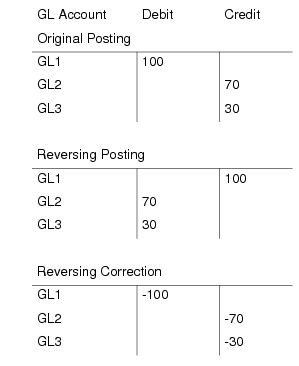
In certain countries, particularly in Eastern Europe, you must post a reversing correction journal entry at the same side of the general ledger (debit/credit) as the original posting. This step is required because the total balance of the original and the correction reversal must equal zero in the general ledger.
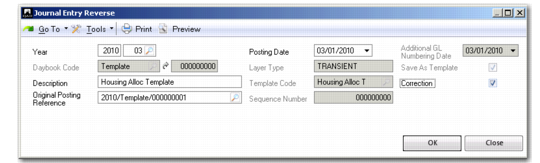
To post a reversing correction, select the Correction field in the Journal Entry Reverse subscreen.
Journal Entry Reverse Subscreen
When you reverse a journal entry as a correction, the postings are netted out and the balance is zero.
Correction Reversal Postings
Reversal and Correction Postings shows the difference in the GL posting lines between a reversing posting and a reversing correction posting.
Reversal and Correction Postings
Excel Correction Journal Entry Reversal or Replace
You can create correction journal entry reversals using Journal Entry Cross Co Excel Integration (25.13.1.10) or Journal Entry Excel Integration (25.13.1.6).
Note: It is recommended that you use Journal Entry Cross Co Excel Integration. For full details of the functionality available with Journal Entry Cross Co Excel Integration, see
Intercompany and Cross-Company Transactions.
To generate correction reversal postings, you must enter the correct values in the relevant columns of the Excel file.
Journal Entry Cross Company Excel Integration Correction Reversal File Settings displays the Excel file settings for Journal Entry Cross Co Excel Integration.
Journal Entry Cross Company Excel Integration Correction Reversal File Settings
Column Position | Column Name | Field Name | Normal | As Correction | Replace |
AD | Original Posting Reference | tPostingMultiCy.PostingOriginatorReference | Voucher number of journal to be reversed | Voucher number of journal to be reversed | Full original reference of journal to be reversed |
AE | Replacement | tPostingMultiCy.Posting
IsReplacement | | | TRUE |
AF | Reversal | tPostingMultiCy.Posting
IsReversing | TRUE | TRUE | |
AG | Correction | tPostingMultiCy.Posting
IsReversingBySign | | TRUE | |
AV | Automatic Reversal | tPostingMultiCy.Posting
IsAutoReversal | FALSE | FALSE | |
Journal Entry Excel Integration Correction Reversal File Settings displays the Excel file settings for Journal Entry Excel Integration.
Journal Entry Excel Integration Correction Reversal File Settings
Column Position | Column Name | Field Name | Normal | As Correction | Replace |
W | Original Posting Reference | tPosting.Posting
OriginatorReference | Voucher number of journal to be reversed | Voucher number of journal to be reversed | Full original reference of journal to be reversed |
X | Is Replacement | tPosting.Posting
IsReplacement | | | TRUE |
Y | Is Reversal | tPosting.Posting
IsReversing | TRUE | TRUE | |
Z | Correction | tPosting.Posting
IsReversingBySign | | | |
AO | Automatic Reversal | tPosting.Posting
IsAutoReversal | FALSE | FALSE | |
Reverse Transient Journal Entries
Use Journal Entry Transient Reverse (25.13.1.17) to create reversal postings that you can only post to transient layers. Journal Entry Transient Reverse works in the same way as Journal Entry Reverse.
Journal Entry Transient Reverse