Journal Entry
A journal entry, or posting, is the basic transaction in the accounting system. In its most simple representation, a journal entry is a transaction composed of multiple posting lines, each of them associated with a GL account and an amount. Nevertheless, in most cases, journal entries also have other dimensions, represented by analytical codes.
Use the Journal Entry activities (25.13.1) to create, view, modify, delete, and reverse journal entries. You can use Journal Entry Create (25.13.1.1) only to manually record transactions for financial daybooks. However, Journal Entry View (25.13.1.3) lets you view transactions posted to operational and external daybooks, in addition to financial daybooks. See
Using Daybooks for more information.
Note: You can only modify or delete journal entries posted to a transient layer. See
Transient Layer.
You can also use the following activities within Journal Entry:
• Journal entries can be saved in draft format when Draft Instances is selected in Change System Settings (36.24.5.1). When you save a record in draft format, none of the system validations are executed. You can then return later to complete the record by choosing the Journal Entry Browse Drafts activity and selecting the record you want to finish from the list. For more information on drafts, see
Introduction to QAD Enterprise Applications User Guide.
See
QAD System Administration User Guide for more information on system and user settings.
• Using the Journal Entry Cross Co Excel Integration (25.13.1.10) feature, you can export data into Excel spreadsheets for analysis or reporting. You can also create new data within Excel and import it to the system database, where it is validated before being saved. You can load single entity and multi-entity journal entries and cross-company journal entries defined in an Excel spreadsheet. See
Journal Entry Excel Cross-Company Integration.
Note: You can also use Journal Entry Excel Integration (25.13.1.6) to import and export journal entries to Excel. However, it is recommended that you use Journal Entry Cross Co Integration.
You cannot use Journal Entry Excel Integration to load postings for accounts that do not accept manual postings; for example, control accounts, customer and supplier payment accounts, inventory accounts, WIP accounts, and purchase order receipt system type accounts.
For more information on Excel Integration, see
Introduction to QAD Enterprise Applications User Guide.
In exceptional circumstances, your system administrator can use another tool, Journal Entry Excel Integration Repair (25.13.1.18), to repair inconsistencies between control accounts and their related sub-ledgers. In Journal Entry Excel Integration Repair, the GL account validation is unrestricted, and it is possible to post to control accounts without posting to the corresponding sub-ledger. It is important to restrict user access to this tool because it can create inconsistencies between GL control accounts and the sub-ledgers. Journal Entry Excel Integration Repair should only be used by authorized personnel to solve existing inconsistencies in the system.
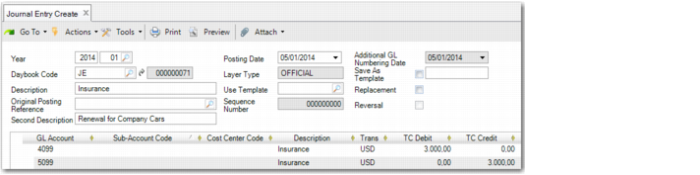
Journal Entry Create
Field Descriptions
Year
Specify the GL calendar year and GL period for the journal entry.
Daybook Code
Specify a daybook for the entry. The daybook must be of type Journal Entries. The read-only, system-generated voucher number displays next to the code.
Description
Enter a brief description (maximum 40 characters) of the journal entry. The description defaults to each entry line.
Original Posting Reference
This field displays the original posting reference in cases where a posting has been reversed or replaced.
Second Description
Specify a plain, easily understood additional description for this journal entry. You can enter up to a maximum of 60 characters.
Posting Date
Specify the date for the postings. The posting date for journal entries must occur within the GL calendar year and period.
Layer Type
This read-only field displays the layer type associated with the daybook.
Use Template
Specify an existing template code.
See
Posting Templates for details.
Note: In Journal Entry Modify, the Use Template field can be edited for journal entries with transient layers. When you specify an existing template code in the Use Template field, the related template is applied.
Sequence Number
This field displays a nine-digit sequence number generated for the journal entry. This is an alternative reference number for use in countries where local GAAP constraints require that GL posting numbering be sequential, without any gaps.
Note: The sequence number is generated only if the Additional GL Numbering check box is activated for the entity. See
Additional GL Numbering Tab and on
here for details.
Additional GL Numbering Date
This field displays the GL numbering date associated with the additional GL sequence. When creating a journal entry in a normal GL period, the numbering date defaults to the posting date and cannot be modified.
When creating or modifying a posting for a correct period, the Additional GL Numbering Date field becomes active and you can specify the numbering date to use.
Save as Template.
Select to save the entry details as a posting template. If you select this field, you must specify a new posting template code in the text box.
For more information on templates, see
Posting Templates.
Note: In Journal Entry Modify, you can edit this field for journal entries at all layers. You can remove the existing template code, replace the existing code, or add a code when the field was blank. However, if you enter a code that is already used in another journal entry, an error is displayed, stating that a template with this code already exists.
Replacement
This field is read-only and indicates if the journal entry is a replacement posting. Normally, if a GL posting is incorrect, it is rectified using two subsequent GL postings: a reversal posting to balance out the original, incorrect posting, and a new replacement posting with the correct values.
Note: Use Journal Entry Replacement View to view a list of the replacement journal entries in the system.
Reversal
Select the field if the journal entry is a reversal posting to balance out a previous, incorrect posting.
You cannot reverse and replace a journal entry at the same time. You may select only one of the Replacement and Reversal fields for a journal entry.