Windows Systems
In many environments, users run the application on a Windows system; for example, character sessions using a terminal emulator, or the .NET UI. You can establish work procedures that require users to set up their machines to display a screen saver after a specified number of minutes and enter their Windows password—preferably not the same one used for
the application login—to turn off the screen saver.
Note: This procedure assumes that users require passwords to access their computers.
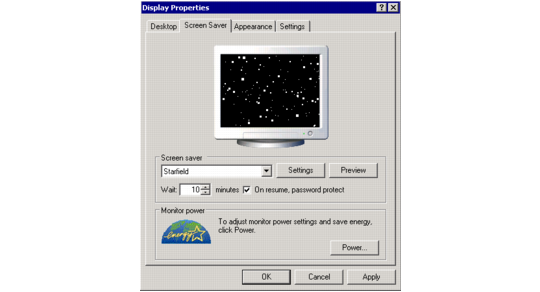
1 Right-click the Windows desktop.
2 Select Properties.
3 Click the Screen Saver tab.
4 In the Wait field, enter the number of minutes that the machine is idle before the screen saver displays.
5 Select the box labeled On resume, password protect.
6 Click OK.
When the screen saver comes on, it can be cleared only when the current user’s Windows password is entered, or when an individual with system administrator access overrides the user login.
Note: Setting up this form of security does not affect any applications that are running when the screen saver displays—it only blocks access to the computer.
For details, refer to your Windows system documentation.
Figure
2.3 illustrates an example of a computer running Windows XP set up for a 10‑minute screen timeout, which can be cleared only by entering a password.
Example of Windows Screen Saver Setup
To lock a computer manually without waiting for the screen saver timeout, press Ctrl+Alt+Delete, then click Lock Computer. A password is required to access a locked system. Your security policy should require users to do this when they leave their computers unattended as a matter of good security practice.
Note: Depending on the operating system and version running on your Windows computers, as well as the way users are set up, the system administrator may be able to configure all machines in this manner and prevent individual users from changing the settings. Refer to your operating system documentation for details.
Non-Windows Systems
Many standard UNIX workstations—including those provided by HP, Sun, and IBM, which use the Common Desktop Environment (CDE)—offer screen-locking features much like those in Windows. Set up CDE-based machines using the Style Manager icon on the Front Panel. Similar features are also available for some LINUX environments. See the user documentation for your workstation for details.