Maintaining the Segregation of Duties Matrix
Use SOD Matrix Maintain (36.3.27.3) to specify if a segregation of duties category is compatible with another segregation of duties category. The system stores the compatibility constraints you specify as a matrix, which is represented as a set of pairs of segregation of duties category codes. When you define categories, they are compatible with all other categories by default.
If you click the Search button in the header, all the segregation of duties category pairs currently defined in the system and their corresponding compatibilities are displayed.
You can then use the check box in the Cannot be Combined with column to indicate that two segregation of duties categories are mutually exclusive. If you indicate that two categories are mutually exclusive, you can assign a value from 1 to 5 to indicate the level of conflict between the categories.
You can refine the categories in the grid by entering values in the SOD Category 1 field, SOD Category 2 field, or both, and searching on those values. The system only populates the grid with segregation of duties categories that match your search criteria. The SOD Category 1 and SOD Category 2 fields support the wildcards “*” and “.”.
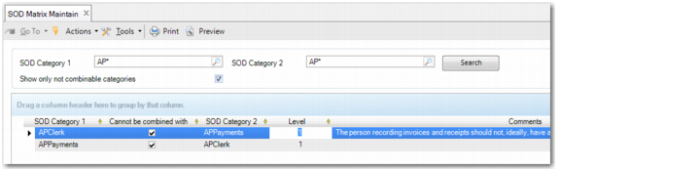
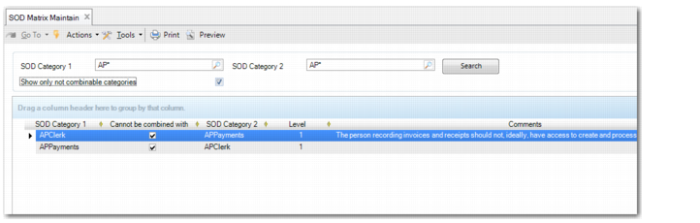
If you search on all categories or search using wildcards for two similarly-named categories, a segregation of duties category combination can appear twice in the grid; for example, one entry for InvoiceEntry-InvoiceAppr and another entry for InvoiceAppr-InvoiceEntry, based on the example in
Two Entries for the Same Two Mutually Exclusive Categories. In this case, if you select the Cannot be Combined with field for one entry, the system selects the Cannot be Combined with field for the other entry automatically. The same applies for the Level and Comments fields. If you enter comments or a conflict level for a pair of categories, A and B, the same comments or conflict level also appear when the category pair is displayed in reverse order as B and A.
Two Entries for the Same Two Mutually Exclusive Categories
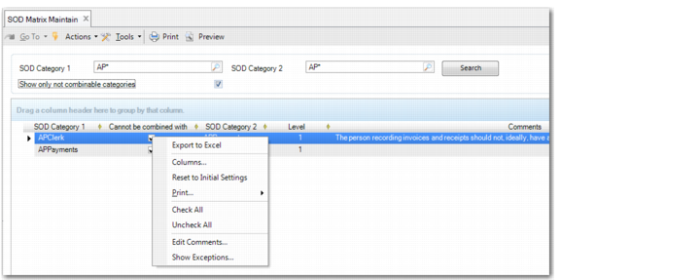
A right-click context menu option is available for lines containing two mutually exclusive segregation of duties categories. The Show Exceptions option opens a browse with all known exceptions for this conflicting pair of categories.
SOD Matrix Maintain, Context Menu
When you save new information, the system checks to see if segregation of duties policy violations have been introduced based on existing category assignments to application resources, resource assignments to roles, and user assignments to roles.
If the modified matrix introduces new segregation of duties violations, the system issues a warning and creates a log record for each violation. Use the SOD Violations Report (36.3.27.9) to identify any violations.
If the modified matrix fixes existing segregation of duties violations, the system logs this. This situation typically occurs if two incompatible categories are changed to be compatible.
If the SOD Block All Rule Violations field is selected in SOD Configuration (36.3.27.14), you are blocked from saving any matrix change that introduces segregation of duties violations.
SOD Matrix Maintain (36.3.27.3)
SOD Category 1
Specify a segregation of duties category code for which you want to define compatibility.
SOD Category 2
Specify a segregation of duties category code for which you want to define compatibility.
Show only not combinable categories
Select the field to only display incompatible pairs for the segregation of duties category or categories you specified in the SOD Category 1 and SOD Category 2 search fields.
Grid
SOD Category 1
Enter a code that identifies a segregation of duties category defined in SOD Category Create (36.3.27.1.1).
SOD Category 2
Enter a code that identifies the segregation of duties category to be marked as compatible or incompatible with the first category code.
Cannot be Combined with
Select the field to indicate that the two category codes are mutually exclusive. If the field is not selected, this indicates that the category codes are compatible.
Level
Enter a value from 1 to 5 to associate a conflict level with the mutually exclusive category codes.
This field is only enabled if you select the Cannot Be Combined with field.
Comments
Enter text to explain why the two categories are mutually exclusive. Because the comments are typically more than just one line, you can right-click and open a dialog box in which you can enter your comments. The Comments field in the grid only shows the first part of the comment.
Note: If you deselect the Cannot be Combined with field, the comments you recorded for the two categories that were previously mutually exclusive are cleared the next time you save.
SOD Matrix Maintain, Comments Dialog