Import from Excel
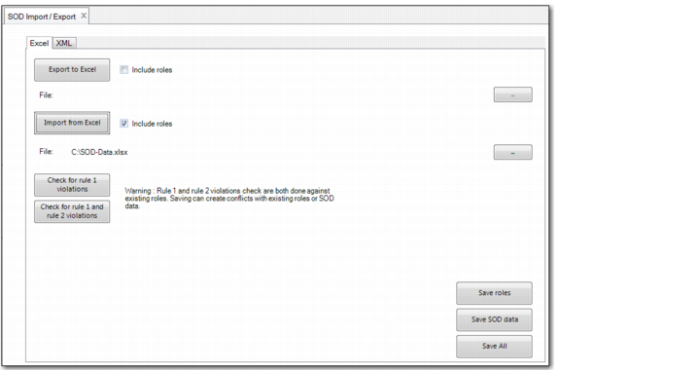
Use the Import from Excel option to load an Excel spreadsheet of segregation of duties default data.
If you select the Include Roles check box, the system imports also role data if the spreadsheet has a roles worksheet and data. When you import segregation of duties and role data, you have three options: save the role data only, save the segregation of duties data only, or save both types of data.
When you load a spreadsheet, the Check for Violations buttons are activated. Click the buttons to determine if the loaded data generates segregation of duties violations.
Check for Violations Buttons Activated
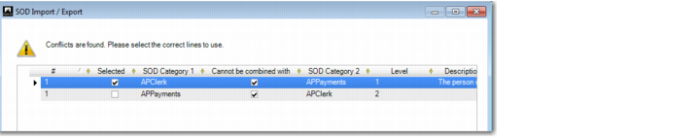
As with the Excel Integration function in SOD Matrix Maintain (36.3.27.3), when importing from Excel, if there are two entries in the SOD Matrix spreadsheet for the same segregation of duties category combination (for example A-B and B-A), you must modify both rows if you want to update the segregation of duties matrix for these categories. If you modify one row, for example, to add comments or deselect the compatibility indicator, but do not make an identical modification to the other row, the system displays a screen indicating that conflicts exist.
SOD Import/Export, Conflicts
For every conflict found, you must indicate which of the conflicting pairs you want to import by selecting the Selected field.
When you load the data, if no violations are found when you select a Check for Violations button, the system displays a dialog indicating this.
No Violations Found
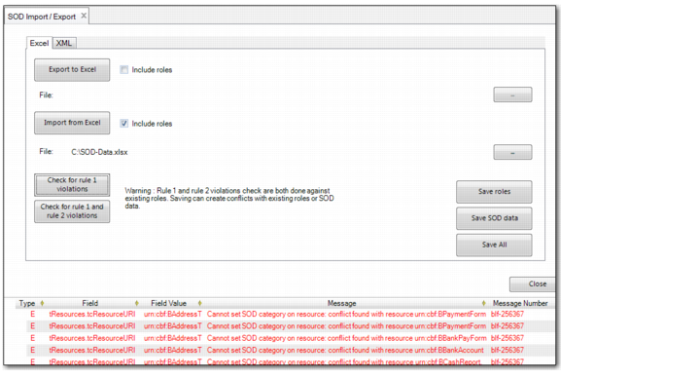
If you click a Check for Violations button and the loaded data contains segregation of duties violations, the violation errors are displayed at the end of the screen.
Violation Errors
The Check for Violations buttons become disabled when no new data is loaded after performing the segregation of duties violation rule checks.