Completing Prerequisite Activities
Before you start setting up records that control when electronic signatures are required and how they are recorded, you should complete the following tasks:
• Load electronic signature initial data
• Define signature reason codes
• Check Security Control settings
Load Electronic Signature Initial Data
The initial data, QAD-provided default profiles, must be loaded into the system first. Use E-Sig Initial Data Load (36.12.14.13) to load the data.
Enter the directory of the files and all the default profiles in that directory will be loaded into the system. These files are located on the server side under installdir/mfg, where installdir is the root application installation directory.
Defining Signature Reason Codes
The signature reason code is a critical element of the electronic signature. In regulatory environments, the signature record typically must include the meaning of the signature. The system uses reason codes to provide the meaning.
Each time the system prompts for an electronic signature, the user must provide a valid reason code. For example, reason codes might indicate that a quality record has been approved, reviewed, or inspected. See
Recording Electronic Signatures.
Use Reason Codes Maintenance (36.2.17) to define signature reason codes that are appropriate to your environment.
Important: All reason codes used by electronic signatures must be associated with the QAD-provided ESIG reason type. Reasons of any other type cannot be entered in the signature prompt frame.
Reviewing Security Control Settings
To guard against attempts by unauthorized individuals to apply electronic signatures using another user’s ID, signature validation logic is similar to that used in the login process. See
Security Overview for information on setting up and using login security.
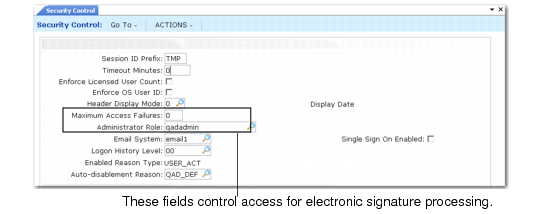
Review Security Control (36.3.24) to see how login security is defined in terms of password structure and use rules.
Security Control (36.3.24)
Two fields directly control how the system manages unsuccessful electronic signature attempts:
• Maximum Access Failures indicates how many consecutive unsuccessful signature attempts cause the user’s session to terminate, disable the account, and inform the administrator role of a potential unauthorized access attempt.
• Administrator Role is the name of the role—defined in Role Create (36.3.6.1)—assigned to the system users who are notified by e-mail when a session is terminated because of excessive unsuccessful signature attempts. The system also sends e-mail to users who are assigned this role when a signature profile is activated. See
E-Mail Notifications.