Setting Up Field Security
In order to use field security, you must:
• Enable field security system wide.
• Assign the Field Security Maintain activity using Role Permissions Maintain.
• Define field security.
Enabling Field Security System Wide
Before field security can be configured, the feature must be activated system wide by using Change System Settings (36.24.5.1) and selecting the Field Security check box.
Important: After enabling this setting, you must restart the application servers in order for the change to take effect. The setting change is held in cache until the appserver is restarted, when the change is written to the database.
For more information about the Change System Settings function, see
QAD System Administration User Guide.
Assigning the Field Security Activity
Use Role Permissions Maintain (36.3.6.5) to assign the Field Security activity to the appropriate role. On the Role Activities tab, navigate to the Field Security component in the System Administration business grouping and select the Create check box.
For more information on defining role permissions, see
Defining Role Permissions.
Defining Field Security
Use Component Field Security Create (36.3.15.6) to define field security for user roles.
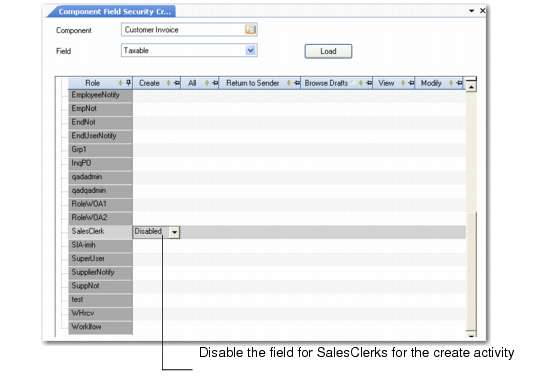
Select the business component with fields that you want to secure and click Load to display the activities defined for it and the roles that have access rights to the activities. Select an option from the drop-down list at the intersection of a role and an activity to specify the field security for that role/activity combination. Click Save to save your selections to the grid.
Example: Select the Taxable field in the Customer Invoice component. In the SalesClerk/Create cell, select Disabled from the drop-down list. This prevents the SalesClerk user role from being able to modify the Taxable setting for new supplier invoices.
Component Field Security Create (36.3.15.6)
To quickly set field security on the grid, note the following:
• Selecting a field security option on the drop-down list in the All column for an activity specifies that option for all activities for that role.
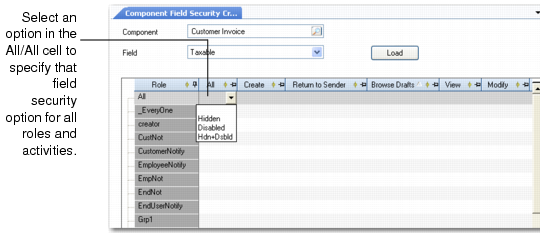
• Selecting a field security option on the drop-down list in the All/All cell specifies that option for all roles and activities.
Component Field Security Create (36.3.15.6)
To create field security, enter data in the following fields:
Component
Enter the name of a component that contains the field you want to create field security for.
Field
Enter the field you want to define field security for. This menu displays delivered fields as well as user-defined fields.
For a role/activity combination, select an option to set field access rights:
Undetermined: No rule has been defined for this field. User roles have full access rights to this field. This option displays as empty in the drop-down list.
Hidden: The field does not display in the UI. In terms of business logic, any value contained in this field cannot be modified.
Disabled: The field displays in the UI, but any value in the field is locked—data cannot be entered into this field.
Hidden and Disabled: The field does not display in the UI, and cannot be made visible in the UI even if the UI is customized.