Defining Users
Use User Maintenance (36.3.1) to assign a unique ID to a system user and define related application and security details.
To access the system, each user must specify a unique user ID and the associated password. In addition each user must have been assigned a valid role and access to one or more domains and entities. Other user data is referenced throughout the system and may be required for reasons other than security.
User profiles apply to all domains in the system. However, profiles include several generalized codes that are domain specific such as access location and user type. To prevent validation errors, you should ensure that these codes exist in all domains.
Once a user has accessed the system, the ID cannot be deleted. Instead, you can deactivate a user’s record in the system. If an ID has never been used for login, you can delete it, if necessary. This lets you correct any errors made during initial setup. This restriction ensures a complete audit trail of users who have accessed the system.
Important: The Active check box and the Enabled check box in User Maintenance have different functions.
• The Active check box controls whether a user’s record is active within the system. Only active user records can be referenced when a new record is created in other system functions; in addition, lookups and browses only display active records.
• In contrast, the Enabled check box determines whether a user can log in. By default, the Enabled check box is selected when a new user is created. A user can log in to the system only if both the Enabled check box and Active check box are selected. The account of an active user can be disabled, for example, while they are on medical leave.
Note: Any updates you make in User Maintenance are time stamped in Universal Time, Coordinated (UTC). For more information on the time stamping of transactions outside domains, see
QAD System Administration User Guide.
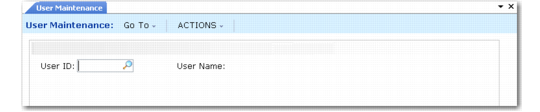
User Maintenance (36.3.1)
User ID
Enter a code (maximum 8 characters) identifying a user in this database. This field cannot be blank or the same value as a role name. Do not use an exclamation point (!) or comma (,). In addition, it is recommended not to use accented letters in user IDs.
Note: Progress does not recognize accented letters so it treats the accented and unaccented versions of, for example, the name Rene as the same user ID. However, the .NET UI treats the accented and unaccented versions of the name as two different users. Therefore, favorite information related to the Rene account will not display for an accented version of the same name (user ID).
To log in to the system, the user must supply a valid user ID.
If you plan to use OS-based security, the user IDs you create should be the same as the IDs defined for operating system login. See
OS-Based Login Security.
Depending on the setting of Header Display Mode in Security Control (36.24), the system may display this value on every program screen in the character interface. In the .NET UI, the user ID always displays in the bottom message area. See
Header Display Mode.
User Name
Enter a user name (maximum 35 characters) identifying the full user name associated with this ID.
The user name does not affect system security. It displays for reference on various reports and inquiries. To display an information window that includes the user name, press Ctrl+F from any program screen in the character interface.
Defining Basic User Information
Defining basic information about system users includes setting options and defining values for:
• Controlling information process and display
• Identifying users
• Specifying e-mail addresses
• Enabling menu substitutions
Controlling Information Process and Display
You can ensure that system data is correctly displayed and processed for a given user—regardless of the user’s language or location—by specifying values for the Language and Country Code fields in User Maintenance.
User Maintenance, Language and Country Code
Language
Enter a two-letter code identifying the user’s language. The system displays menus, messages, and other interface elements in this language when the user logs in.
The language must be active and must be installed. Since labels, menus, messages, comments, and field help text are stored and retrieved by language code, you cannot assign a language to a user when these elements have not been loaded. Loading translated data automatically sets the associated language to installed.
Changes to this field do not affect any users currently logged in. Changes take effect only when they log in again.
Country Code
Enter a valid, active country code defined in Country Create (36.1.3.1.1). The country code also must have an associated alternate country code defined in Country Code Data Maintenance (2.14.1).
The alternate country code must be a valid International Standards Organization (ISO) country code. The system uses the ISO code to set up date and number formats and other interface elements for each user session.
Variant
Optionally enter the locale for the user. This field can be used to specify regional variations within a country.
Information on language, country code, and variant are maintained in a file named locale.dat, along with other format information. Once the system determines a user’s language, country code, and corresponding ISO country code, it gets information from locale.dat and uses it to set user-specific date and number formats. See the installation guide for more information.
System administrators may need to change information in locale.dat or add entries for countries that are not included in the current file.
Each line in the file follows the same format. For example, the line for US English looks like this:
US,en,US,,mdy,American
Where:
• US is the application language code.
• en is the ISO language code.
• US is the ISO country code.
• Optional variant is blank.
• mdy is the date format.
• American is the numeric format (period as the decimal separator; comma as the thousand separator).
Identifying Users
User Maintenance, User Identity Fields
Use the following fields to identify this user:
User Type
Specify the type associated with this user.
• Employee identifies internal users who are employees.
• Customer identifies external customers who are authorized to access the system remotely. To assign a customer type to a user, you must enter a valid customer ID as the user ID in User Maintenance.
• QAD identifies QAD employees who do customer support or service work.
• API identifies users who access the system through an application programming interface connection or who represent background processes such as daemons.
Employee is the default for all newly created users except customers. When you enter a customer ID as the user ID, the type defaults to customer.
You might need to define additional types if users do not fit into the four categories; for example, you may need a contractor or part-time type. You must predefine the new user type in Language Detail Maintenance (36.4.2) before you can assign it to users here.
Time Zone
Enter a time zone to associate with this user. Time zones must be predefined in Multiple Time Zones Maintenance (36.16.22.1).
The time zone defaults from the Time Zone field of the domain you are logged in to when you create the user.
Access Location
Enter a code that associates the user with a major business facility or major business location. If you have more than one facility or location or if users work remotely or in small offices, associate the user with the major business facility or location that is most appropriate.
Access location codes must be defined in Generalized Codes Maintenance (36.2.13) for field usr_access_loc. The system ships with a Primary location code that is used as the default for new user records. You can use this location as your company home office location or central processing site.
Initials
Enter initials for the user (maximum 20 characters). Initials can be used in references and when performing searches.
Active
Indicate if this is an active record.
When a record is active, it can be referenced from other maintenance functions. When a record is inactive, it cannot be referenced when a new record is created in other functions. Inactive records are not included in lookups of valid values. However, marking a record as inactive does not prevent you from continuing to use existing records that reference the inactive value. In addition, inactive values display on reports.
Once a user ID has been used for login, it cannot be deleted from the system. If an ID is no longer needed, deactivate it.
The system automatically selects this check box for new users.
Remark
Enter a brief text comment regarding the user. For example, you could note that this user is currently on leave of absence and the ID has been disabled.
Specifying E-Mail Addresses
Associate a valid e-mail address and definition with each user who receives system-generated messages by entering values into the E‑Mail Address and E-Mail Definition fields.
E-mail can be used with many system features. For example:
• System administrators can receive automatic notification when user IDs are disabled because of login violations.
• Based on a Security Control setting, users can receive system-generated passwords by e-mail.
Note: If you plan to use this feature, be sure to specify e‑mail data when you set up user accounts so that users can receive their passwords.
• Various internal control features, such as segregation of duties and e‑signatures, use e‑mail to inform administrators of unusual system events.
Enabling Menu Substitutions
Select the Menu Substitution check box to indicate whether menu substitution is enabled for individual users when employing the character interface. When menu substitution is enabled, inquiries display instead of browses. This setting has no effect when using the .NET User Interface.
Specifying Security Settings
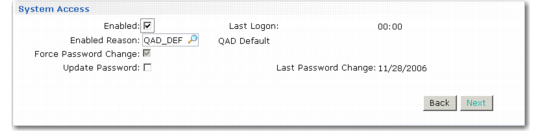
Use the System Access frame in User Maintenance to specify security-related access settings for each user.
User Maintenance, System Access Frame
Enabled
Select the check box to indicate that this user ID can be used to log in to the system. To disable an existing user ID, clear the check box.
The Enabled check box has a different function than the Active check box. The Enabled check box controls the ability of a user to log in to the system. In contrast, the Active check box controls whether a user’s record is active within the system.
Note: Any time this check box is updated, the Enabled Reason field must also be updated.
Enabled is updated in the following ways:
• Automatically when you enter a new user ID. By default, the system selects the Enabled check box; you must manually enter an enabled reason.
• Automatically when the system disables an account for too many failed login attempts. Enabled Reason is set to the code specified in Security Control. See
Maximum Access Failures.
• Manually when you update an existing ID; for example, you can do this to re-enable a user that was previously disabled, or to disable an account when a user leaves the organization. You must enter an enabled reason.
Enabled Reason
Enter a reason code that indicates the reason for modifying the setting of Enabled. This reason code must be associated with reason type USER_ACT. See
Enabled Reason Type.
You must update this field anytime you change the Enabled field.
Force Password Change
Indicate whether the system should force this user to create and validate a new password the next time they log in to the system using the current password.
By default, the system selects this check box for new users and the check box cannot be updated. This lets you assign temporary, single-use passwords either automatically or manually.
By default, the system clears this check box for existing users unless the password has been changed. In that case, it is automatically selected and you cannot update it. This forces users to assign their own passwords at the next login.
Use Force Password Change Utility (36.3.23.12) to select this check box for users belonging to selected roles.
Note: Any updates made using the Force Password Change Utility are time stamped in Universal Time, Coordinated (UTC). For more information on the time stamping of transactions outside domains, see
QAD System Administration User Guide.
Update Password
Specify whether this user requires a new password. For new users, the system selects this check box by default, and you cannot change it.
Updating Passwords
When the Update Password check box is selected in the System Access frame, subsequent actions depend on the setting of Password Creation Method in Security Control:
• Display. The system-generated password displays at the bottom of the screen.
• Email. The system generates a password and e-mails it to the user.
• No. Automatic password generation is disabled. A frame displays for you to manually enter a new password.
Note: Passwords specified in User Maintenance are single-use, temporary passwords generated by the system or entered by the system administrator. At login, the user is prompted to enter a new password.
User Maintenance, Set New Password Frame
Enter a new password. Since the system does not display passwords, type it again to confirm it.
Note: The new password must conform to structure and reuse rules defined in Security Control.
Passwords expire based on the value of Expiration Days in Security Control. If you want to let users change their own passwords at a time other than login, give them access to User Password Maintenance (36.3.3). See
Expiration Days.
Specifying Application Use
QAD applications support a number of license types. If you are using named user licensing, a finite set of users is predefined.
When the user count exceeds the number of licensed users, a violation message displays here. Violation messages can be either warnings or errors, depending on whether enforcement of the license policy is implemented or not. This is determined by the setting of Enforce Licensed User Count field in Security Control. See
Enforce Licensed User Count.
• When Enforce Licensed User Count is Yes, an error displays and you cannot add new users when user count exceeds the number of licensed named users.
• When Enforce Licensed User Count is No, a warning displays and a violation is recorded, but system administrators can add new users.
Important: After you receive a warning, you can continue with software use. If you receive repeated warnings, contact your QAD sales representative or distributor for a license upgrade.
The applications that a user can access must be activated for the user; otherwise, the user cannot access the application. You can activate access to applications here, or when you register an application license code in License Registration (36.16.10.1).
Once a user has accessed the system, the ID cannot be deleted. Instead, you can make users inactive for an application. If an ID has never been used for login, you can delete it, if necessary. This lets you correct any errors made during initial setup.
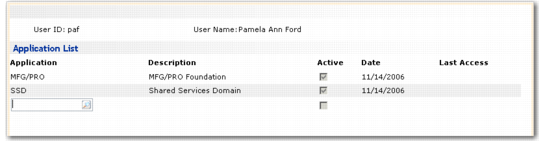
Use the Application List frame in User Maintenance to define the software applications that a user can access. When you define a new user, the system prompts you to authorize the new user for all licensed applications. If you select the check box, the Active check box is selected for all licensed applications for this user. Otherwise, Enterprise Applications (MFG/PRO) is listed as the only active application. You can list additional licensed software applications, then select (or clear) the Active check box for each application. By default the check box is selected.
User Maintenance, Application List Frame
The application name you enter under Application Name must be registered with the system through License Registration (36.16.10.1). If not, an error message displays.
The system counts the number of enabled users authorized to access the application and compares the number against a predefined limit for your license type. If the number of enabled users exceeds the predefined limit, a violation message displays and you cannot add the application to the list.
You also can specify which users can access an application after you register the application in License Registration.
If you disable the Enterprise Application (MFG/PRO) setting for a user, all other registered applications are also disabled.
Use User Access by Application Inquiry (36.3.22) to view a list of applications as well as the user’s ID and name, active or inactive status of each application, time zone, access location, and access date.
User Access by Application Inquiry (36.3.22)