Setting Up Security Control
This section discusses how to set up basic security in your system.
Defining General Security SettingsDescribes the frames of Security Control and what they are used for.
Creating a Password StrategyDescribes how to use the Password frame to specify password settings, such as complexity requirements and expiration dates.
Setting Up E-mail NotificationsDescribes the circumstances under which the system can automatically send e-mail notifications to users.
Monitoring System SecurityDescribes the automatic features used to help administrators control and monitor security activities.
Defining General Security Settings
Use the two frames of Security Control (36.3.24) to:
• Establish basic security parameters for your environment
• Define the way you want to set up and control passwords
Two special security considerations apply to records created in this program:
• You must use this program to update data values in the user control (usrc_ctrl) table. The system prevents you from using other methods, such as the Progress Editor, to modify that record.
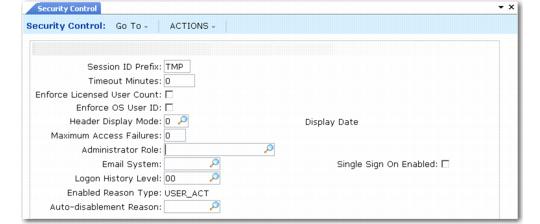
Security Control (36.3.24), Initial Frame
Session ID Prefix
This field is no longer being used. Session IDs generated in the .NET UI use a complex algorithm that ensures uniqueness without a prefix.
Timeout Minutes
Specify a number of minutes after which the system should automatically log out inactive sessions. Set a value in this field to minimize unnecessary overhead on busy systems.
Note: If a nonzero value is entered in this field, the Timeout daemon must also be configured and started. For more information on daemons, see
QAD System Administration User Guide.
The field also can be used as part of an overall security strategy to prevent users from inadvertently allowing access to unauthorized individuals. See
Workstation-Level Security for details.
If you enter a value, when the system considers a session inactive depends on the UI:
• In the character UI, the time out is applied only when a menu is displaying, such as Item Data Menu (1.4) If the user is executing a program—Item Master Maintenance (1.4.1), for example—a session is never automatically logged out.
• In the .NET UI, the time out is applied regardless of what the logged-in user is doing. This is because the load on system resources for inactive users is much greater in the .NET UI.
For a particular user, you can use Generalized Codes Maintenance to set a timeout that is different than the general timeout in Security Control. To do this, use the sess_timeout_min field in Generalized Codes Maintenance, specify the user ID in the Value field, and specify the timeout in minutes in the Comments field. If you specify 0 (zero) as the timeout, the user’s session will never expire. This feature is particularly useful for a user who runs batch processes.
You can only use Generalized Codes Maintenance to set a timeout for one user ID. If you try to enter a timeout record for more than one user ID, an error is displayed. For more information on generalized codes, see
QAD System Administration User Guide.
Enforce Licensed User Count
Use this option to implement enforcement of the total number of users, sessions, or transactions allowed based on your license agreement.
Not selected (the default): The system issues license violation warnings if you violate your license agreement, but you are not prevented from completing the action that caused the violation.
Selected: The system issues a violation error if you violate your license agreement and you cannot complete your current activity.
The system tracks all license violations, both warnings and errors. License violations can occur in the following situations:
• In User Maintenance (36.3.1) when you attempt to add users or assign them to applications
• In License Registration (36.16.10.1) when you assign users to applications
• During user login to the system
• When users attempt to use separately licensed applications or nonregistered applications
Important: Violation warnings should not occur often; if repeated warnings occur, contact your QAD representative or distributor for a license upgrade.
Enforce OS User ID
Specify whether the system allows users to access character sessions for the application based on their operating system login. See
OS-Based Login Security for details.
Not selected: Users must always enter a valid user ID and password.
Selected: Depending on password parameters defined in Security Control, valid users defined in the system may be able to access the application directly without entering login information.
Note: The Enforce OS User ID option cannot be selected if the Single Sign-On Enabled option is selected.
Header Display Mode
Use this field to control the information that displays in the menu and program title bars of programs in the character interface. Valid values are:
0 (Display Date). The menu title bar displays the name associated with the current domain followed by the current database name defined in Database Connection Maintenance (36.6.1). The program title bar from left to right includes the program name, the version of the program, the menu number and title, and the current date (see
Header Display Mode 0).
Header Display Mode 0
1 (Display User ID). The menu title bar is the same as choice 0. The program title bar is the same as choice 0 except that the login ID of the current user replaces the current date. Reading from left to right, the title bar includes the program name, the version of the program, the menu number and title, and the login ID of the current user (see
Header Display Mode 1).
Header Display Mode 1
2 (Display Date and Domain). The menu title bar displays only the current database name defined in Database Connection Maintenance. The program title bar from left to right includes the short name and currency of the current working domain, the menu number and title, and the current date (see
Header Display Mode 2).
Header Display Mode 2
3 (Display User ID with Domain). The menu title bar is the same as choice 2. The program title bar is the same as choice 2 except that the login ID of the current user replaces the current date. Reading from left to right, the program title bar includes the short name and currency of the current working domain, the menu number and title, and the login ID of the current user (see
Header Display Mode 3).
Header Display Mode 3
Some regulatory environments may require the name associated with the user ID of the logged-in user to be available from any program. In the character interface, you can use the Ctrl+F key combination to review this information and other context details.
Maximum Access Failures
Enter the maximum consecutive failed login attempts allowed before the system disables the user’s login ID. When an account is disabled, the system sends an e-mail message to the system administrator. See
Setting Up E-mail Notifications for details.
Leave this field set to zero (0) if you do not want to limit failed access attempts.
Note: If you are using electronic signatures, this same value controls the number of failed signature attempts that are allowed before the system disables the user ID.
Administrator Role
Specify the role assigned to system administrators. The members of this role receive e‑mail notifications when specific security and controlled events occur; for example:
• When a user account is disabled for too many failed login attempts. See
here for details.
• If you are using electronic signatures, when an electronic signature profile is activated or a user account is disabled for too many failed signature attempts.
• When an update is made in Security Control. See
here for details.
Typically, the administrator role includes a primary system administrator and one or more alternates.
Email System
Specify an e-mail system definition—set up in E‑Mail Definition Maintenance (36.4.20)—used to notify system administrators when security- and internal control-related events occur.
Note: The system first attempts to use the e-mail definition specified for the logged-in user in User Maintenance. If the user record does not include a valid e-mail definition, the one specified in this field is used. For more information on setting up e-mail, see
QAD System Administration User Guide.
Logon History Level
Indicate the level of system-maintained login history.
None (the default): Login history is not maintained.
Failed: Login history is maintained only for failed login attempts.
All: History is maintained for all login activity.
Particularly in highly regulated security environments, you can use login history information as part of an overall access monitoring effort. Use Logon Attempt Report (36.3.23.1) to view login history. See
Monitoring System Security.
Note: Be sure to set this field based on the level of information you think will be needed when you run the report. For example, if you set the history level to None, Logon Attempt Report will not include any data.
Enabled Reason Type
This is a display-only field. The system-assigned value is USER_ACT, the reason type associated in Reason Codes Maintenance (36.2.17) with reason codes used by security functions. The system uses reason codes of this type in two places:
• The Auto-Disablement Reason field.
• Reason codes entered manually in the Enabled Reason field in User Maintenance. See
Enabled Reason for details.
Example: You could use Reason Codes Maintenance to create the following reason codes associated with type USER_ACT:
• AUTO. The system automatically disabled the account. You could enter this in Auto-Disablement Reason.
• REACT. The system administrator has manually re-enabled the account.
• NEW. The system administrator has added the account for a new user.
• LEFT. The user is no longer with the organization, and the system administrator has disabled the account.
Note: System installation or conversion automatically creates one default reason code, QAD_DEF, for reason type USER_ACT. After installation, this code displays in the Enabled Reason field in the user record of the default system user, mfg. During conversion, existing user records are populated with this value. After you set up values in Reason Codes Maintenance that apply to your system, you do not have to use this default reason code.
Auto-Disablement Reason
Enter the reason code the system enters in user records when it automatically disables a user account. This occurs when the user reaches the number of consecutive failed login attempts specified in Maximum Access Failures. This code must be defined in Reason Codes Maintenance and be associated with reason type USER_ACT.
Important: Reason codes are domain specific. During security planning, you should determine the codes you will use and set them up as part of the system domain. This way they are copied by default to all new domains.
Single Sign-On Enabled
Specify whether the system allows users to enter their user ID and password once to log in to the operating system without entering additional user credentials to log in to a .NET UI application session.
Not selected: Users are always required to log in to their Windows environment and the application separately by entering user credentials for both.
Selected: Users can log in to the operating system and the application by entering user credentials once when logging in to the operating system.
Note: The Single Sign-On Enabled option and the Enforce OS User ID option cannot be selected at the same time.