Payment Processing Configuration
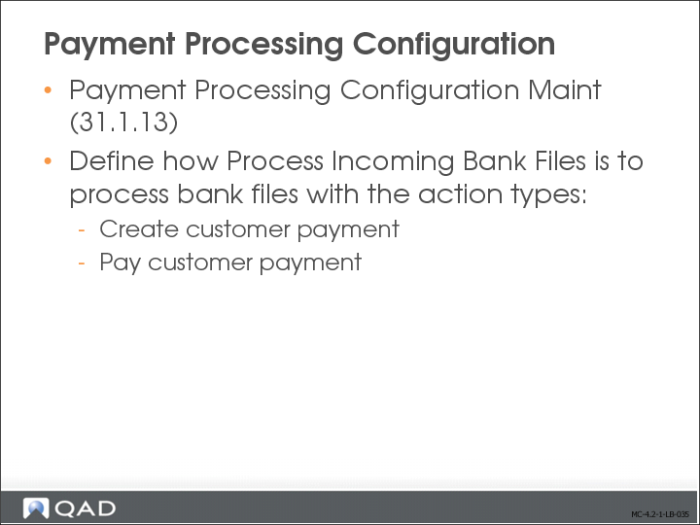
When the message type from the bank indicates that a customer payment has been received, the program that processes the bank file creates a customer payment. When payments are created, the system also tries to allocate the payment to open items. When no matching invoice is found, you can use Payment Processing Configuration Maint (31.1.13) to configure the system to create a prepayment, an unallocated banking entry, or an initial status payment, which you can then allocate manually later.
If the program cannot find a matching customer, an error message is raised or an unallocated banking entry is created, depending on the configuration in Payment Processing Configuration Maint.
When the message type from the bank indicates that a customer payment has been cleared—that is, the payment was cashed on the bank account—the program that processes the bank file searches for a customer payment with the status For Collection with a matching amount. When a payment cannot be found, the system raises an error message by default. However, using Payment Processing Configuration Maint, you can also configure the system to create an unallocated banking entry instead of raising an error message.
You can also use this program to specify tolerance values for assigning customer payments to outstanding invoices. The difference between the payment and the outstanding amount is then written off through an automatically created journal entry. You can specify tolerance for short payments and for over payments.
Bank Files Process Flow
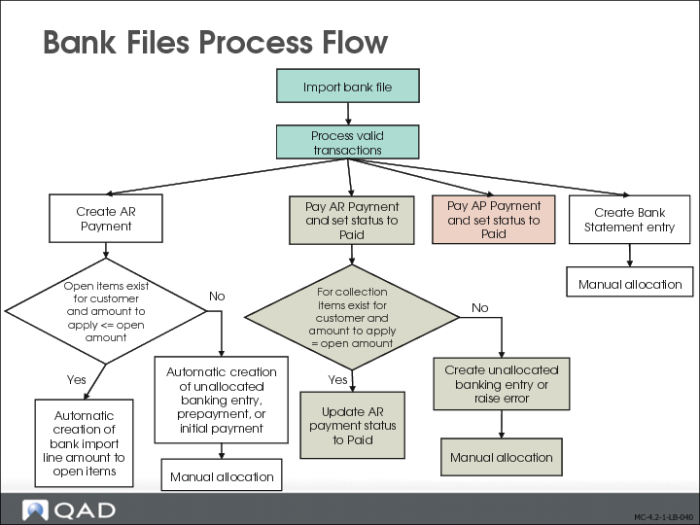
The process for importing bank files can be summarized by the following steps:
The system validates the transactions contained in the payment file by matching customer or supplier information in the transactions against customer or supplier records stored in the system. When these records match, the automatic payment is generated and the transaction can be allocated to an existing open item for the customer or supplier. If they do not match, you can manually select a customer or supplier, and create an open item to which you can then allocate the payment. For the transaction types create customer payment and pay customer payment, specific actions can be configured in Payment Processing Configuration Maint when no matching record can be found.
One payment file can contain multiple types of transaction messages, and you can filter the messages by type, date, bank account, or action. For example, you can choose to process only new customer payments, only existing supplier payments, or all payments within a range of dates.
Optionally, the system creates a bank statement line for each processed transaction message that results in a posting on the bank account (for example, when a payment is paid) or for message types that result in the creation of a bank statement line only. The system groups the lines by the bank statement numbers provided by the bank.
Loading Files: Document Import
Loading Bank Payment Files
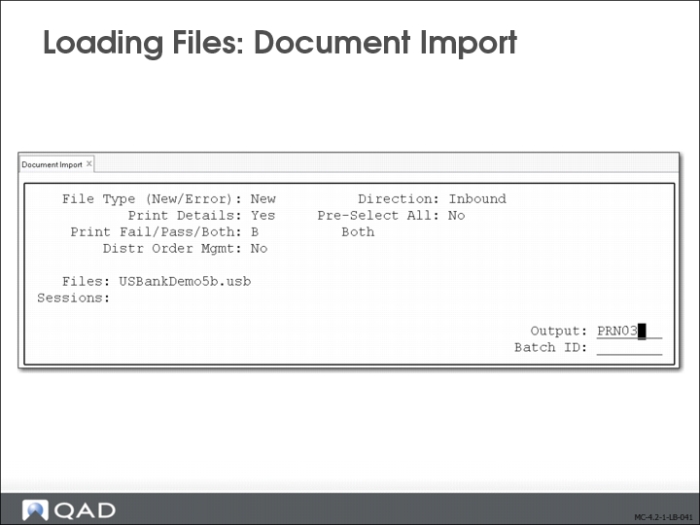
The system uses standard EDI eCommerce functions to select the external payment files from the location on your network where they are stored, and to save them as Financials payment files for processing.
The system uses two EDI functions to complete the first stage of the import process:
• Payment file extensions are mapped to their correct EC (Electronic Commerce) subsystem in EC Subsystem Definition Maintenance (35.13.1). The subsystem in this case is the external banking system in which the file originated. Defining the file extension here ensures that the system associates the payment file with the correct external module. These mappings are pre configured and do not require user input.
• Select the files to be imported using Document Import (35.1). Document Import loads the files into the Financials system, and stores the information in the database. An EDI transformation converts the file layout to the database tables.
For details on completing the EDI activities, see
QAD EDI eCommerce User Guide.
Loading Files: Session Report
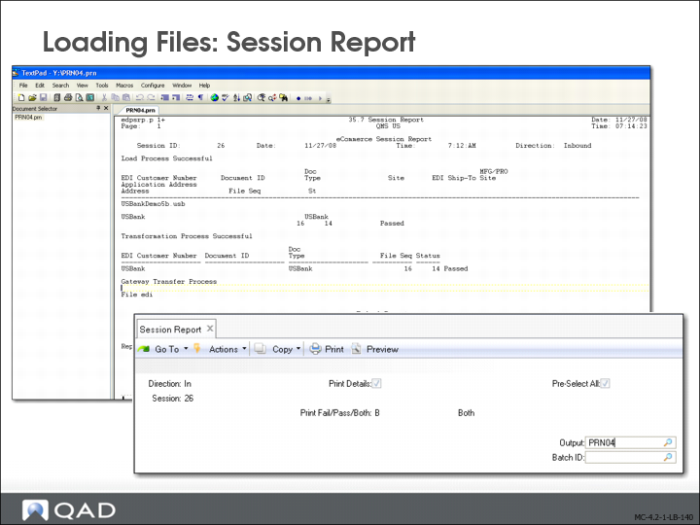
The Session report (35.7) shows the status of document imports or exports at each processing step. Use the report to analyze where problems occurred, then resolve the problems at the source.
Use the Session report to verify that bank files have been properly loaded.