QAD 2016 Enterprise Edition Training Guides
>
Financials-Advanced
>
Process Incoming Bank Files
>
Process Incoming Bank Files: Selection Criteria
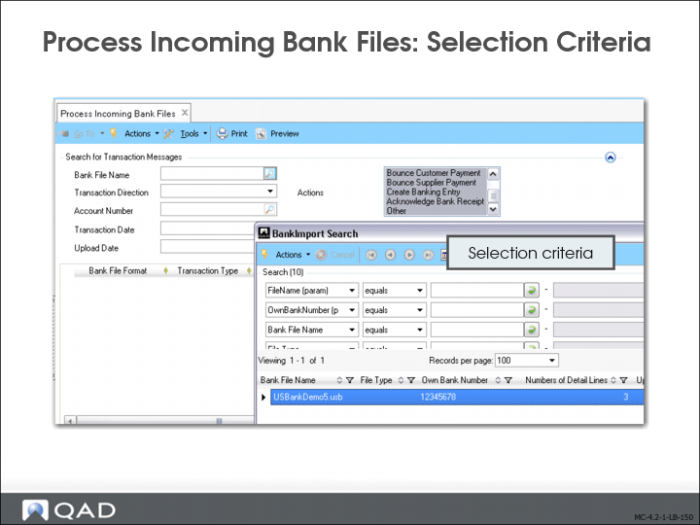
Process Incoming Bank Files: Selection Criteria
Use Process Incoming Bank Files (31.1.6) to select imported payment files, and to process the transactions contained in the files.
Use the search criteria in the Filter area to select the transactions contained in the file by transaction type, transaction date, upload date, or bank account number. The system loads these transactions into the transaction grid.
Each transaction displays the following information:
• Customer or supplier details, including name, business relation, address, and bank accounts
• Bank format in use
• Transaction code
• Value date
• Payment amount in transaction currency, and exchange rates if the original payment currency is different from the currency used by the bank
• Invoice details, if supplied by the bank
• Action to be performed on the processed transaction
• Processing status
• Batch
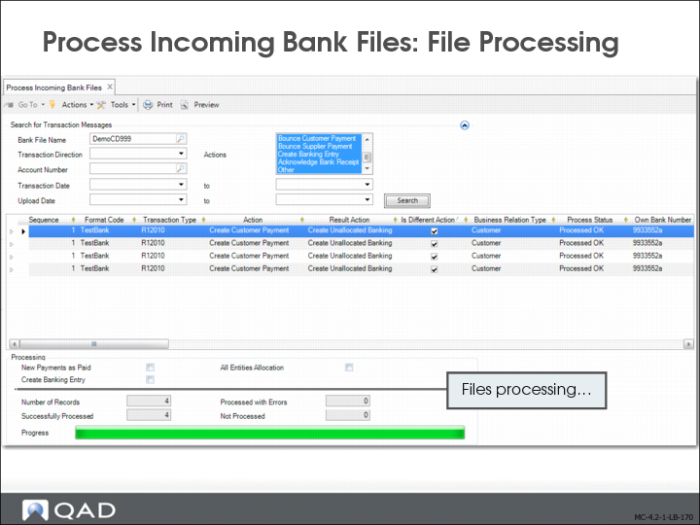
You then click Process to process these transactions and automatically generate the corresponding customer or supplier payment activity.
When the system cannot match the payment information in the transactions with payment records for the customer or supplier, an error message is displayed in the transaction line on the grid. You can then manually specify a customer, supplier, or payment in order to complete the processing.
The Process Incoming Bank Files function includes the following options:
Create Customer Payment
When the message type from the bank indicates that a customer payment has been received, the program that processes the bank file creates a customer payment.
Pay Customer Payment
When the message type from the bank indicates that a customer payment has been cleared—that is, the payment was cashed on the bank account—the program that processes the bank file searches for a customer payment with the status For Collection with a matching amount. If it finds the payment, the system sets the payment status to Paid, the bank GL account is debited, and the customer payment account is credited.
Bounce Customer Payment
When the message type from the bank indicates that a customer payment has been bounced (payment refused), the program that processes the bank file searches for a customer payment with the status For Collection and a matching amount. If it finds the payment, the system sets the payment status to Bounced, and the linked invoices are reopened. The customer control account is debited, and the customer payment account is credited.
Pay Supplier Payment
You issue payments to your supplier, which your supplier sends to their bank. The supplier’s bank arranges a money transfer from your bank. When the message type from the bank indicates that a supplier payment has been paid from your bank account, the program that processes the bank file searches for a supplier payment with the status For Collection and with a matching amount. If it finds the payment, the system sets the payment status to Paid and the bank GL account is credited.
Pay Supplier Payment Selection
You can pay a supplier payment selection in Process Incoming Bank Files. When the bank sends a file confirming payment of a supplier payment selection, select Pay supplier Payment Selection to pay the individual supplier payments within the supplier payment selection directly or to create a banking entry to allocate this supplier payment when the Create Banking Entry field is selected.
Bounce Supplier Payment
When the message type from the bank indicates that a supplier payment has been Bounced (payment refused), the program that processes the bank file searches for a supplier payment with the status For Collection and with a matching amount. If it finds the payment, the system sets the payment status to Bounced, and the linked invoices are reopened. The supplier control account is credited, and the supplier payment account is debited.
Create Banking Entry
This message type allows you to create unallocated bank statement lines in the system, but is not supported yet. In the current version of the software, there is an option to create allocated bank statement lines if the bank account is used in either of the previously listed actions.
Other
The Other category refers to any other message type from the bank that has no equivalent transaction in Financials.
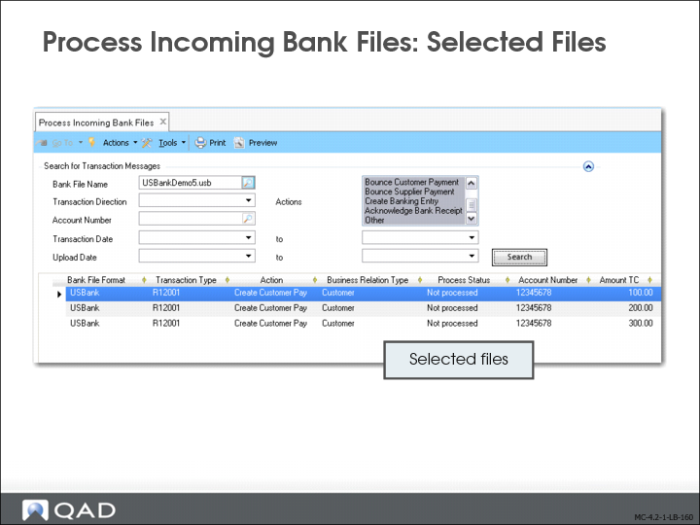
Process Incoming Bank Files: Selected Files
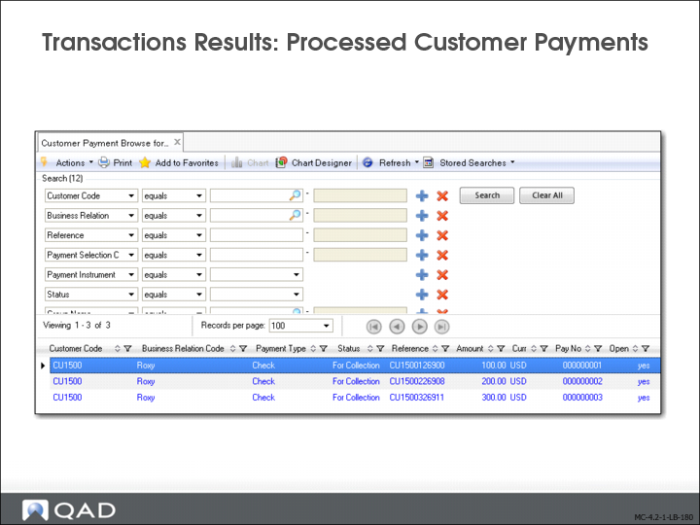
Transaction Results: Processed Customer Payments
New AR Payments
You can create a new AR payment with either an Initial, For Collection, or Paid status for lockbox checks.
Bank payment files sometimes contain the original invoice reference for the check. In this case, when the transaction is validated and processed, the system retrieves the original invoice, allocates the check, and creates a customer payment with either a For Collection or Paid status.
Note: For Collection and Paid statuses must exist in the system for this type of automatic payment.
When the customer is validated, but the payment file does not contain invoice references, the system compares the amounts in all open items for this customer, retrieving the oldest open item first. If one or a combination of open item amounts match the amount of the check, the system allocates the check and creates a customer payment. You can, optionally, assign a For Collection or Paid status to this payment.
When the customer is not validated and the payment file does not contain invoice references, you can manually select a customer to complete the transaction process. The system creates a customer payment with an Initial status, which you then process as normal.
Processing Existing AR Payments
The system uses the check number to retrieve the original customer payment and change its status to Paid. When the check number is not available in the bank file (for example, the bank has not included this value in the file), the system then identifies payments that have a status of For Collection and are of the same amount as the check that has been paid. Once these conditions are met, the For Collection payment is automatically updated to Paid.
Errors in Transaction Processing
The system processes transaction messages automatically when there is a complete match between the bank file and the system records for the following data:
• Customer or supplier name
• Customer or supplier code
• Invoice payment reference. This is the original customer or supplier invoice.
• Customer or supplier bank account number.
• Currency. The transaction message currency must match that of the original payment.
When one of these values does not match, the transaction line is displayed in red on the grid and the error is detailed.
You can use the customer, supplier, bank number, invoice, or payment number lookups on the grid to manually select the correct value and so process the transaction message.
The system also displays errors for the following occurrences:
• The customer bank account number is not defined for this customer.
• Your bank account number has not been linked to this customer.
• Your bank account is not linked to the payment format that contains the mapping for this transaction code.
• The correct payment status has not been defined for this customer.
The system does not process a transaction for which there is an error. However, you can manually configure the missing or incorrect data, and load the file again for reprocessing.
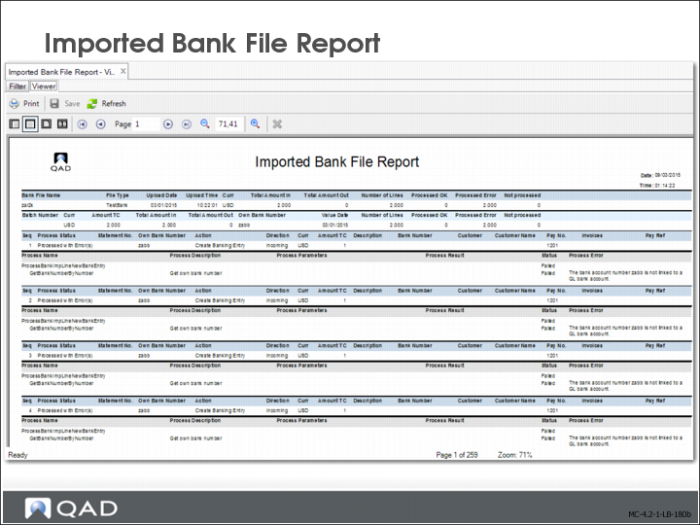
Imported Bank File Report
The Imported Bank File Report (31.1.11) displays details on the status and allocation of imported bank files or batches of files. The report displays different types of detail, depending on whether the record was a successfully processed customer payment, supplier payment, or banking entry, or if the record was unprocessed or processed with errors. The report contains up to five sections.
• The bank file name section displays details of the imported bank file, including an overview of the processing result.
• The batch number section of the report identifies the batch number of the bank file you have imported. This section also contains other details such as the currency, total amounts involved, and own bank account number.
• The sequence line section displays details of how each line in the bank file was processed. It indicates other details such as whether the line processed successfully, which bank account was involved, and the action type that was taken as a result of processing the line.
• The bank file processing result area contains two parts. The Format Name line contains header information, such as the business relation name, currency, amount, and payment reference. The second line contains the details of the payment.
• The bank file processing log section is only visible when logging is enabled for the domain in Domain Modify. It displays details of the processes that have run for this bank line, along with the result of the process.