QAD 2016 Enterprise Edition Training Guides
>
Financials-Advanced
>
Excel Integration
>
Bank Numbers
Bank Numbers
You can use Customer Bank Number Excel Integration (27.20.1.8) and Supplier Bank Number Excel Integration (28.20.1.7) to load bank numbers and modify existing bank number records. You can also export the data to Excel for update or review.
Load Bank Numbers
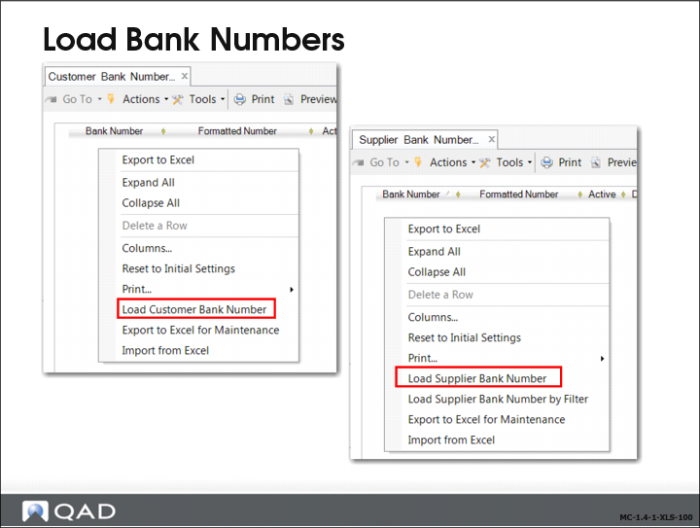
You can use the Load Bank Numbers option in the right-click menu in the grid to load all existing customer or supplier bank numbers. You can then make mass updates to all the bank numbers; for example, changing the own bank number of a cross-section of customers. The Existing Record field in the grid lets you determine whether the bank number record you modified updates an existing record or creates a new bank number record.
Note: Supplier Bank Number Excel Integration also enables you to load supplier bank numbers by filter.
Existing Record Field in Excel Grid
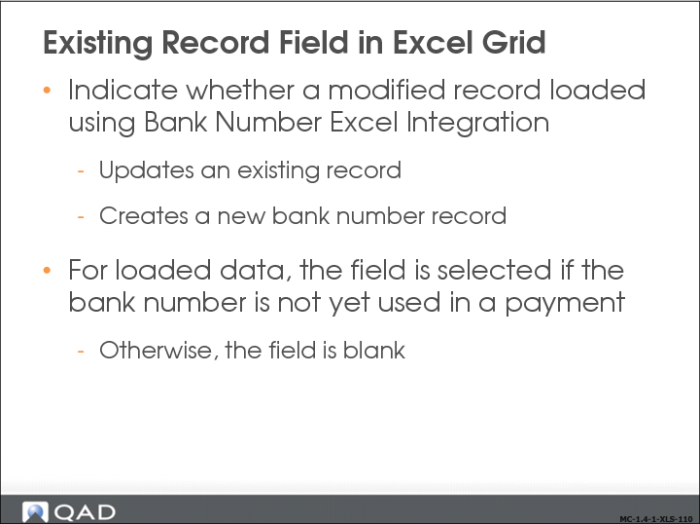
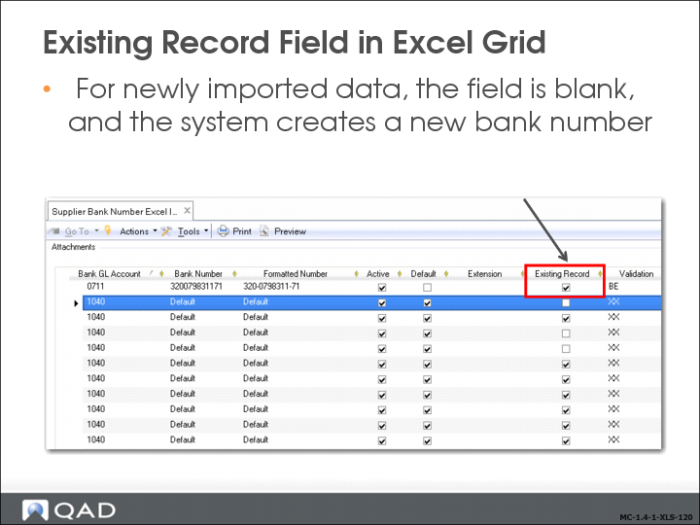
The Existing Record field lets you control how the system treats existing bank number records modified using Bank Number Excel Integration. When using Bank Number Excel Integration, the combination of customer code, bank number, own bank number, and payment format uniquely identifies a record.
If you modify an existing bank number record in the grid and leave the Existing Record field selected, the system tries to locate a unique bank number record to update that has the same key identifier values as the record you modified in the grid. If the system locates a single matching record, it saves your change as a modification to the existing record. If the system cannot find a matching record to update, an error message displays.
If you modify an existing bank number record in the grid and deselect the Existing Record field, the system saves your change as a new bank number record.
When you load existing bank number records from the database, the Existing Record field is automatically selected for bank numbers that have never been used in a payment and is deselected for bank numbers that have been used in payments. If a bank number is used in a payment, you can no longer update the bank number record.
Before using combinations of own bank numbers and payment formats in Excel integration, you must define them first in Bank Payment Format Link.
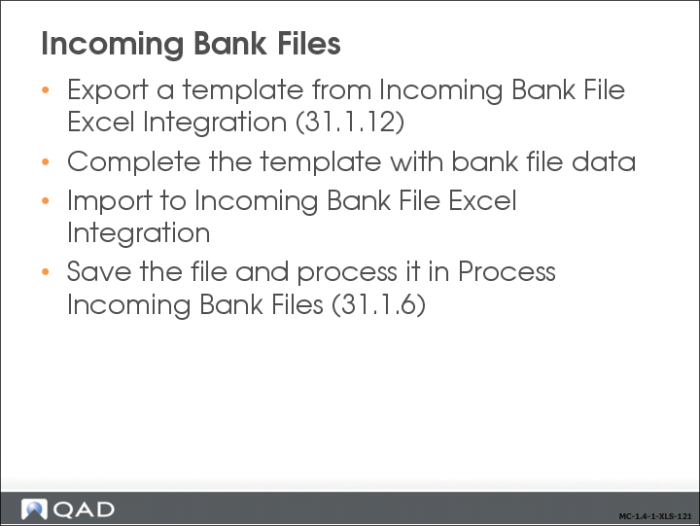
Incoming Bank Files
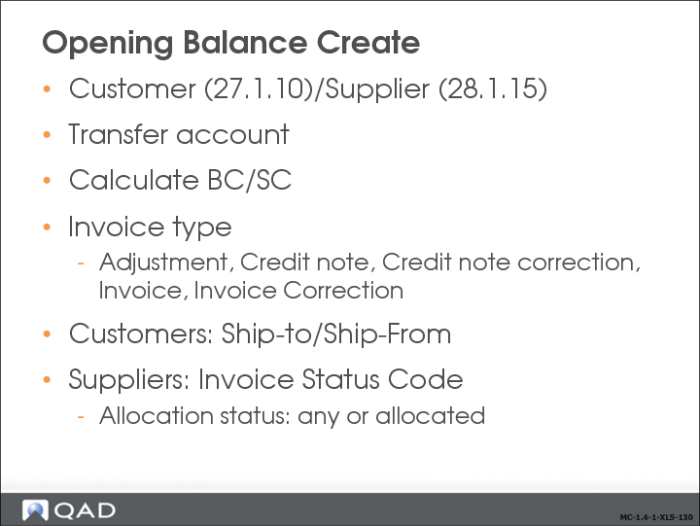
Opening Balance Create
Journal Entries
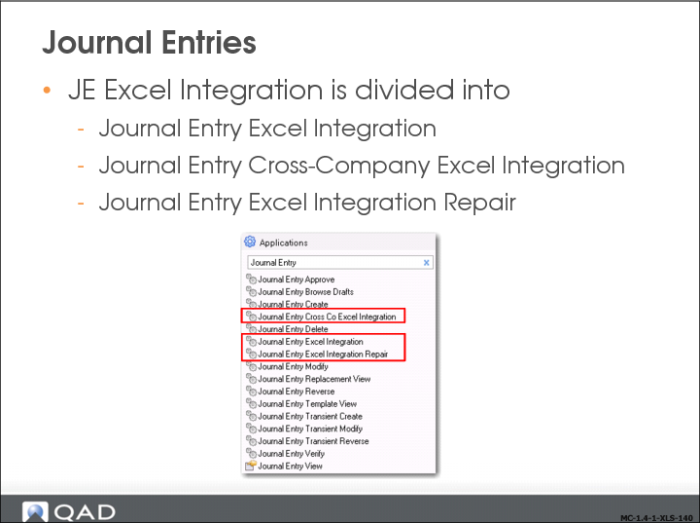
Journal Entry Excel Integration encompasses three functions:
• Journal Entry Excel Integration.
• Journal Entry Cross Company Excel Integration.
• Journal Entry Excel Integration Repair, designed for use by authorized personnel to repair existing inconsistencies in the system.
Journal Entry Excel Integration
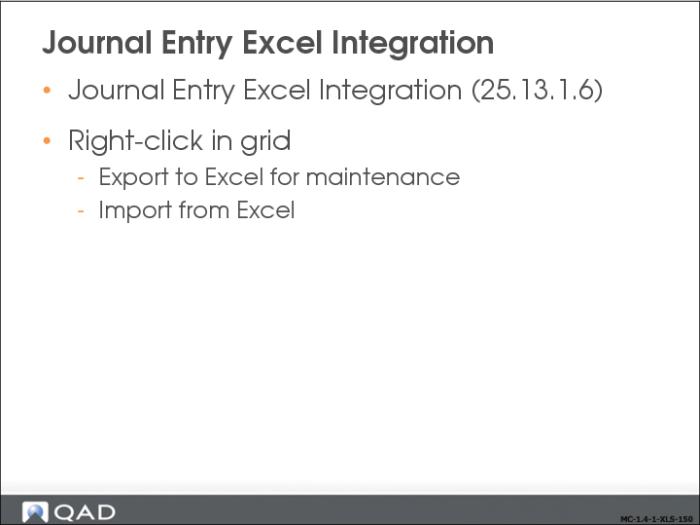
Using the Journal Entry Excel Integration (25.13.1.6) feature, you can export data into Excel spreadsheets for analysis or reporting. You can also create new data within Excel and import it to the system database, where it is validated before being saved.
You cannot use Journal Entry Excel Integration to load postings for accounts that do not accept manual postings; for example, control accounts, customer and supplier payment accounts, inventory accounts, WIP accounts, and purchase order receipt system type accounts.
Note: Journal Entry Cross Co Excel Integration (25.13.1.10) also enables you to create journal entry postings within the same entity.
JE Cross-Company Excel Integration
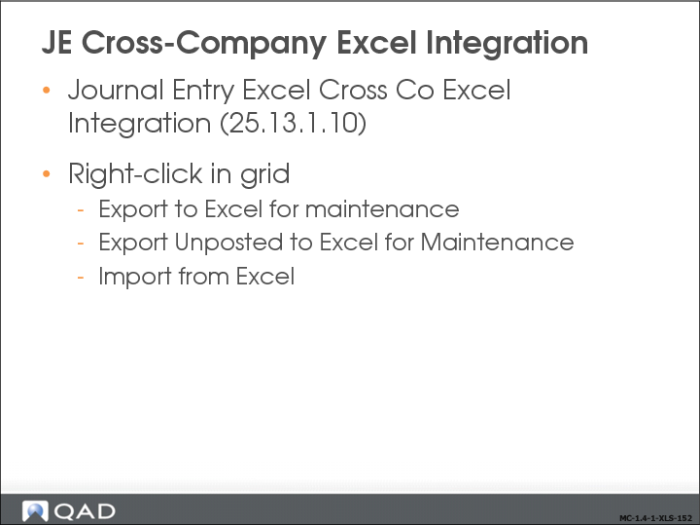
Use Journal Entry Cross Co Excel Integration (25.13.1.10) to load multi-entity and cross-company journal entries defined in an Excel spreadsheet and post them to multiple entities. You can also use this function to create journal entry postings within the same entity.
To use the function, you must have access to all entities for which you want to create postings, and you must also be assigned role permissions that grant you access to Journal Entry Create in those entities.
You can export grid data into Excel spreadsheets for analysis or reporting. You can also create new data within Excel and import it to the system database, where it is validated before being saved. You can also export any transactions that fail to post to Excel for correction. Correct any errors to the spreadsheet and open Journal Entry Cross Co Excel Integration again to load the corrected transactions.
It is recommended that you use Journal Entry Cross Co Excel Integration for all journal entry postings from Excel. It offers transaction posting line by line, detailed error messages, and the ability to automatically create correction reversal and auto reversal journal entries.
JE Excel Integration Repair
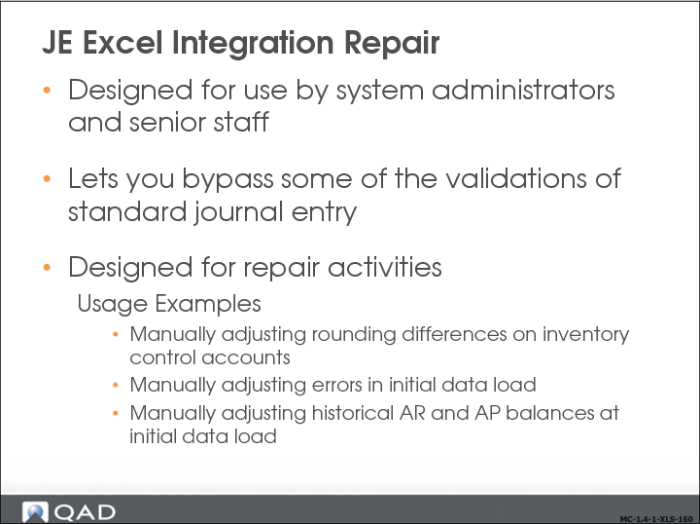
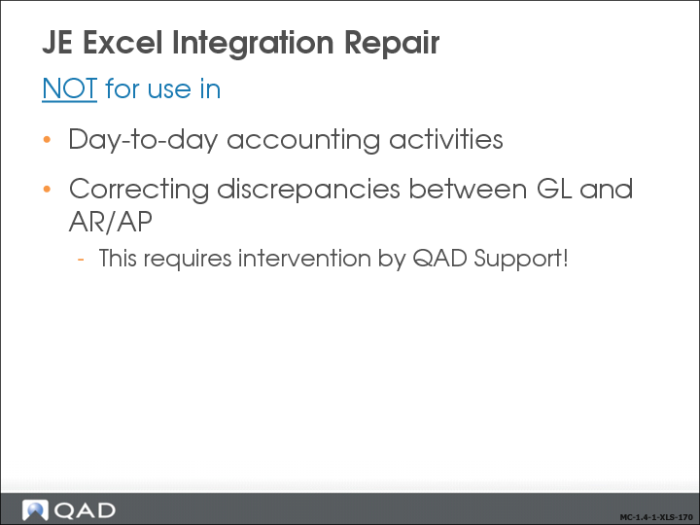
In exceptional circumstances, your system administrator can use Journal Entry Excel Integration Repair (25.13.1.18) to repair inconsistencies between control accounts and their related sub-ledgers. In Journal Entry Excel Integration Repair, the GL account validation is unrestricted, and it is possible to post to control accounts without posting to the corresponding sub-ledger. It is important to restrict user access to this tool because it can create inconsistencies between GL control accounts and the sub-ledgers.
Journal Entry Excel Integration Repair should only be used by authorized personnel to solve existing inconsistencies in the system.
Bulk Data Load
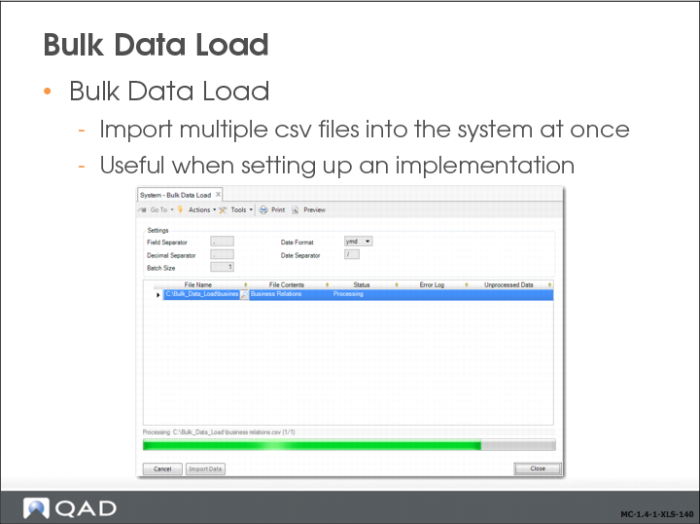
The full list of files and the recommended order of import using Bulk Data Load is: SAF codes, business relations, daybooks, GL accounts, sub-account masks, sub-accounts, cost center masks, cost centers, project masks, projects, COA cross references, exchange rates, customers, customer ship-tos, customer bank numbers, end users, customer opening balances, suppliers, supplier bank numbers, employees, supplier opening balances, and journal entries.
It processes file content in batches, so that an error in one batch does not cause the entire import process to fail.
When the import begins, one or more log files are created with information on the progress of the import. A log file with the name QAD-Bulk-Data-Load-Logging.txt is stored in each folder that contains a file to be imported.
If there is an error with the import, then the details of the error are stored in a file called <FILE-NAME>-errors.txt where <FILE-NAME> is the name of the file that you added to the grid for import.
If the import does not complete, then the lines that are not processed are stored in a file called <FILE-NAME>-failed.csv where <FILE-NAME> is the name of the file that was not fully imported.