Shipping Group Maintenance
• Assign a shipping group based on the Ship-From and Ship-To addresses
• A source/destination address combination can belong to only one shipping group.
• Shipping groups contain source and/or destination addresses that include inventory movement and carrier defaults. The system uses the attributes of a shipping group when processing a shipment from any source address to any destination address within the group.
• To use broad defaults, define shipping groups that contain only source addresses, only destination addresses, or all addresses by entering blank source and destination address fields.
• When a new Ship-to address or Customer address is created in QAD Enterprise Applications, add it to the appropriate shipping group.
If it is not added to a shipping group, it falls into the blank destination address bucket.
• When a new ship-from address or site address is created in QAD Enterprise Applications, create and maintain the appropriate shipping groups.
If it is not added to the shipping groups, it falls into the blank source address bucket.
Shipping Group Maintenance
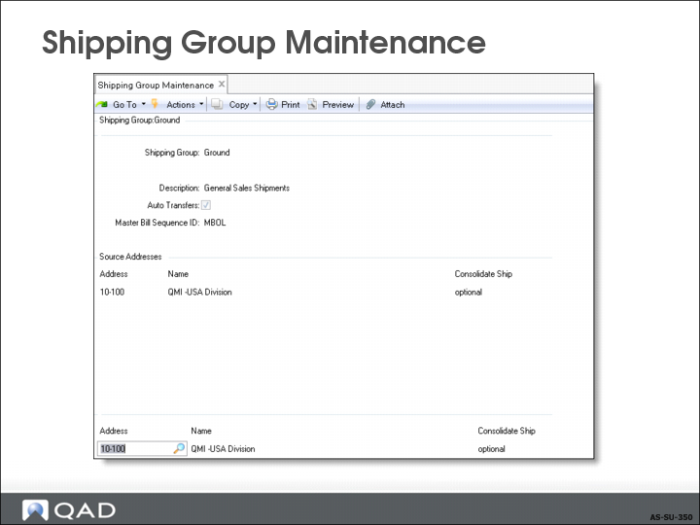
Auto Transfers
When shipping or receiving an item from a site other than the line item site, QAD Enterprise Applications generates an automatic inventory transfer.
• Determines whether automatic transfer of inventory is allowed, Default = Yes
• Specify No if movement of inventory requires formal shipment
Source and Destination Addresses
Assign source and destination address codes that are not assigned to any other shipping group.
• Cannot have two shipping groups with the same source/destination address combination
• Blank address field indicates “All Addresses”
Consolidate Ship
Whether the address allows for consolidation of shipments across multiple transactions of a given type such as sales orders or transfers.
• No: Consolidation is prohibited
• Optional (the default): Consolidation is allowed
• Yes: Consolidation is required
Warning You cannot establish a shipping group where one address requires consolidation and another prohibits it. See
Document Type.
Inventory Movement Details
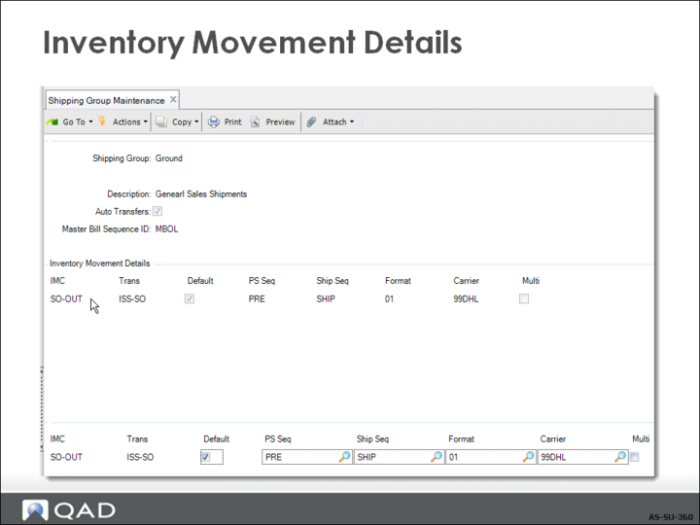
IMC
One or more inventory movement codes can be used for shipments within this shipping group. Each movement code determines the default NRM sequence, carriers, and document format used for a shipment associated with this code.
Default
Yes = this inventory movement code is the default for the associated transaction type for the shipping group.
Important: You can designate only one default inventory movement code for each shipping group.
PS Seq and Ship Seq
Default NRM sequence codes for all pre-shippers or shippers for this shipping group with this inventory movement code.
Format
Default document format for shipments within this shipping group with this inventory movement code.
Carriers
Carrier
Default carrier for shipments within this shipping group with this inventory movement code.
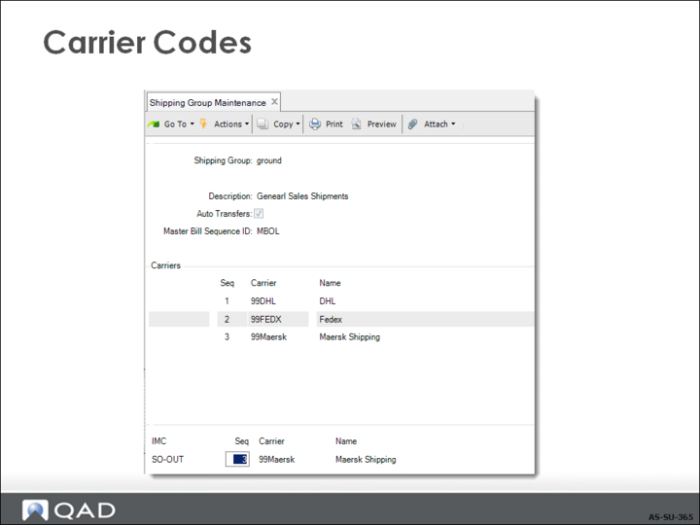
• Shipments often require only one carrier.
• If a series of carriers is needed, maintain the list by Multi = Yes.
If a shipping group has multiple carriers, the Carrier field displays the first carrier and cannot be edited.
When Multi = No, you can enter only one carrier.
• The sequence position of the carrier is dependent on the value entered in the Seq field, not on the order used to enter the information.
When you remove a carrier, the system does not automatically renumber the remaining carriers.
The lowest-numbered carrier is always considered the first carrier.
Enter an integer greater than zero that has not already been used for this shipping group and inventory movement code.
Warning Do not confuse this sequence field on the Carriers frame with NRM sequence fields.
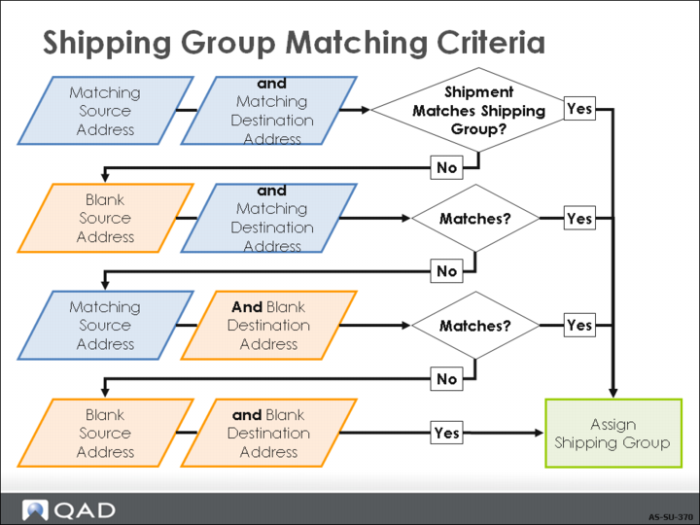
Shipping Group Matching Criteria
• Once the shipping group has been found, the system applies appropriate defaults and shipment attributes.
First, searches for a group matching both source and destination addresses.
Second, searches for a group matching the shipment's destination address and has a blank source address.
Third, searches for a group matching shipment's source address and has a blank destination address.
Finally, searches for a group with both blank source and destination addresses.
Exercise: Shipping Groups
Create Global Shipping Groups
1 Use Shipping Group Maintenance (2.18.1) to create a shipping group for ground shipments to any domestic address.
a Enter header information
Field | Data |
Shipping Group | Ground |
Description | General sales shipments |
Auto Transfers | No |
Master Bill Sequence ID | MBOL1 |
b Advance to the Source Addresses frame. Enter site 10-300 as well as three distribution centers (sites 10-301, 10-302, and 10-303) as the source addresses for your company. Set Consolidate Ship to No for all the sites.
c Advance to the Destination Addresses frame. Leave this field blank to allow the shipping group to be used for any destination address.
d Advance to the Inventory Movement Details frame. Enter the appropriate inventory movement codes and associated document formats that you are going to use with the shipping group. Assign the DIST shipper sequence you created for Ship Seq.
Field | Data |
IMC | DOM-SALE |
Default | Yes [checked] |
PS Seq | PRSHIP1 |
Format | SHP |
Carrier | 00009000 |
Multi | No [unchecked] |
This shipping group is used for all Sales Orders between sites 10-300, 10-301, 10-302, 10-303, and any domestic customer.
2 Use Shipping Group Maintenance (2.18.1) to create a shipping group for sales shipments throughout Europe. It includes site 10-300 and distribution centers as source addresses for your company, and also includes your European customer addresses for the destination addresses (20C1000, 20C1001, 20C1002).
a Enter the header information:
Field | Data |
Shipping Group | INT-AIR |
Description | International air freight |
Auto Transfers | No |
Master Bill Sequence ID | MBOL1 |
b Advance to the Source Addresses frame. Enter site 10-300 as well as three distribution centers (sites 10-301, 10-302, and 10-303) as the source addresses for your company. Set Consolidate Ship to No for all the addresses.
c Advance to the Destination Addresses frame. Enter 20C1000, 20C1001, 20C1002 as destination addresses and set Consolidate Ship to No for all the addresses.
d Advance to the Inventory Movement Details frame. Enter the appropriate inventory movement codes and associated document formats for European shipments. Assign the DIST pre-shipper and shipper sequences you created for PS Seq and Ship Seq.
Field | Data |
IMC | INT-SALE |
Default | Yes |
Ship Seq | SHIP1 |
Format | SHP |
Carrier | 00009000 |
Multi | Yes |
e Because you specified multiple carriers in the previous step, the Carriers frame appears. Enter a second carrier address.
Field | Data |
Seq | 2 |
Carrier | 00009001 |
This shipping group is used for all sales orders between sites 10-300, 10-301, 10-302, 10-303 and European customers. For other customers who would use this same shipping group, add their addresses to this shipping group as well. The multiple carries reflect the ground transport to the airport and the air carrier to the destination, and then ground transport to the customer.
3 Use Shipping Group Report (2.18.5) to verify the shipping codes you just set up.
Set Up Container/Shipper Control
• Default settings for both containers and pre-shippers/shippers
• Changes to Container/Shipper Control (7.9.24) automatically update Customer Schedules Control (7.3.24)
Note: In QAD Enterprise Edition, financial control settings are updated separately from operational settings. It supports detailed segregation of duties assigned with role-based security. In QAD Standard Edition, all control settings are updated in one program.