QAD 2017 Enterprise Edition
>
User Guides
>
Costing
>
Cost Management
>
Cost Planning
Cost Planning
You can phase in different GL cost sets by date. For example, you can change GL costs to reflect seasonal commodity price fluctuations.
1 Create a new cost set.
Suppose you experience a 10% cost increase in the first quarter. You can create a cost set with costs that are 10% higher than normal and name it 1st Qtr or whatever seems appropriate. Similarly, you might want to create a cost set for the third quarter (3rd Qtr) if costs for that quarter are expected to be less than normal.
If you have costs set up at multiple sites, the active GL cost set at all sites should use the same name.
2 Create a cost plan.
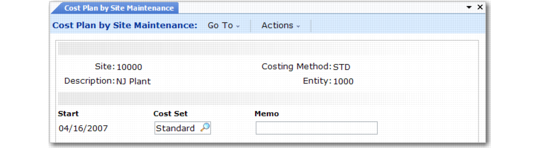
Use Cost Plan by Site Maintenance (30.15.1) to enter the cost set names you want to activate in the future and their start dates.
Cost Plan by Site Maintenance (30.15.1) shows a plan with special costs for the first quarter. Standard costs display with Standard in the Cost Set field.
Cost Plan by Site Maintenance (30.15.1)
Note: The same cost set can appear more than once, as the standard cost set does. Setting up a cost plan does not actually make a cost set active with respect to GL transactions. It only provides Material Requirements Planning (MRP) and Master Production Schedule (MPS) with the costs to appear on costed reports.
3 Activate cost set.
Use Cost Plan by Site Update (30.15.3) to activate the cost set according to the cost plan. This program also changes the inventory to reflect the new costs and posts the cost revaluation amount to the general ledger.
4 Revalue work-in-process (WIP).
Assuming that WIP exists, revalue it using the newly activated cost set with WIP Material Cost Revaluation (16.22).