Multiple-Domain Setup
All the domains in a database share most data-intensive records—including the exchange file, application document, implementation, and transformation definitions. However, to use the product in a multiple-domain environment, you must set up several kinds of data in each domain. These types of data are records that typically vary between domains, such as trading partner records and control settings.
Note: Each domain has its own eCommerce Control (35.13.24) record. This way, you can set up different inbound directories so that the location where the system looks for imported files can vary by login domain.
To enter domain-specific setup data, either log in to the target domain at sign-on, switch to the appropriate domain, or use Change Current eCommerce Domain (35.11.11). The system automatically assigns the records you create to the appropriate eCommerce processing domain.
Domain-Specific Setup Programs lists the programs used to set up required domain-specific records.
Domain-Specific Setup Programs
|
Program
|
Menu
|
Comments
|
|
Turnaround Data Maintenance
|
35.9.17
|
|
|
EC Subsystem/Exchange Maint
|
35.13.3
|
|
|
EC Subsystem/Application Maint
|
35.13.5
|
|
|
Trading Partner Maintenance
|
35.13.7
|
|
|
Trading Partner Parameter Maint
|
35.13.10
|
|
|
Data Cross-Reference Maintenance
|
35.13.16
|
Optional functionality
|
|
Data Validation Maintenance
|
35.13.21
|
Optional functionality
|
|
eCommerce Control
|
35.13.24
|
|
When you load new data from trading partner library files rather than entering it manually using one of the listed programs, the system automatically separates domain-specific information. It loads this data into the EDI eCommerce domain you specify during the load process.
Specifying Domain Cross-References
By default, EDI eCommerce processing is based on the domain of the logged-in user session. The system uses domain-specific setup records, looks for data associated with that domain, and generates repository records using that domain as a key field. However, in some EDI environments, not all of those elements are in the login domain. For example, a centralized EDI processing area that supports several domains can load data for each domain individually, but can maintain the EDI data within a central domain.
Use Domain Cross-Reference Maintenance (35.11.1) to set up a cross-reference record between the user’s login domain and a domain used in EDI eCommerce processing.
The system uses a cross-reference record under either of the following circumstances:
• The user’s login domain is the same as the specified value.
• The user changes to this domain.
When no cross-reference records are set up, the system uses the login domain of the user as the eCommerce domain. To switch to a different processing domain during a session, use Change Current eCommerce Domain (35.11.11).
Note: No cross-reference records are needed in a single-domain environment.
Domain Cross Reference Maintenance (35.11.1)
Changing the Target Domain During Transformation
By default, during document import the system creates application repository documents and the resulting business documents—such as sales orders—in the eCommerce processing domain. It is also possible to have the system map the document to a different domain by assigning a target domain during transformation.
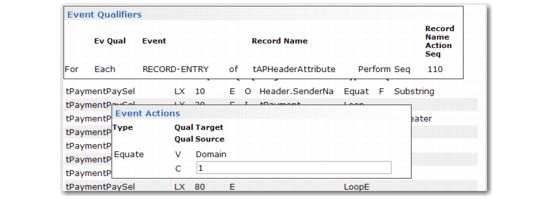
Use Transformation Definition Maintenance (35.15.17) to specify an event action that determines the domain associated with the document. For example, the event action shown in
Transformation Definition Maintenance (35.15.17), Event Action Example assigns the domain variable a value of 1. The import gateway associated with the transformation creates the resulting document in domain 1.
Transformation Definition Maintenance (35.15.17), Event Action Example
Loading Trading Partner Library Records
Although all domains share most elements added by Trading Partner Library Load (35.17.7), several kinds of data are domain-specific.
Use the Target Domain field to specify which domain the domain-specific parts of the new setup data are associated with. The field defaults from the user’s login domain. You can change it to any valid domain defined in Domain Maintenance (36.1.1.1).
Updating Legacy User-Defined Functions
EDI eCommerce assigns a shared variable to user-defined transformation functions when you generate them using eCommerce Function Maintenance (35.15.21). This variable, trgt_domain, lets functions identify the correct domain associated with the data that the function accesses or processes. For example, it is used to set the target domain to the value of the DOMAIN token.
If you have legacy functions designed in an earlier, non-domain version of the product, update the code for any existing functions that access the database. The functions can then continue to support transformation with no risk of degrading processing performance. Additionally, the functions should have a reference to the Progress include file mgdomain.i.
To update user-defined functions, use a text editor to add the following code to the beginning of each Progress function program:
{mgdomain.i}
define shared variable trgt_domain like global_domain no-undo.
User-defined functions are stored in the directory specified in the Function Directory field in eCommerce Control (35.13.24).