QAD Reporting Service Does Not Start
The QAD Reporting Service is designed to run as an unattended Windows Service. After the Reporting Service is installed, you must start it manually. It is not automatically started during installation. To determine if the service is running, check the QAD Reporting Service entry in the Windows Services application.
Note: Press function key F5 within the Windows Services application to ensure that you are presented with up-to-date information.
Windows Service Entry for Reporting Service
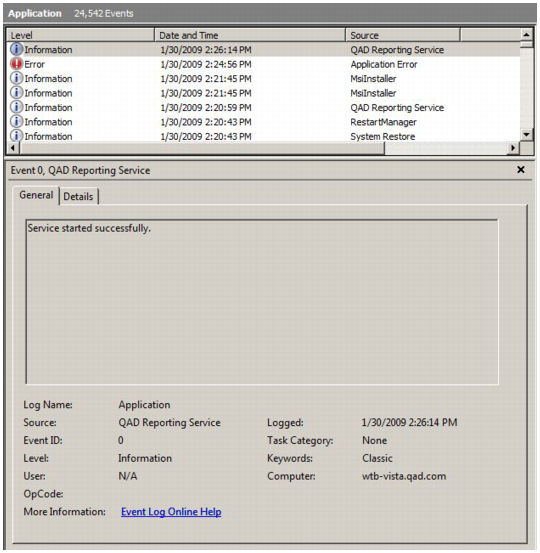
Errors that occur while running the service are recorded in the Windows Event Log, which you can view with the Windows Event Viewer.
Windows Event Log
You can run the service as a stand-alone console application to bypass the Windows service layer while testing. To run the QAD Reporting Service from the console:
1 Start a command prompt.
2 Enter:
cd <ReportingService>\
3 Enter:
QAD.CBFReportingService.exe –configfile QAD.CBFReportingService.exe.config –noservice
4 To stop the service, press CTRL+c.