QAD Reporting Service is Not Communicating with the Application Server
One way to determine if the reporting service is communicating with the application server is to attempt to send a test report (see
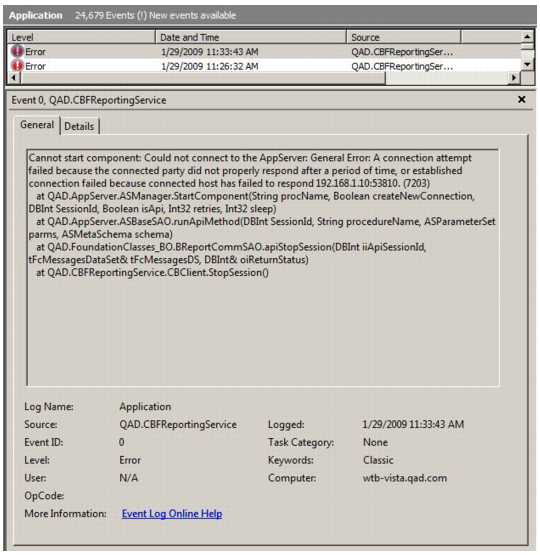
Testing). If you receive warning message QADFC-610, it indicates that the reporting service and the application server cannot communicate. After a short time, you can review the Windows Event Log on the server where the QAD Reporting Service is installed for a more detailed explanation of the failure.
QAD Reporting Service to Application Server
The QAD Reporting Service obtains the address of the application server from the configuration associated with the Home Server environment with which it is associated. In a typical deployment, an XML document specifies this configuration as:
<home_server>/configurations/<environment_name>/client-session.xml
In this document, the following fragment defines the application server address:
<qad.appserver url="appserverdc://qadrh.qad.com/pilot"/>
Note: If a host name is specified (for example, qadrh) instead of an IP address, the Windows server on which the QAD Reporting Service is installed must be able to resolve the host name.
In some network deployments, the Progress NameServer can return an IP address that cannot be routed.
Progress Server Error Listings
As a test, you can change the configuration to bypass the Progress NameServer using a direct connection to the application server.
For example:
<qad.appserver url="appserverdc://qadrh.qad.com/pilot"/>
Application Server to QAD Reporting Service
By default, the QAD Reporting Service is configured to send the name of the Windows server to the application server. The host where the application server is installed must be able to resolve this name, or the QAD Reporting Service must be configured to send its IP address. To send the IP address rather than the host name, edit the QAD Reporting Service configuration file by setting the value of the key
ExternalHostName to the Windows server IP address, as described in
Configuration. Then stop and start the service to activate the change.
For example:
<add key="ExternalHostName" value="nnn.nnn.nnn.nnn"></add>