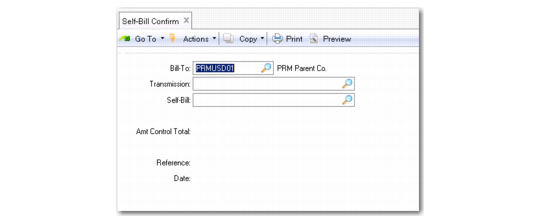
Confirming Self-Bills
Once a self-bill has been created and payment has been received, use Self-Bill Confirm (27.6.12.7) to create customer open items for all of the invoices that are referenced by a self-bill document.
Important: You cannot apply payment to a self-bill if the Amt Total does not equal the Amt Control Total. Use the Confirm function only when you are satisfied that all the remittance amounts are correct and have been matched.
When you use this program to confirm the self-bill:
• The self-bill amount is finalized and the original customer invoices are closed.
• A new self-bill open item, which uses the self-bill number in the description, is created for the final amount.
• This open item is paid automatically if you have configured automatic self-bill payments for this customer.
• If you have not configured automatic payments for this customer, you can pay this open item manually using banking entry or other customer payment functions.
• When no invoice is specified—the Invoice field on the self-bill is blank and the self-bill line is an adjustment—the system creates a prepayment for the amount with a reference to the self-bill and the self-bill line. This prepayment can be a positive or negative value, depending on whether the adjustment is overpaid or underpaid. This allows for the situation in which the customer pays less than the amount due on the original invoice.
Using Self-Bill Confirm
When you use Self-Bill Confirm (27.6.12.7) to confirm the self-bill, the system does not immediately complete the payment process. Instead, it updates the self-bill lines, settles the original invoice amounts created when the shipper was confirmed, and creates an open item for the final amount, which is then paid automatically (if configured for the customer) or manually using a process such as banking entry. It also creates prepayments in the form of AR open items for any discrepancies. You can write these discrepancies off at a later stage.
Before you can execute Self-Bill Confirm successfully, you must ensure that the Amount Total that displays in the header of Self-Bill Maintenance and the Amt Control Total for that self-bill are the same.
Self-Bill Confirm (27.6.12.7)
To confirm self-bills:
1 Enter the customer bill-to address.
2 Enter the transmission or self-bill number.
The Amt Control Total and other customer financial information are displayed.
3 Optionally enter the associated reference or dates.
4 You are prompted to continue with the confirmation. Choose Yes and then Next to continue.
Note: Choosing No returns you to the program header without updating any information.
When you write off a discrepancy:
1 Create a debit/credit invoice in Customer Invoice Create (27.1) for the write-off amount.
2 Create an adjustment line for the amount.
3 Enter the debt/credit invoice in the Invoice field on the detail line for the adjustment.