Invoices Tab
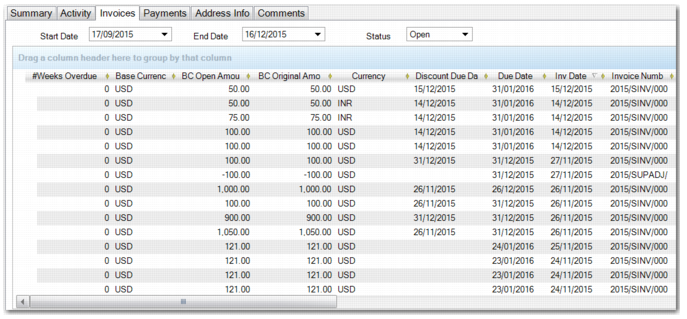
Use the Invoices tab to drill-down on selected invoices. You can modify the date range and the status of invoices to include in the view.
You can view the aging breakdown on the list of invoices by grouping on the # Weeks Overdue column, and adding a summary on the balance column.
Supplier Activity Dashboard, Invoices Tab
Field Descriptions
Invoice Number
This field displays the number of the selected invoice or credit note.
Inv Date
This field displays the invoice creation date.
Reference
This field displays the invoice reference.
Due Date
This field displays the payment due date.
Discount Due Date
This field displays the payment due date to qualify for an early payment discount.
Open
When this field is selected, the invoice is open.
Currency
This field displays the currency for the transaction.
BC, SC, and TC Original Amount
These fields displays the original invoice amount in base, statutory, and transaction currencies.
TC Hold Amount
This field displays the trade currency hold amount for the transaction.
BC, SC, and TC Open Amount
These fields displays the open (unpaid) invoice amount.
Invoice Type
This field displays the invoice type: invoice, invoice correction, credit note, credit note correction, prepayment.
OI Description
If the invoice was adjusted using open item adjustment, this field displays the description recorded in Open Item Adjustment Create (25.13.5) or Open Item Adjustment Modify (25.13.3).
See
Open Item Adjustment for more information.
Overdue Days
This field displays the number of days overdue, calculated by subtracting the due date from today’s date.
# Weeks Overdue
This field displays the number of weeks overdue, calculated by subtracting the due date from today’s date and dividing by seven.
Invoice Status Code
This field displays the invoice status code assigned to the open item.
Week #
This field displays the week number in the accounting year.
Base Currency
This field displays the base currency of the domain in which the invoice was created.
Statutory Currency
This field displays the statutory currency for the transaction
Registration Number
This field displays the invoice registration number.
Note: You can also add other columns to the grid that are not displayed by default. For example, Entity Code displays the entity, which is useful when you have selected to display multiple entities. The Registration Number column identifies all supplier invoices and credit notes in the system, both initial and standard, and is an automatic number generated by entity and year.
Supplier Activity Drill Down
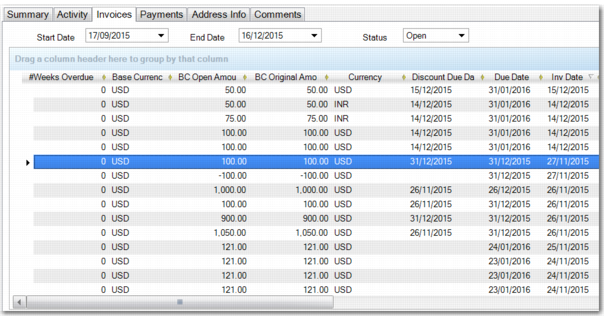
The Supplier Activity Dashboard includes the ability to drill-down to view the detailed invoice and payment records associated with the summaries displayed in the Invoices and Payments tabs. You can view read-only information for invoices, credit notes, and payments.
Supplier Invoice Dashboard, Invoices Tab
By double-clicking on the invoice summary line shown in
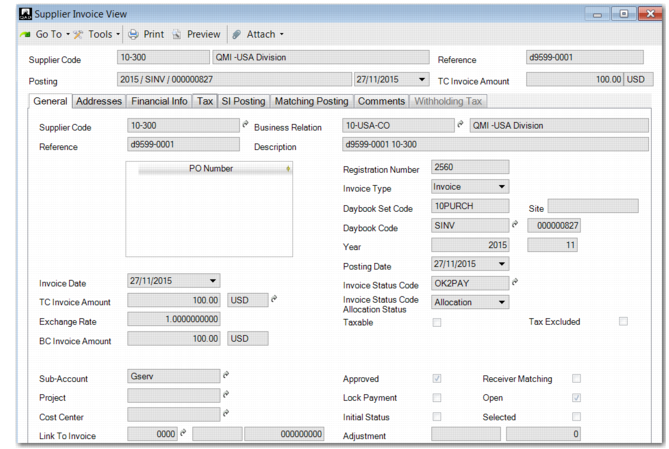
Supplier Invoice Dashboard, Invoices Tab, the system displays the corresponding supplier invoice in read-only format.
Supplier Invoice View