Designing Budget Structures with Detailed COA Dimensions
For reporting purposes, GL accounts are typically grouped by cost type and analysis codes are used for grouping the accounts. However, when defining a budget, accountants typically record company budgets at the level of GL account. Therefore, you can create an FRW budget using the following detailed COA dimensions:
• GL account
• Sub-account
• Cost center
• Project
• SAF
• Entity
The budget amount can be defined on the individual GL account, sub-account, cost center, project, SAF, and entity. A budget composed of COA dimensions cannot use the same dimension on more than one level in the budget. You can only link the related topic node to one item. You cannot link it to a range or a list.
When linking a value with the topic in the budget structure, the GL, sub account, cost center, or project must be in the shared set of the report chart linked with the budget. Entities must be in the list of the entities linked with the chart.
Budget with Detailed COA Dimensions
In the example in
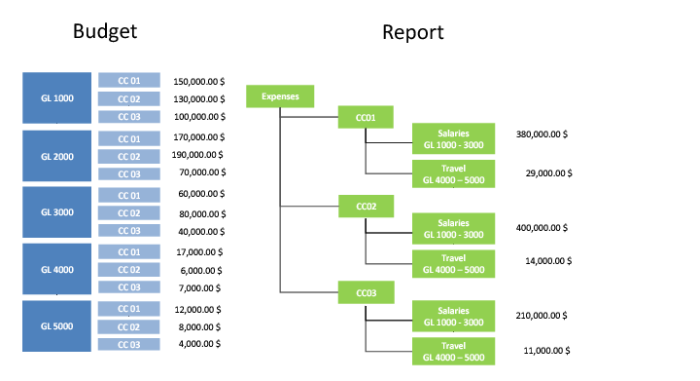
Budget with Detailed COA Dimensions, the budget is an FRW budget defined on detailed COA dimensions. The budget is defined on two levels, GL account and cost center. Each budget topic links with only one GL account or one cost center.
The right of the graphic shows a report tree with report analysis codes. The first report node leaf represents the salary expenses in cost center CC01. To get the budget amount for salary expenses in cost center CC01, the application searches for the budget topics for GL Account 1000 Cost Center CC01, GL Account 2000 Cost Center CC01, and GL Account 3000 Cost Center CC01. The budget amounts are 150,000, 170,000, and 60,000 respectively. Therefore, the summarized amount is 380,000.
To get the budget amount for a report tree node, the application looks at the related report analysis code definition, finds the matching topics in the budget structure, retrieves the budget amounts, and summarizes them. As
Budget with Detailed COA Dimensions shows, based on one FRW budget, you can track and manage budgets using different report structures. Financial Report Writer has the flexibility to create various reports so that this functionality can be used to monitor budgets. You can explode the report with GL account details for both budgets and actuals.
Creating a Budget
After you decide how you want to link your budget to your financial report, you can begin to create a budget structure for use in Financial Report Writer.
1 Open Budget Create (25.5.5.1).
2 In the Budget Details section, supply a meaningful budget code and description. In the example in these steps, you are creating a simple budget for North American R&D Finance.
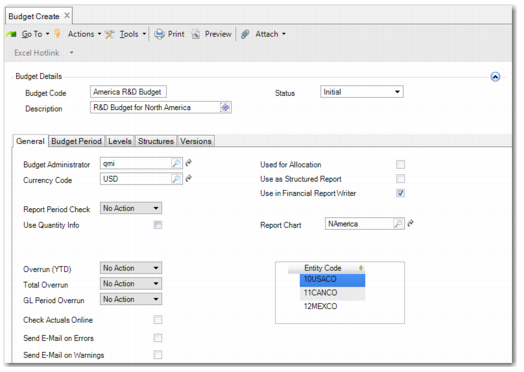
3 On the General tab, select Use In Financial Report Writer.
Note: When you select Use In Financial Report Writer, the fields Report Period Check, Overrun (YTD), Total Overrun, and GL Period Overrun are no longer available. This restriction applies because budget checks are not currently supported for this type of budget. A budget for use in financial reports cannot be reused for any other purpose. If you want to use the budget for something else, create a copy.
4 On the General tab, select a report chart of accounts, which is a mandatory step. When you select a report chart, the Entity Code field is automatically populated with the entities associated with that report chart and becomes read-only. If you want to create a budget for specific entities, create topics in the Structure tab that are linked to elements that contain those entities.
Budget Create, General Tab
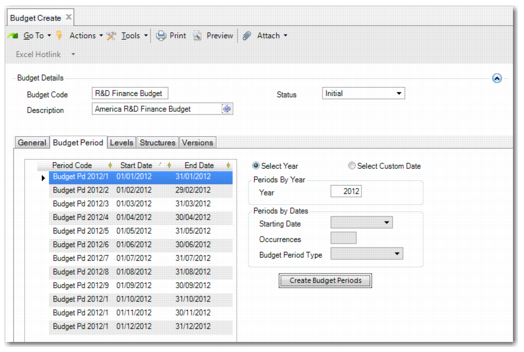
5 When you select the Budget Period tab, a message is displayed that the budget periods you enter must correspond with periods used in the report cube. Add the periods you want the budget to cover.
Note: Not all the year periods of the cube and the budget must be the same. For example, a cube can have data for 2010, 2011, and 2012 with 12 months in each year. The budget can be for only one of these years with the same 12 months in it. Alternatively, the budget can run into the future with a greater number of periods than the cube. However, as long as the same periods are used in the budget and the cube, the budget is acceptable.
Budget Create, Budget Period Tab
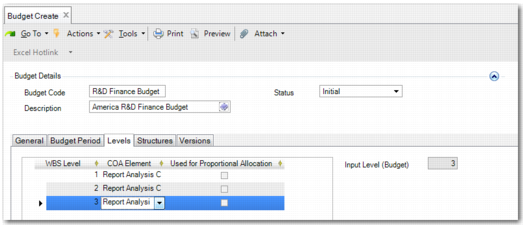
6 Select the Levels tab. You can now specify a top level at which to link the budget to a report analysis code. You can add many levels of report analysis code, or many levels of GL, sub-account, cost center, project, SAF, entity. However, you cannot mix detailed COA dimensions and analysis codes. In this example, there are three levels of analysis code because there are three levels in the budget structure: R&D Finance (cost center), Country (entity code), and cost (GL category).
Budget Create, Levels Tab
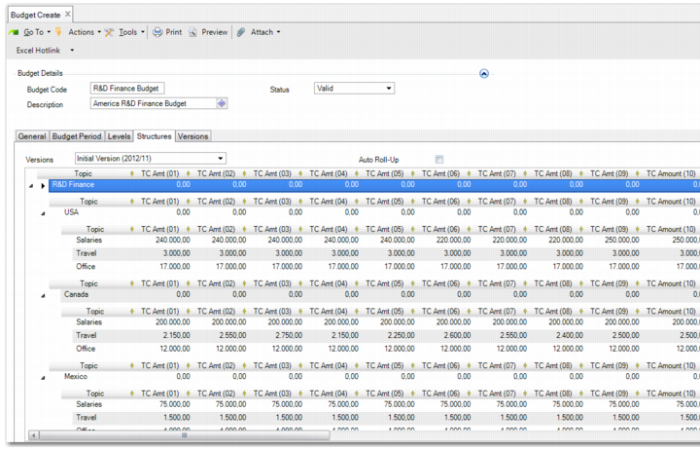
7 Select the Structures tab.
a If you want to create a budget from an Excel file, click the Excel hotlink and navigate to the file you want to use to create your budget. If your budget topic names match existing analysis codes, you can right-click and use the Autolink option on the context menu to automatically associate each topic with an analysis code.
b Alternatively, you can manually add the topics that you want to include in your budget by selecting an analysis code, or a GL, sub-account, cost center, project, SAF, or entity code in the Topic field lookup. If, however, you want your topics to have particular labels, enter the text you want to appear in the Topic field. Right-click the line and use the Topic Properties option to link the topic to an analysis code or GL, sub-account, cost center, project, SAF, or entity code. The Topic label continues to display the original text you entered.
In this simple example using analysis codes imported from Excel, there are three activities to budget for in each entity.
Budget Create, Structures Tab
Note: Many organizations create a budget for each cost center or entity. The organization then rolls up the budgets into one consolidated budget. For details on updating budgets, see
Budget Activities.
8 No changes to the Versions tab are necessary. To create your budget for use in Financial Report Writer, click Save.
9 To make the budget amounts available to display, add a budget column in Report Column Group Create. See
Report Column Group.
10 Create or modify a report master so that the budget columns are displayed in Financial Report Run. See
Maintaining Report Masters.
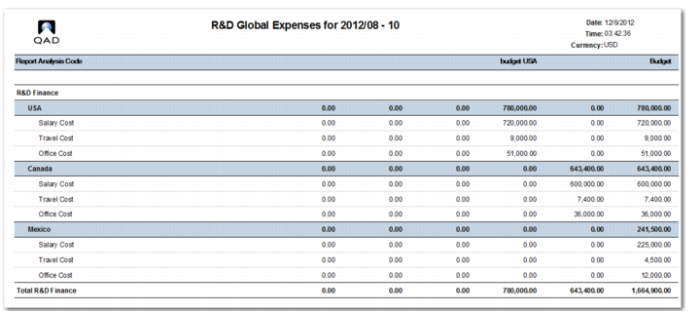
11 Run the report in Financial Report Run.
Report Including a Budget Column