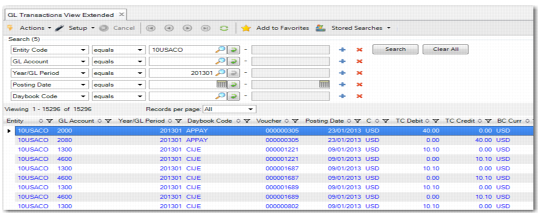
GL Transactions View Extended
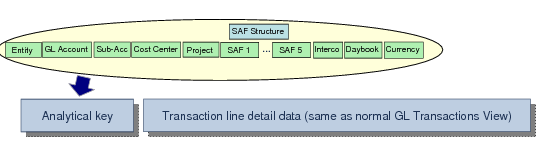
The GL Transactions View Extended (25.15.2.10) lets you view GL transactions across all analytical levels (sub-accounts, cost centers, projects, and SAFs, in addition to intercompany, daybook, and currency).
Use the filter options to display the data you require, and the view sums all GL transactions that meet the search criteria.
Filters and Columns for GL Transactions View Extended lists the filters and columns for the GL Transactions View Extended.
Filtering
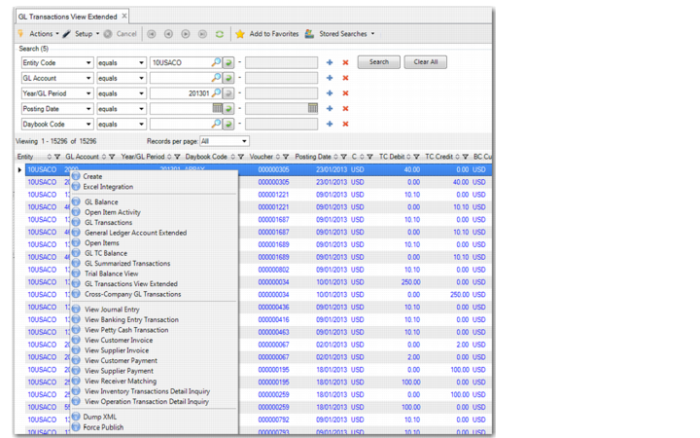
In the grid containing the view search results, you can right-click to display related views. See
GL Transactions View Extended Right-Click Options.
GL Transactions View Extended (25.15.2.10)
Filters and Columns for GL Transactions View Extended lists the GL Transactions View Extended columns and filters:
Filters and Columns for GL Transactions View Extended
Columns | Filters |
Entity | Active GL Account |
GL Account | Allocated |
Year/GL Period | Allocation Key |
Voucher | Balance Sheet Account |
Posting Date | Batch Number |
Curr | Cost Center |
Daybook Code | Currency |
Daybook Type | Daybook Code |
External Invoice Maintenance | Daybook Type |
Third Party | Description |
Third Party Desc | Description |
GL Type | Entity Code |
GL Description | GL Account |
Creator | GL Category |
Sub-Account Code | GL Type |
Cost Center | Intercompany Code |
Cost Center Description | Layer Code |
Sub-Account Description | Layer Type |
Project | Only Transactions With SAFs |
Consumption Tax Code | Consumption Tax Code |
Daybook Description | Posting Date |
Layer Code | Posting Description |
Type | Project |
Description | SAF Concepts 1-5 |
Origin Daybook Code | SAFs 1-5 |
Origin Daybook Number | SAF Structure |
Origin Doc | Sub-Account Code |
Origin Pay Type | System Date |
Origin Ref | TC Credit |
Origin Trans Type | TC Debit |
Posting Description | Voucher |
Project Description | Year/GL Period |
Origin Line No | Automatic Reversal |
BC/SC/TC Debit | Automatic Reversal Type |
BC/SC/TC Credit | Transient Reference |
BC/SC Curr | |
Is Reversal | |
External Origin | |
SAFs 1-5 | |
SAF Structure Code | |
Intercompany Code | |
Daybook Type | |
Batch Number | |
BC/SC/TC Amount | |
Exchange Rate | |
Scale Factor | |
BC/SC Exchange Rate | |
BC/SC Scale Factor | |
Allocation Key | |
Allocated | |
Sys Date | |
Business Relation Name | |
Legal Document | |
Transient Reference | |
GL Transactions View Extended Right-Click Options
Right-Click Options shows the related views that are available as right-click options from GL Transactions View Extended.
Right-Click Options
The following right-click options are available:
• Create
Opens GL Account Create (25.3.13.1).
• Excel Integration
Opens GL Account Excel Integration (25.3.13.5).
• GL Balance
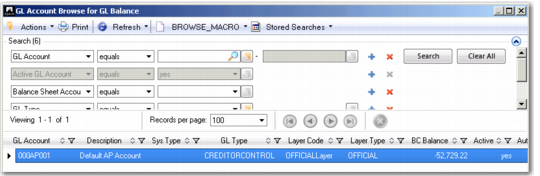
Opens the GL Account Browse for GL Balance.
• Open Item Activity
Displays detailed information on activities for GL open item accounts.
• General Ledger Account Extended
Displays extended details of GL accounts, including the posting sign (debit/credit), posting type, analysis, revaluation settings, shared sets, and budget groups.
• Open Items
Displays and sums all transactions on GL open item accounts that meet the search criteria.
• GL Transactions
Opens the GL Account Browse for GL Transactions.
• GL TC Balance
Displays the actual balance in transaction currency for all GL accounts that meet the selection criteria.
• GL Summarized Transactions
Displays summarized posting history for the accounts specified in the selection criteria.
• Trial Balance View
• GL Transactions View Extended
• Cross-Company GL Transactions
Opens the GL Account Browse for Cross-Company GL Transactions.
• View Journal Entry
Opens Journal Entry View in a separate window and displays the postings for the transaction.
• View Banking Entry Transaction
When you select a GL transaction for a banking entry, the system opens a separate Banking Entry View window that displays the specific banking entry you selected. The option to view the source detail is also available for customer and supplier invoices, customer and supplier payments, receiver matchings, petty cash, and banking entry transactions.
• View Petty Cash Transaction
• View Customer Invoice
• View Supplier Invoice
• View Customer Payment
• View Supplier Payment
• View Receiver Matching
• View Inventory Transactions Detail Inquiry
When you select a GL transaction for an associated operational inventory control transaction, the system opens the Inventory Transactions Detail Inquiry, which displays details on the original inventory transaction.
• View Operational Transactions Detail Inquiry
When you select a GL transaction for an associated operational work order transaction, the system opens the Operational Transactions Detail Inquiry, which display details on the original work order transaction.
• Dump XML
Lets you dump the selected rows in XML format.
• Force Publish
Publishes a business event for the selected GL transaction. A business event in this case is any modification to a Financials business object; for example, create, modify, or delete. By publishing the event, the system ensures that the update is passed to the QXtend Outbound database and replicated to other instances of Financials or third-party applications. This facility eliminates the need for the other applications to extract the data directly from the Financials database.
In order to publish an event for journal entries, for example, you must first define an event for the Journal Entry component using Event Configuration Create (36.14.16.15.1). In Event Configuration Create, you select the Publish Any Update field to ensure that all data updates for the business object for which you defined the event are published to QXtend.
GL Account Browse for GL Balance shows the GL Account Browse for GL Balance.
GL Account Browse for GL Balance
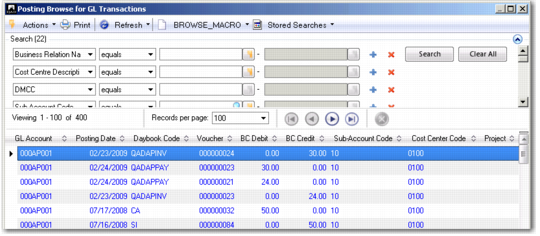
Posting Browse for GL Transactions shows the Posting Browse for GL Transactions.
Posting Browse for GL Transactions