QAD 2017 Enterprise Edition
>
User Guides
>
Global Tax Management
>
Implementing GTM
>
Updating Addresses and Items
Updating Addresses and Items
When sales and purchasing transactions take place, tax data is derived from two sources:
• Addresses associated with customers, suppliers, and sites
• Product line and item defaults
Business Relations
The system uses records called business relations to manage basic address information. A business relation contains location, contact, and tax information for a set of related addresses. These records are created as part of corporate setup using functions found on the Address Setup Menu (36.1.4). These functions are described in
QAD Financials User Guide.
Business relations are then referenced in AR when customers, ship-to records, and end users are created. They are referenced in AP when suppliers are created. The same set of tax fields must be defined for business relations, customers, and suppliers. Certain tax data defaults from the business relation when customer and supplier records are created, including the values for Taxable, Tax Included, and In City. You can modify the defaults as needed and specify values for the remaining tax-related fields.
Separate customer and supplier tax data lets you define different values for the same business relation depending on the business context.
Example: Business Relation 010000 is referenced both as a customer and a suppler. You sell finished goods to this company and also purchase raw material from it. The nature of usage for tax reporting is different for sales and purchasing. For the customer record that references 010000 you specify FG (finished goods) for nature of operation; for the supplier that references 010000 you specify RAW for nature of operation.
Company addresses also reference business relations for tax data, but in this case, the tax data of the BR is used directly; it cannot be modified. Each of your inventory sites must be associated with a business relation in Company Address Maintenance.
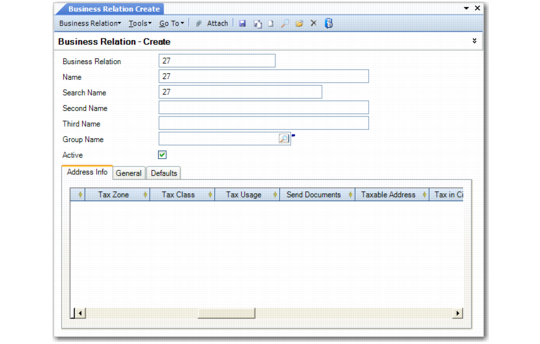
Business Relation Create, Tax Data on Address Tab (36.1.4.3.1) illustrates the tax fields on the Address Info tab in Business Relation Create. The same information displays on the Tax Info tab in Customer Create and Supplier Create.
Business Relation Create, Tax Data on Address Tab (36.1.4.3.1)
Taxable Address
For non-taxable addresses, select this setting if you report tax exemptions by tax type in GTM. This field defaults from the BR to related customer and supplier records.
Tax Is Included
Select this option if items shipped to or from the address have tax already included in the line-item price. This field defaults from the business relation to related customer and supplier records.
Important: The setting of tax included affects only the calculation of taxes in operational functions such as sales and purchasing transactions. When taxable transaction are created directly in financial functions such as manually created suppler or customer invoices, the tax is managed by appropriate settings in those transactions.
Federal Tax
For reference and documentation purposes, enter a federal tax identification number.
State Tax
For reference and documentation purposes, enter either a state or provincial tax identification number or a value-added tax registration number.
The value you specify in this field is validated against the tax format defined for the country of the address. Specify the tax format in Country Create (36.3.1.1).
For European countries, you enter the VAT registration number, which is also required for Intrastat reporting.
Miscellaneous Tax 1, 2, 3
For reference and documentation purposes, enter any other tax identification numbers that are useful.
Tax in City
This setting determines whether the address is in the city limits for taxation purposes. It affects only GTM processing that occurs in conjunction with the Sales and Use Tax Interface for U.S. tax processing. See Technical Reference: QAD Sales and Use Tax Interface.
Tax Zone
For each address record, the system selects a default tax zone based on the postal code, city, county, state or province, and country in the address. If an applicable zone is not found, a warning displays and the zone is set to the default specified in Global Tax Management Control.
Tax zone is the only tax field required before you can save an address record.
Tax Class
Enter a valid tax class created in Tax Class Maintenance.
Tax Usage
Enter a valid tax usage code created in Tax Usage Maintenance.