Creating Invoices Subject to Withholding Tax
Creating Invoices Manually
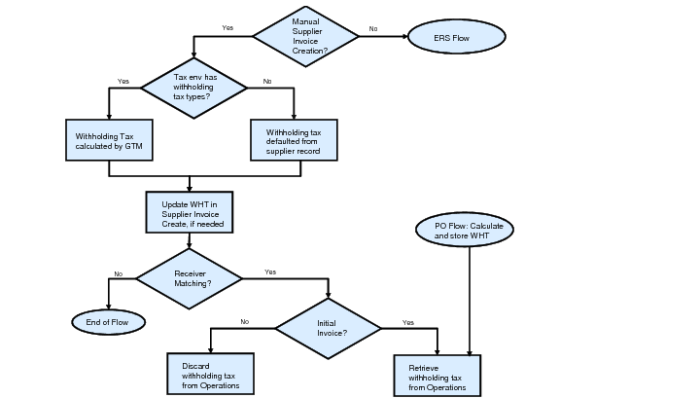
If withholding tax is enabled for the domain and the supplier is subject to withholding tax, the Withholding Tax tab is enabled in Supplier Invoice Create when you create invoices for that supplier. The system can populate the Withholding Tax tab automatically or you can enter withholding tax details manually.
If the tax environment contains one or more tax types for which the Withholding field is selected in Tax Type Maintenance, the Withholding Tax tab is automatically populated with withholding tax data. The tax rates and the tax amounts are calculated automatically by GTM.
If the tax environment does not contain withholding tax types, you must manually enter the withholding tax data in the Withholding Tax tab.
Manual Invoice Creation Flow
The Withholding Tax tab contains a grid with fields for calculating withholding tax. If you are using the manual process to enter withholding tax, when you first access the tab, the grid is empty. To manually populate the grid and calculate withholding tax, right-click in the grid and select Insert a New Row to create a grid row.
If you are using the automatic calculation process, the default withholding tax code for that domain from the supplier’s withholding tax setup in the Supplier record defaults in.
When you create an invoice for a supplier who is subject to withholding tax, you can enter a fee or a reimbursed expense. Withholding tax can be charged for fee items, but not for expenses.
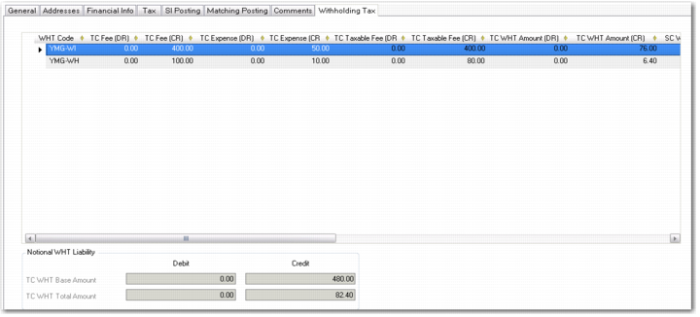
Supplier Invoice Create, Withholding Tax Tab
When a grid row is added, either manually or automatically by GTM, the default withholding tax code for that domain from the supplier’s withholding tax setup in the Supplier record defaults in. However, you can change the default tax code for the line and enter a new withholding tax code. For each withholding tax code, you can specify fees and expense amounts. You can enter fees and expense amounts on the same line or on separate lines.
Note: You can only enter one expense amount in the grid.
The sum of the total withholding tax fees and expenses must not exceed the taxable base amount if the invoice is taxable. If the invoice is non-taxable, the sum of the total withholding tax fees and expenses must not exceed the invoice total.
The taxable base is the invoice amount less any non-withholding tax. If an invoice for 120 Euros includes 20% VAT, the taxable base is 100 Euros. Therefore, the sum of all fees and expenses on all withholding tax lines for that invoice must not exceed 100.
If the Update Tax Allowed field is selected in Tax Rate Maintenance for the withholding tax rate, you can modify the withholding tax amounts calculated in the Withholding Tax tab.
Example:
In
Supplier Invoice Create, Withholding Tax Tab, two withholding tax codes apply. On line one, the fee amount is 400 Euros and the expense amount is 50 Euros. The line is subject to withholding tax at 19% and the tax is 100% recoverable. The Taxable Fees amount is 400 Euros (100% recoverable) and the TC WHT Amount is 76 Euros (19% of 400).
On line two, the fee amount is 100 Euros and the expense amount is 10 Euros. The line is subject to withholding tax at 8% and the tax is 80% recoverable. The Taxable Fees amount is 80 Euros (80% recoverable) and the TC WHT Amount is 6.40 Euros (8% of 80). Therefore, the total taxable base for the invoice is 480 Euros and the total withholding tax is 82.40 Euros (76 Euros + 6.40 Euros).
If you try to save an invoice for which the sum of the fees and expenses exceeds the taxable base, the system displays an error message and you cannot save the invoice. In addition, you cannot save a row in the Withholding Tax grid if all fee and expense fields on the line are set to 0 (zero).
The following section describes the key fields in the Withholding Tax grid:
WHT Code
Specify the withholding tax code.
If withholding tax is enabled for the domain and the supplier is subject to withholding tax, the withholding tax code defaults from the supplier withholding tax setup. However, you can change the tax code by selecting a new withholding tax code from the lookup.
The lookup includes tax codes associated with tax types designated for use in withholding tax calculations. Each tax code can only be referenced on one line of an invoice.
For each withholding tax code, you can specify fee and expense amounts. You can enter fee and expense amounts on the same line or on separate lines. However, you cannot enter two lines in the grid for the same withholding tax code. If you enter an expense amount on a line without specifying a fee amount for that line, you do not need to enter a withholding tax code because withholding tax calculations only apply to fee amounts.
Description
This field displays a description of the tax rate, and is read only. This value is retrieved automatically from the Description field of the tax rate record for the withholding tax code. The tax rate description should indicate the type of service concerned.
Fees DR/CR
Specify the fees amount that is subject to withholding tax.
When the first grid line is added, either automatically by GTM or manually, the TC taxable base amount from the Tax tab defaults into the respective CR or DR column. If the invoice is non-taxable, the total invoice amount is used. For all subsequent lines inserted in the grid, the fees values default to zero.
For invoices, specify the fees amount in the Fees Cr field.
For invoice corrections, specify a negative fees amount in the Fees Cr field.
For credit notes, specify the fees amount in the Fees Dr field.
For credit note corrections, specify a negative fees amount in the Fees Dr field.
Expense DR/CR
Specify the invoice amount that is not subject to withholding tax. The default is 0 (zero).
TC Taxable Fees DR/CR
This field displays the taxable fees value, which is the withholding tax base amount. This amount is calculated by multiplying the fees amount by the tax base percentage recoverable for the tax rate used. For example, if the fee is 100, and the recoverable percentage for the withholding tax rate is 80%, the Taxable Fees amount is 80.
BC Taxable Fees DR/CR
This field displays the taxable fees value, which is the withholding tax base amount, in base currency. This amount is calculated by multiplying the Taxable Fee Amount in transaction currency by the exchange rate on the invoice.
SC Taxable Fees DR/CR
This field displays the taxable fees value, which is the withholding tax base amount, in statutory currency.
This amount is calculated by multiplying the Taxable Fee Amount in transaction currency by the statutory exchange rate if the statutory currency is enabled for the domain. If the system cannot find a statutory exchange rate that is valid for that date, it reverts to using the accounting exchange rate, if the Fallback to Accounting field is selected for the statutory exchange rate.
WHT Rate %
This field displays the rate at which withholding tax is applied.
TC WHT Amount DR/CR
This field displays the withholding tax amount in transaction currency for that line. This amount is calculated by multiplying the amount in the Taxable Fees field by the tax rate percentage used.
BC WHT Amount DR/CR
This field displays the withholding tax amount in base currency for that line. This amount is calculated by multiplying the TC WHT Amount by the exchange rate on the invoice.
SC WHT Amount DR/CR
This field displays the withholding tax amount in statutory currency for that line. This amount is calculated by multiplying the TC WHT Amount by the statutory exchange rate if the statutory currency is enabled for the domain. If the system cannot find a statutory exchange rate that is valid for that date, it reverts to using the accounting exchange rate, if the Fallback to Accounting field is selected for the statutory exchange rate.
If no accounting exchange rate is available, an error is displayed.
WHT Acct
This field displays the AP tax account associated with the withholding tax code in Tax Rate Maintenance. For invoices and invoice corrections, this is the AP Inv Tax Acct. For credit notes and credit note corrections, it is the AP CN Tax Acct.
WHT Sub-Acct
This field displays the AP tax sub-account, if any, associated with the withholding tax code in Tax Rate Maintenance.
Fields Under Grid
TC WHT Base Amount
This field displays the total base amount that is subject to withholding tax. This value is the sum of the TC Taxable Fees fields for all lines in the grid.
TC WHT Total Amount
This field displays the withholding tax total for the invoice, which is summed from the amounts for all withholding tax codes.
See
Withholding Tax Examples for detailed withholding tax invoice line and payment examples, including their resultant postings.
Creating Invoices Automatically using ERS
The Evaluated Receipts Settlement (ERS) function lets you generate supplier invoices and corresponding receiver matching records based on purchase order receipts or fiscal receipts.
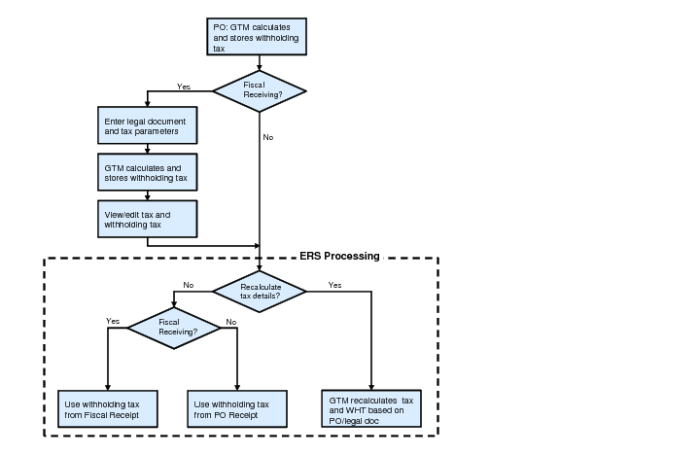
PO, Fiscal Receiving, and ERS Processes
PO Process
If fiscal receiving is not activated, ERS generates supplier invoices and corresponding receiver matching records based on purchase orders receipts.
If you select the Recalculate Tax Details field in the ERS Processor, GTM recalculates the tax using the latest definition of the withholding taxes and normal taxes from the purchase order. If the Recalculate Tax Details field is cleared, the withholding tax values from the purchase order populate the Withholding Tax tab of the supplier invoice created by ERS.
Fiscal Receiving Process
If fiscal receiving is activated by selecting Fiscal Confirm Required in Purchasing Control, ERS lets you create matched supplier invoices and credit notes or invoice corrections using fiscal receipts, and not PO receipts. Otherwise, ERS creates the supplier invoice and receiver matching based on the purchase order.
When ERS creates supplier invoices based on fiscal receipts, the Withholding Tax tab of the supplier invoice is automatically populated based on the withholding taxes associated with the purchase order and updated withholding tax values from Fiscal Receiving.
If you select the Recalculate Tax Details field in the ERS Processor, GTM recalculates the tax using the latest definition of the withholding taxes and normal taxes from the PO or legal document. If the Recalculate Tax Details field is cleared, the edited withholding tax values from Fiscal Receiving populate the Withholding Tax tab of the supplier invoice created by ERS.
Modifying Invoices Subject to Withholding Tax
If a supplier invoice that is subject to withholding tax has not been paid, you can use Supplier Invoice Modify or Supplier Invoice Allocate to modify the fee and expense amounts, and add or delete withholding tax lines.