Setting Up Gross Income Accounting
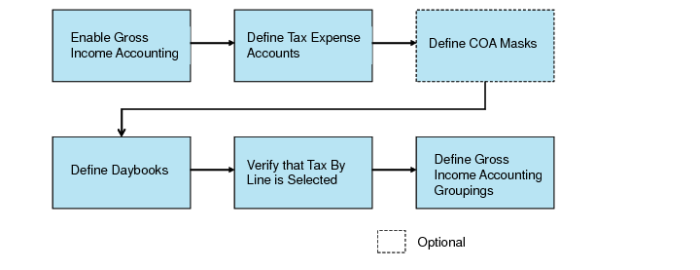
Up to six steps are required to set up gross income accounting.
3 Verify or define COA mask entries for the account and analysis groupings used in gross income accounting. This step is optional. See
Defining COA Masks.
5 Select the Tax-By-Line field in Tax Rate Maintenance (29.4.1) for tax types for which gross income accounting postings must be created. See
Verifying the Tax-By-Line Setting.
6 For each sales account and tax payable account COA grouping, define the tax expense COA components the system must use to create additional gross income accounting postings. See
Defining Gross Income Accounting Groupings.
Gross Income Accounting Setup
Enabling Gross Income Accounting
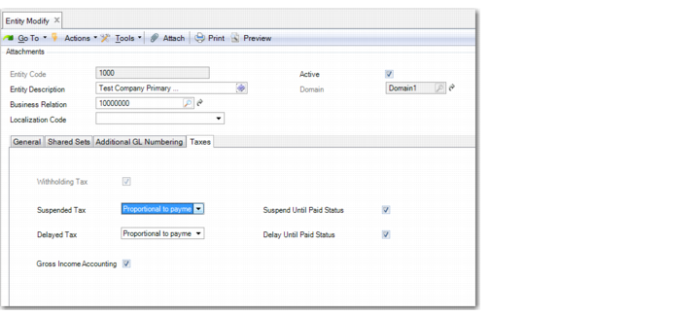
You enable gross income accounting in the Taxes tab of the Entity record.
Entity Modify, Taxes Tab
Gross Income Accounting
Select the field to enable gross income accounting for the entity.
The default is that the field is cleared.
Defining Tax Expense Accounts
In GL Account Create (25.3.13.1), define the tax expense accounts that you want to map to the sales and tax payable accounts. The tax expense account you create must have the same analysis settings as the sales account to which it is mapped.
The tax expense account must have a category of Expense, a Balance/PL setting of Profit and Loss Account, and a Debit/Credit setting of Debit.
Note: If you modify the analysis for a sales or tax expense account used in gross income accounting, the system displays a warning message in GL Account Modify (25.3.13.2) when you save the analysis change.
Defining COA Masks
If COA masks are enabled for the domain, define mask entries for the tax expense account and its analysis COA elements. This step is optional.
See
QAD Financials User Guide. for more information on COA masks.
Creating a Daybook for Gross Income Accounting Postings
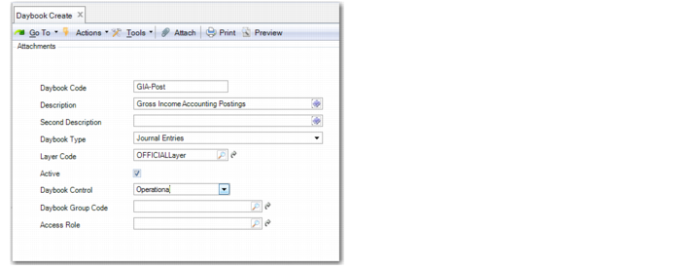
It is recommended that you create a separate daybook for use in gross income accounting postings. The daybook type must be Journal Entries, the daybook layer type must be Official or Management, and the daybook control must be Operational.
Daybook Create
Verifying the Tax-By-Line Setting
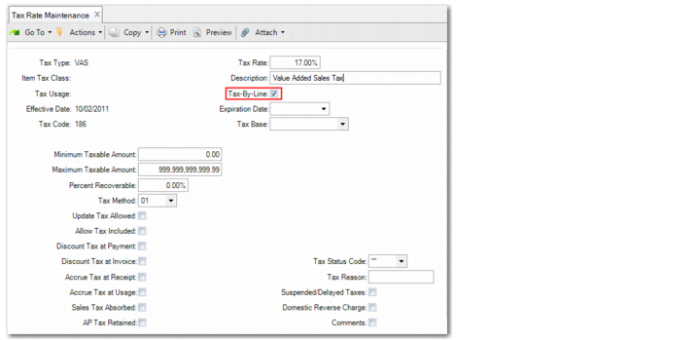
For gross income accounting, the Tax-By-Line field in Tax Rate Maintenance (29.4.1) must be selected for the tax type.
If the Tax-By-Line field is selected, the gross income accounting posting is determined using the tax detail for each line item included in the standard sales posting. If the Tax-By-Line field is cleared, no gross income accounting postings are created.
Tax Rate Maintenance
Defining Gross Income Accounting Groupings
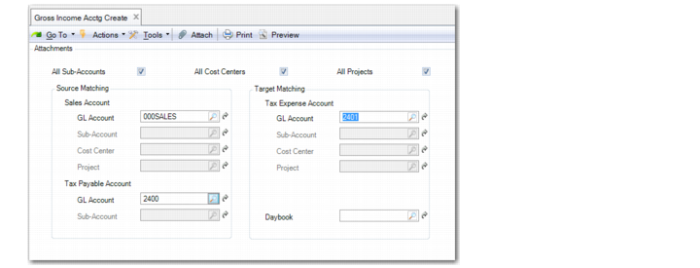
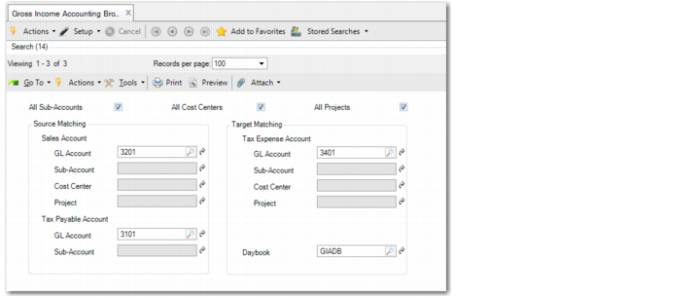
For each sales account and tax payable grouping, Gross Income Acctg Create (25.3.25.1) lets you define the tax expense COA components that the system must use to create the additional gross income accounting posting. You can define groupings to include accounts, sub-accounts, cost centers, and projects.
Gross Income Acctg Create
All Sub-Accounts
Select the field if the system must always use the sub-account from the sales posting in the tax expense account posting. In this case, the sales and tax expense sub-accounts are always the same.
When you select the All Sub-Accounts field, the following restrictions apply:
• The Sub-Account Analysis field must have the same setting on the GL Account record Analysis tab for both the sales and tax expense accounts. Sub-account analysis must be enabled or disabled for both accounts.
• If sub-account analysis is enabled, the sales and tax expense accounts must have the same default sub-accounts.
• If SAF analysis is enabled for the sales account, SAF analysis must also be enabled for the tax expense account. The sales and tax expense accounts must also be assigned the same default SAF structure.
• If the Analysis Type is set to None for the sales account, the Analysis Type must also be None for the tax expense account.
All Cost Centers
Select the field if the system must always use the cost center from the sales posting in the tax expense account posting. In this case, the tax expense and sales cost centers are always the same.
When you select the All Cost Centers field and the sales account has an analysis type of Both or Cost Center, the tax expense account must have an identical analysis setting. In addition, the Analysis Limitation setting and default cost centers assigned to the accounts must be the same.
All Projects
Select the field if the system must always use the project from the sales posting in the tax expense account posting. In this case, the tax expense and sales projects are always the same.
When you select the All Projects field, the following restrictions apply:
• If the sales account has an analysis type of Both or Project, the tax expense account must have an identical analysis setting. The Analysis Limitation setting and default projects assigned to the accounts must also be the same.
• If the sales account has an analysis type of Project, the sales and tax expense accounts must be assigned the same default SAF structure.
Source Matching
GL Account
Specify the sales account for which the system must create corresponding gross income accounting postings. The sales account must have a GL type of Standard Account.
Sub-Account
Specify the sales account sub-account for which the system must create corresponding gross income accounting postings.
This field is disabled if you select the All Sub-Accounts field.
If the All Sub-Accounts field is cleared, and you specify a sales GL account that is defined without sub-account analysis, this field is disabled.
Cost Center
Specify the sales account cost center for which the system must create corresponding gross income accounting postings.
This field is disabled if you select the All Cost Centers field. If the All Cost Centers field is cleared, and you specify a sales GL account that is defined without cost center analysis, this field is also disabled.
Project
Specify the sales account project for which the system must create corresponding gross income accounting postings.
This field is disabled if you select the All Projects field. If the All Projects field is cleared, and you specify a sales GL account that is defined without project analysis, this field is also disabled.
Tax Payable Account, GL Account
Specify the tax payable account for which the system must create gross income accounting postings. The tax payable account must have a GL type of Tax Account.
In order for gross income accounting postings to be generated, the tax payable account must match the sales invoice tax account defined in Tax Rate Maintenance (29.4.1) for the tax type applied.
Tax Payable Account, Sub-Account
Specify the tax payable sub-account for which the system must create a corresponding gross income accounting posting.
This field is disabled if you select the All Sub-Accounts field. If the All Sub-Accounts field is cleared, and you specify a tax payable account that is defined without sub-account analysis, this field is disabled.
In order for gross income accounting postings to be generated, the tax payable sub-account must match the sales invoice tax sub-account defined in Tax Rate Maintenance (29.4.1) for the tax type applied.
Target Matching
When you attempt to save a new or modified gross income accounting record, the system validates the tax expense account and analysis if COA masks are active for the domain.
GL Account
Specify the tax expense account that the system must use to create gross income accounting postings. The tax expense account must have a GL type of Standard Account.
Sub-Account
Specify the tax expense sub-account that the system must use to create gross income accounting postings.
This field is disabled if you select the All Sub-Accounts field. If the All Sub-Accounts field is cleared, and you specify a tax expense account that is defined without sub-account analysis, this field is also disabled.
Cost Center
Specify the tax expense cost center that the system must use to create gross income accounting postings.
This field is disabled if you select the All Cost Centers field. If the All Cost Centers field is cleared, and you specify a tax expense account that is defined without cost center analysis, this field is also disabled.
Project
Specify the tax expense project that the system must use to create gross income accounting postings.
This field is disabled if you select the All Projects field. If the All Projects field is cleared, and you specify a tax expense account that is defined without project analysis, this field is also disabled.
Daybook
Specify the daybook to which the system must post the gross income accounting transactions.
Gross Income Accounting Copy
Gross Income Accounting Copy (25.3.25.5) lets you copy and update gross income accounting groupings within a single entity. This function provides a data entry shortcut if you need to create a new gross income accounting grouping that uses many of the same analytical elements as an existing grouping.
Gross Income Accounting Copy
Gross Income Accounting Excel Integration
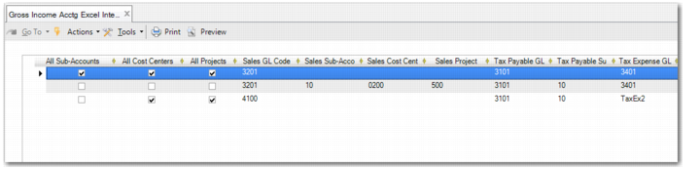
Use Gross Income Acctg Excel Integration (25.3.25.6) to export gross income accounting grouping records to or load records from an Excel spreadsheet. This facility is particularly useful when loading individual sales, tax payable, and tax expense analysis combinations.
If you right-click and select Load Gross Income Accounting, the system loads all gross income accounting groupings for the current entity. You can then modify and save the gross income accounting grouping records.
If you right-click and select Export to Excel for Maintenance, the system downloads the gross income accounting grouping records and exports them to an Excel file for maintenance. You must specify the name and location of the exported Excel file. You can also select Export to Excel for Maintenance when the grid is empty. In this case, the system creates an Excel sheet with the relevant database field name headings for maintaining data.
If you right-click and select Import from Excel, you can select and load an Excel file containing gross income accounting grouping records. The Excel file must be in the correct format for importing and have the correct database field names as column headings.
Gross Income Acctg Excel Integration