QAD 2017 Enterprise Edition > User Guides > Global Tax Management > GTM Reporting > Tax Report Lists > Regional Tax Reports
  
Regional Tax Reports
The regional tax reports are adapted for country-specific requirements.

Regional Tax Reports
 
Report
Description
Criteria
IC Declaration by Business Relation (29.6.2.3)
Displays intra-EU tax declaration data totalled per business relation and country.
Entity
Tax Year (From/To)
Tax Period (From/To)
State Tax ID
Transaction Type
Tax Class
Tax Type
Zone (From/To)
Check for Unposted Transactions (Yes/No)
Tax Box
Tax Code
Tax Group
Tax Purchases/Sales (All/Purchases/Sales)
Tax ID Type
Reporting Currency
Include Suspended/Delayed Tax (Yes/No)
Sub-Total By (None/Tax Box/Tax Group/Tax Type)
IC Declaration Transactions (29.6.2.4)
Displays a declaration report organized by transaction type. The report lists details of acquisitions, supplies, and triangular trade between your organization and other EU countries.
Yearly Tax Listing Belgium (29.6.2.5)
Displays the total value of tax on sales to customers. Typically, the report is run once a year for the whole calendar year.
You can filter on the year or period, based on the periods defined in the tax calendar for that year. You can also filter on the tax transaction type, and use this to determine Inland Sales.
The first page of the report contains your own company’s identification, and the totals for the report. The subsequent pages contain one line per customer, which includes the customer’s tax ID, the total turnover from sales to the customer, and the total tax applied on sales to the customer.
The output of the report complies with Belgian tax reporting requirements, and you can send the printed output directly to the authorities as a declaration.
Tax Year
Reporting Currency
Minimum Amount
Tax Class
Tax Type
Tax Code
Transaction Type
Reverse Charge Sales List Report (UK) (29.6.3.9)
Displays tax amounts that qualify the UK tax reversal.
Tax Point Date
Suppress Zero Amounts (Yes/No)
1099-MISC Report (US) (29.6.3.13.6)
Displays amounts paid to suppliers per US Internal Revenue Service requirements (see Running the 1099 MISC Report).
Entity
Payment Year
Show Entity Details
Show Transaction Details
Supplier Code
Supplier Type
Check for Unlinked Invoices
Federal Tax ID
Report Description
Report Currency
1099-MISC Paper Declaration
Generates 1099-MISC data on preprinted paper forms.
Entity
Federal Tax ID
Payment Year
Supplier Code
Supplier Type
1099 Electronic Declaration
Generates a file for the electronic 1099-MISC declaration based on IRS regulations.
Control Code
Address Details
Transmitter’s Media Number
AP Tax Register Details Report (29.6.3.11)
Displays all AP invoice type transactions for the relevant date range.
Tax Register
Reporting Currency
Posting Date
GL Cal Year
GL Period
Tax Year
Tax Period
Print Header
Print Lines
Trial/Final
Sort By
EU Purchases Tax Register (29.6.3.12)
Displays details of purchases made by EU companies from countries in the European Union.
Same criteria as for AP Tax Register Details Report (29.6.3.11).
EU Sales Linked to EU Purchases (29.6.3.14)
Displays details of linked purchases and sales by EU companies to and from companies in other countries in the European Union.
Same criteria as for AP Tax Register Details Report (29.6.3.11).
AR Tax Register Details Report (29.6.3.16)
Displays all AR invoice type transactions for the relevant date range.
Same criteria as for AP Tax Register Details Report (29.6.3.11).
Suspended Tax Register (29.6.3.18)
Displays all unpaid AR invoice type transactions with a suspended tax rate that has not been paid as of the last date of the selected date range.
Same criteria as for AP Tax Register Details Report (29.6.3.11).
AP Tax Register Report (29.6.3.19)
Display all AP transactions for the tax register and periods you specify.
AR Tax Register Report (29.6.3.20)
Display all AR transactions for the tax register and periods you specify.
AP Tax Register Report
Use the AP Tax Register report (29.6.3.19) to display all AP transactions for the tax register and periods you specify. Only transactions linked to the tax register you specify are included in the report output. You can display the report output in base currency or in statutory currency.
AP Tax Register reports can be submitted to your local tax authority as month-end tax declarations.
The report output is sorted by daybook group, daybook, and sequence number. If there are multiple lines for the same transaction, the lines are ordered by tax rate. Each transaction is totaled by tax rate, and includes a summary with a transaction total.
Each daybook group is totaled by tax rate and includes a summary with a daybook group total. For daybooks without a daybook group, the transactions posted to the daybook are totaled. The entire report is totaled by tax rate and includes a summary with a report total.
You can print the report in Detail mode, which includes transaction lines, or in Summary mode, which excludes transactions lines. For each report page printed in Detail mode, up-to-page amounts are accumulated and transferred to the next page. The following values are printed at the end of each page:
Accumulated total taxable amount
Accumulated total tax amount
Accumulated total transaction amount
Accumulated total retained tax amount
With the exception of the first page, the top of each page displays the amounts transferred from the previous page. With the exception of the last page, up-to-page amounts are displayed at the end of each page.
The AP Tax Register report has the following selection criteria:
Tax Register
Specify the tax register for which to run the report. The tax register is mandatory.
Entity
Select the entity for which to run the report. You can select any entity from the current domain.
Site
Specify the site for which to run the report.
Inland Purchase
Select Yes to include inland purchases in the report output.
The default is Yes.
Select No to exclude inland purchases from the report output.
IC Acquisition
Select Yes to include EU inter-community (IC) acquisitions in the report output.
The default is Yes.
Select No to exclude EU IC acquisitions from the report output.
Import
Select Yes to include imports in the report output.
The default is Yes.
Select No to exclude imports from the report output.
Tax Type
Specify tax types for which to run the report. This field is optional.
Tax Class
Specify tax classes for which to run the report. This field is optional.
Tax Usage
Specify tax usages for which to run the report. This field is optional.
GL Cal Year
Specify the range of GL calendar years for which to run the report. This field is optional.
GL Period
Specify the range of GL periods for which to run the report. This field is optional.
Invoice Date
Specify a range of invoice dates for which to run the report.
Tax Point Date
Specify a range of tax point dates for which to run the report.
Posting Date
Specify a range of posting dates for which to run the report. This field is optional.
Display Date
Select the date to display on the report header. The options are
Invoice Date
Tax Point Date
Posting Date
The default is Invoice Date.
Display Supplier Address
Select Yes display the supplier address lines as recorded in the business relation on the report.
Select No if you do not want to print the supplier address on the report.
Display Non-Taxable Lines
Select Yes to include transaction lines without tax in the report output. The default is Yes.
Select No to exclude transactions line without tax from the report output.
Report Detail/Summary
Select Detail to include transaction lines in the report output. The default is Detail.
Select Summary to only display transaction summaries including daybook and report totals. No transaction lines are displayed.
Display Retained Tax
Select Yes to include transaction lines with retained tax in the report output.
The default is Yes.
Select No to exclude transaction lines with retained tax from the report output.
Reporting Currency
Select Base Currency to display the report amounts and totals denominated in base currency.
Select Statutory Currency to display the report amounts and totals denominated in statutory currency.
If you select the Detail option, a transaction line is printed for each tax rate used in a transaction.
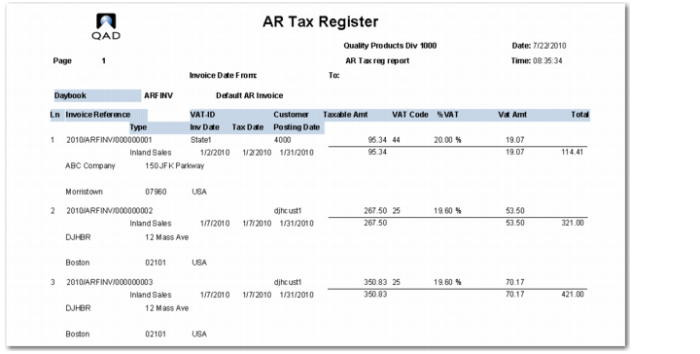
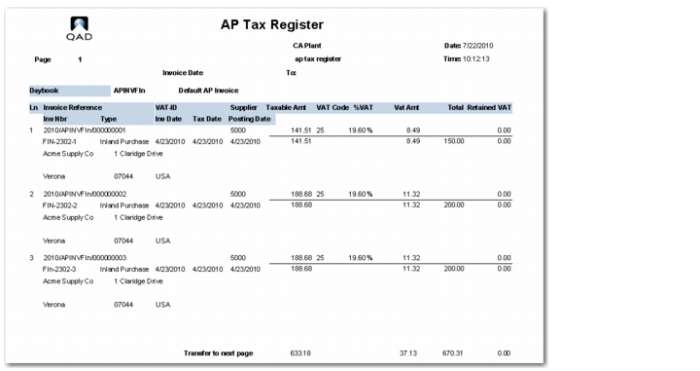
When you print the report in Detail mode, the following information is included:
Line number
Invoice reference
Supplier tax ID
Supplier code
Transaction type
Invoice date
Tax point date
Supplier name and address
Taxable amount for each tax rate
Tax rate
Tax percentage
Tax amount for each tax rate

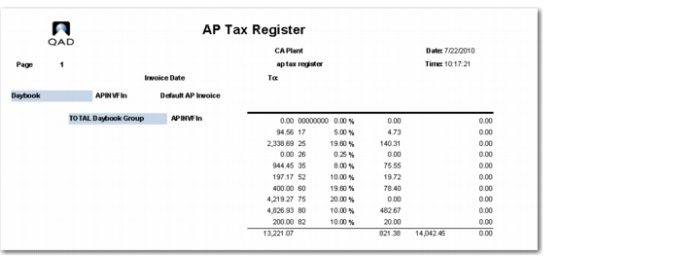
AP Tax Register Report, Detailed Output

AP Tax Register Report, Summarized Output

Transfer to Next Page Section
The AP Tax Register report trailer displays the following information:
Total taxable amount for each tax rate
Tax rate
Tax percentage
Total tax amount for each tax rate
Report totals for the following:
Total taxable amount
Total tax amount
Total transaction amount

Report Totals
AR Tax Register Report
Use the AR Tax Register report (29.6.3.20) to display all AR transactions for the tax register and periods you specify. Only transactions linked to the tax register you specify are included in the report output. You can display the report output in base currency or in statutory currency.
AR Tax register reports can be submitted to your local tax authority as month-end tax declarations.
The report output is sorted by daybook group, daybook, and sequence number. If there are multiple lines for the same transaction, the lines are ordered by tax rate. Each transaction is totaled by tax rate, and includes a summary with a transaction total.
Each daybook group included in the report is totaled by tax rate and the section includes a summary with a daybook group total. For daybooks without a daybook group, the transactions posted to the daybook are totaled. The entire report is totaled by tax rate and includes a summary with a report total.
As with the AP Tax Register report, you can print the AR Tax Register report in Detail mode, which includes transaction lines, or in Summary mode. The report also includes end of page and top of page values, as described in AP Tax Register Report.
Note: The AR Tax Register report does not include an accumulated total retained tax amount end of page value.
The report includes the same selection criteria as the AP Tax Register report, with the exception that the AR Tax Register does not include a Display Retained Tax field.
If you select the Detail option, a transaction line is printed for each of the tax rates used in a transaction.
When you print the report in Detail mode, the following information is included:
Line number
Invoice reference
Customer tax ID
Customer code
Transaction type
Invoice date
Tax point date
Customer name and address
Taxable amount for each tax rate
Tax rate
Tax percentage
Tax amount for each tax rate

AR Tax Register Report, Detailed Output

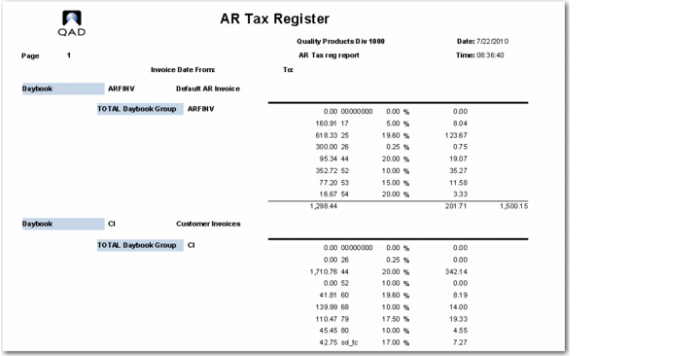
AR Tax Register Report, Summarized Output

End of Page Totals
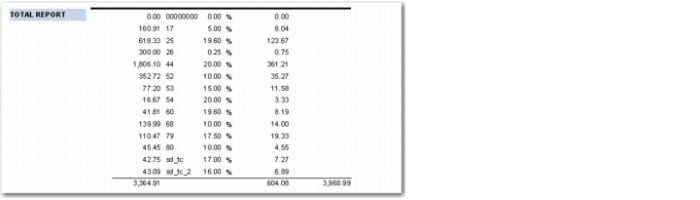
The AR Tax Register report trailer displays the following information:
Total taxable amount for each tax rate
Tax rate
Tax percentage
Total tax amount for each tax rate
Report totals for the following:
Total taxable amount
Total tax amount
Total transaction amount

Report Totals