QAD 2017 Enterprise Edition
>
User Guides
>
Global Tax Management
>
AvaTax
>
Defining AvaTax Account Details
Defining AvaTax Account Details
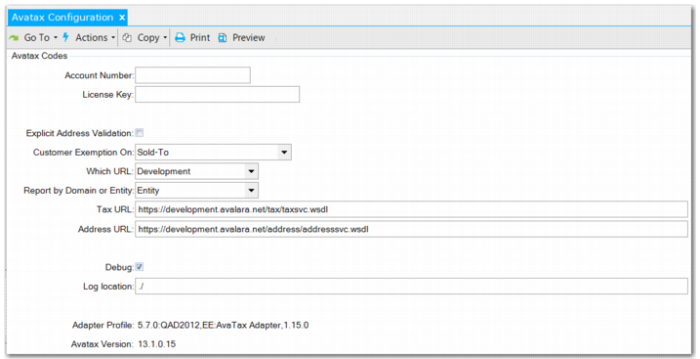
Before you can use AvaTax, you must configure the AvaTax interface using AvaTax Configuration (29.12.25). AvaTax Configuration updates and accesses the AvaTax configuration information contained within the QAD workfile. You must provide the AvaTax account number and license key before any communication to Avalara can take place.
AvaTax Configuration, AvaTax Codes Frame
Account Number
Specify the account number you received from Avalara.
License Key
Specify the AvaTax license key provided by Avalara.
Explicit Address Validation
Select this field if you want AvaTax to validate addresses. If AvaTax is enabled, addresses are validated when you create a new address or modify key address fields in the Business Relation, End User, and Customer Ship-To functions.
Customer Exception On
Specify the basis on which an exemption applies; possible values are Sold-To, Ship-To, and Bill-To.
Which URL
Specify a value to indicate the URL to use. The options are Development or Production.
Report by Domain or Entity
Specify Domain if your company reports tax by domain. Otherwise, specify Entity if your company reports tax by entity.
Tax URL
Specify the URL for the AvaTax Web Services Description Language (WSDL) Web service used to validate tax calculations.
Address URL
Specify the URL for the AvaTax WSDL Web service used to validate addresses.
Debug
Select the field if you want to use verbose debugging.
The debugging option indicates that the AvaTax adapter must produce verbose debug logs.
Note: The debug logs can become very large so it is recommended that you only activate this option when explicitly needed.
Log Location
Specify the path to the directory where you want to store AvaTax audit log files, usually the location of the logs directory within the AvaTax installation directory. If you used a different location, copy the WSDL files from the avatax/logs directory to whatever directory is specified. There are two levels of auditing: debug and normal auditing.
In normal audit mode, tax and transaction information such as the tax method, tax code, tax class, company code, and amounts are written to the logs. In addition, when the transaction is processed by AvaTax, AvaTax data is written to the logs including the username, profile name, adapter version, and client name.
Important: The logs may contain confidential tax details. Therefore, the log location must be a folder where access is restricted to a limited number of users. The user ID you use for tax administration using AvaTax must have read and write access to the logging folder.
Adapter Profile
Specify an adapter profile, which is required by Avalara. The following adapter profile is correct for AvaTax 13.x versions running with QAD 2016 EE.
5.7.0:QAD2016,EE:AvaTax Adapter,1.1
AvaTax Version
Specify the AvaTax Web service version that the interface is configured for. For the release of AvaTax that works with QAD 2016 EE, specify an AvaTax 13.x version.
Note: A difference between the connector and AvaTax service version does not necessarily mean that you have to upgrade the connector or take any other action.
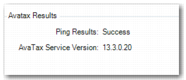
When you have defined the AvaTax Configuration data, click Next to ping Avalara to confirm the connection. This step is used to verify the credentials provided, as well as to compare the AvaTax adapter version with the current AvaTax version. A successful response includes the service version run by AvaTax. All tax transactions will continue to work as normal even if the AvaTax versions are different.
AvaTax Configuration, AvaTax Results Frame
The lower frame of the QAD AvaTax Configuration screen displays the connection status and the AvaTax Service version that responded.
The words “Ping Results: Success” mean that the connector installation is finished.