QAD 2017 Enterprise Edition
>
User Guides
>
Global Tax Management
>
Implementing GTM
>
Setting Up GTM Control
Setting Up GTM Control
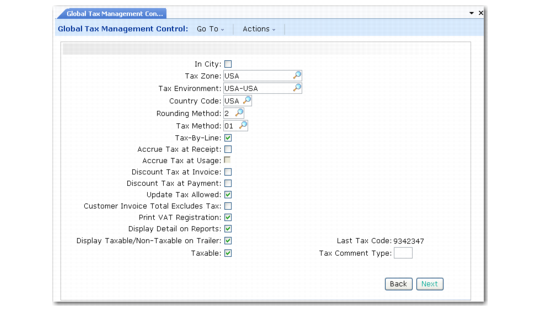
In Global Tax Management Control (29.24), enter the following values to complete setup of the control program.
Global Tax Management Control (29.24)
In City
This field determines the default value for the In City setting when a more specific value cannot be found.
The value of In City for an address determines if the address is in the city limits for taxation purposes. This setting affects only US tax processing that occurs with the QAD Sales and Use Tax Interface. See Technical Reference: QAD Sales and Use Tax Interface.
Tax Zone
Enter the default tax zone to be used during transaction entry when the system cannot find a matching tax zone for an address record.
Tax Environment
Enter the default tax environment to be used during transaction entry when the system cannot match the ship-to/ship-from tax zones and customer or supplier tax class to a tax environment.
Country Code
Enter a code to display as the default in Tax Zone Maintenance. This code represents the top-level in the tax zone hierarchy. Only active codes can be specified.
Rounding Method
Enter the default rounding method for tax types in Tax Environment Maintenance. Rounding method determines how tax amounts for the tax type are truncated.
Tax Method, Tax-By-Line, Accrue Tax at Receipt, Discount Tax at Invoice, Discount Tax at Payment, Update Tax Allowed
All these fields set defaults for the corresponding fields in Tax Rate Maintenance. See
Tax Rate Maintenance.
Customer Invoice Total Excludes Tax
Specify the default value for the Use as Tax Basis field in Customer Invoice Create. This field applies only to invoices created directly in Customer Invoice Create (27.1.1.1), not those created by Invoice Post and Print (7.13.4).
No: Use as Tax Basis defaults to No. The system assumes that tax is included in the invoice amount.
Yes: Use as Tax Basis defaults to Yes. When Yes, the invoice total is used as the tax basis during the calculation of tax. When the CI Posting tab is accessed, the invoice total is updated to include calculated tax.
Setting this field to Yes makes entry of manual invoices easier, since the user does not need to know the applicable tax rate in advance.
Example: You have an invoice for $100 and a tax rate of 10%. When you manually create this invoice and Use as Tax Basis is No, you must enter $110 as the invoice amount. The system calculates tax of $10 and leaves $100 to allocate. When Use as Tax Basis is Yes, you enter $100 and the system calculates the applicable tax of $10 and adds this value to the invoice total, leaving $100 to allocate.
The result is the same, but in the first instance, you need to know the correct invoice amount including tax beforehand; in the second case, you need to know only the net sales amount. The system derives the correct tax amount.
Important: GTM does not support tax calculations for multiple tax types when tax is included; if the tax environment has multiple types in this scenario, tax amounts must be entered manually.
Print VAT Registration
This setting specifies whether the system includes VAT registration numbers on printed documents. Set it to Yes to print the relevant VAT registration numbers on documents such as sales quotes, sales orders, invoices, purchase orders, blanket orders, shippers, service/repair orders, and material orders. VAT registration numbers are specified in the State ID field of the tax detail.
Display Detail on Reports
This setting determines whether you can print a summary of tax amounts on printed documents such as purchase orders, receipts, sales quotes, sales orders, and invoices. You can print tax summaries in document print programs only if both this control program setting and the Print Trailer field are set to Yes. Tax detail information prints only on documents that have a trailer.
Display Taxable/Non-Taxable on Trailer
This setting determines whether taxable and non-taxable amounts are displayed or printed in document trailers. When using different tax rates, currency rules, discounts, and rounding methods, non-taxable and taxable amounts shown in trailers may be incorrect. To avoid the display of misleading tax amounts, set this field to No when Tax-By-Line is No and different lines have multiple tax classes.
Taxable
Indicate the default setting for the Taxable field for new end user and ship-to records created in operational functions. When set to Yes, any temporary shipping addresses added to the system from sales order functions are taxable by default and their tax details must be entered into the system.
Note: This field does not affect new business relations or other address types.
Tax Comment Type
Identify the comment type that is used to store external tax comments for zero percent tax rates. This field is validated against generalized codes for cd_type, if they are set up.
European VAT invoice rules require that when a zero percent tax class is used on an invoice between two companies in the same or a different EC country, associated text must print on the invoice explaining the reason for the zero rate. A zero percent tax rate might indicate a tax exempt item, such as some medical devices, real estate services, day care, or postal services.
You can also use this tax comment for domestic reverse charge taxes required in the United Kingdom. See
Domestic Reverse-Charge Taxes,
Specify these comments for the tax rate in Tax Rate Maintenance (29.4.1) using this comment type.
These comments are then included in the tax analysis sections on external documents printed by the following functions:
• Pending Invoice Register (7.13.2)
• Invoice Post and Print (7.13.4)
• Invoice History Report (7.13.8)
• Invoice Print or Reprint (7.13.12)
• ERS Invoice Print (28.10.5)
In a multi-language environment, create comments in each required language. Comments print based on the bill-to customer’s associated language code.
Note: The TX comment type is used to indicate internal comments associated with a tax rate.