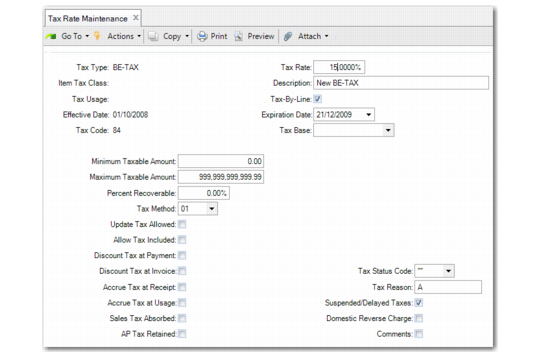
Tax Rate Maintenance
To define tax rates, use Tax Rate Maintenance (29.4.1). To verify tax rate setup, use Tax Rate Inquiry (29.4.2) and Report (29.4.3).
Note: If you change a tax rate after you start using it for transactions, a warning displays. The system recalculates taxes on open transactions when you access the transaction record.
Tax Rate Maintenance (29.4.1)
Tax Type
Enter the tax type to which the rate applies.
Item Tax Class
If the tax rate applies only to a specific item, service category, or trailer charge tax class, enter it here. Leave this field blank if the tax rate applies regardless of tax class. Do not set up rates by customer or supplier tax class.
Tax Usage
If the tax rate applies only to a specific tax usage, enter it. Leave blank if the tax rate applies regardless of tax usage.
Effective Date
Specify the starting date for using this tax rate in tax calculations. If you do not specify a date, the system inserts the record creation date. When you enter multiple tax rates, the default effective date is the one in the last record entered.
Tax Code
Enter a code identifying this tax rate. If you do not enter a code, the system increments it automatically from the Last Tax Code in Global Tax Management Control (29.24). You can use prefixes to designate groups of tax rates, but be aware that future tax rates will have the same prefix unless you override it. Tax code has no significance for auditing or accounting purposes.
Tax Rate
Specify the percentage used to calculate tax amounts for this tax rate. How the rate is used in the calculation depends on the tax method specified. To use tax types to report tax exemptions, set up zero-percent tax rates as well.
Description
Enter a brief description (maximum 24 characters) of the tax rate. The description prints on most reports and browses, as space permits.
Tax-By-Line
Specify whether taxes on line item amounts are calculated individually or by order total. On sales transactions, taxes on trailer charges are always totaled for the order regardless of the Tax-By-Line setting.
Note: When line item amounts use multiple tax rates, set Display Taxable/Non-Taxable on Trailer to No in Global Tax Management Control to suppress the display of misleading taxable/non-taxable amounts. See
Display Taxable/Non-Taxable on Trailer.
To calculate taxes by total on purchase receipt and AP transactions, you must set the following appropriately: Allow Tax Included, Accrue Tax at Receipt, and Recoverable Percent. See
Value Added Taxes (VAT).
Important: The setting of Tax-by-Line affects only the calculation of taxes in operational functions such as sales and purchasing transactions. When taxable transactions are created directly in financial functions such as manually created supplier or customer invoices, the tax is managed by appropriate settings in those functions.
Expiration Date
Use this field to phase in expiration dates for obsolete tax rates. This date is the last day when the tax rate can be used on transactions.
Tax Base
If necessary, enter the code that identifies the portion of the item amount subject to taxation. Leave this blank if the taxable base for this tax rate is always 100% of the item price. See
Tax Based on Partial Item Amounts.
Minimum Taxable Amount
If necessary, enter the minimum transaction taxable base amount to which this tax rate should be applied. The specified tax method determines how this field is used in tax calculations. Leave blank if the tax rate applies equally to all item amounts. See
Luxury Taxes.
Maximum Taxable Amount
If necessary, enter the maximum transaction taxable base amount to which this tax rate should be applied. The specified tax method determines how this field is used in tax calculations. Leave blank if the tax rate applies equally to all item amounts. See
Capped Taxes.
Percent Recoverable
Specify a recoverable tax percentage if you are able to offset some or all purchase tax amounts for this rate against the amounts for this rate that you collect on sales. Otherwise, leave set to 0.00%. See
Recoverable Taxes.
Tax Method
Specify which calculation routine to use when this tax rate is applied. The standard tax methods are 01, 02, 11. If you leave this field blank, calculation method 01 is assumed.
If you are using the Sales and Use Tax Interface, specify tax method 20. If you are importing tax amounts from an external system and do not want to recalculate them, specify method 03.
You can also define custom methods, but be sure to follow the program naming convention. See
here.
Update Tax Allowed
Decide whether users can modify system-calculated taxable base and tax amounts during transaction entry. This feature is useful for overriding the system if there is a need to match amounts on manually issued documents. However, the system does not maintain an audit trail of changes. In some environments, the government may require you to set this to No. See
Correcting Transaction Tax Amounts.
Allow Tax Included
Specify whether this tax rate reverse-calculates taxes from line item amounts on transactions for customers and suppliers whose Tax In (tax included) status is Yes. If Allow Tax Included is Yes, GTM reverse-calculates tax based on the tax rate’s percentage and tax method. See
Reverse-Calculated Taxes.
A tax environment should have no more than one tax type with a rate having Allow Tax Included set to Yes. Multiple tax-included rates can lead to tax calculation errors.
Note: Tax is always added to trailer charges regardless of the setting of Allow Tax Included.
Important: The setting of tax included affects only the calculation of taxes in operational functions such as sales and purchasing transactions. When taxable transactions are created directly in financial functions such as manually created supplier or customer invoices, the tax is managed by appropriate settings in those functions.
Discount Tax at Payment
This setting is similar to Discount Tax at Invoice with the exception that the net order total is the discounted sales amount plus the discounted tax amount. See
Discounted Taxes.
Discount Tax at Invoice
This setting determines whether the tax rate calculates taxes based on the sales amount minus credit terms discounts, but displays the net order total of full sales amount plus discounted tax amount. If tax is based on the full sales amount, set this to No.
Accrue Tax at Receipt
This setting determines whether the system creates GL entries for purchase tax amounts upon receipt of goods or receipt of the supplier invoice. The default tax point is determined by the setting in Global Tax Management Control. See
Tax Point Effects.
For recoverable tax rates, you normally set Accrue Tax at Receipt to No, because you cannot deduct the recoverable portion of tax paid on purchases against tax collected on sales until you finalize the supplier invoice.
If you are using Logistics Accounting, this field determines when GL entries for taxes on both inbound and outbound logistics charges are created.
The tax point does not affect tax calculations on transactions. The tax amounts display regardless of when the GL entries are created.
Accrue Tax at Usage
This field applies only if you have activated the optional Supplier Consignment Inventory module in Consignment Control. See
QAD Purchasing User Guide.
Sales Tax Absorbed
Indicate if the system should post to the associated Sales Tax Absorbed account. When this field is Yes, you must specify an absorbed invoice and absorbed credit note tax group for reporting.
AP Tax Retained
Indicate if the system should post to the associated AP Tax Retained account.
When this field is Yes, you must specify a retained invoice and retained credit invoice tax group for reporting.
Tax Status Code
Select the legal document tax status code used to identify the tax policy for the goods. This tax status code becomes the default for this tax rate in fiscal receiving.
You define the list of tax status codes in Generalized Codes Maintenance (36.2.13).
Tax Reason
Enter a maximum of eight characters for the tax reason. Tax reasons are a method of associating tax rates for reporting purposes, and are used by the tax register reports.
See
Tax Registers and
Regional Tax Reports for more information on tax registers and the tax register reports.
Suspended/Delayed Tax
Set this field to Yes if this tax rate will apply to suspended tax on customer invoices and credit notes, or to delayed tax on supplier invoices and credit notes.
Selecting this field enables the Suspended and Delayed Tax AR and AP accounts fields in Domain/Account Control (36.9.24). You must specify accounts in these fields when they are available.
Important: When you select Accrue Tax at Receipt for the tax rate, you cannot also select the Suspended/Delayed Tax field.
Domestic Reverse Charge
Set this field to Yes if this is a zero tax rate being set up to accommodate regulatory requirements in the United Kingdom for reverse charged items. A supplier adds no tax charge for a reverse charge item; the company receiving the item is responsible for recording the reverse charge tax amounts.
Tax records created for rates with this field set to Yes are included on the Reverse Charge Sales List Report. See
Domestic Reverse-Charge Taxes for details on this tax setup.
This field cannot be set to Yes unless the tax rate amount is 0 (zero).
Comments
Set to Yes to record transaction comments for the tax rate. This is useful for recording government regulations and other legally required text for tax reports.
Tax comments print on internal documents only unless they reference the tax comment type specified in Global Tax Management Control. These comments print on invoices.
For zero tax rates—such as those for domestic reverse charges—specify comments with this type to explain the use of the zero rate. This is legal requirement in some countries. See
Tax Comment Type.