Suspended Tax on Customer Invoices
Taxes on sales orders and customer invoices or credit notes are generally due at the same time as the invoice date. In some countries, however, the payment of taxes is deferred until the invoice has been fully or partially paid. Use the Suspended Tax option to defer the payment of taxes on a customer invoice until the invoice has been paid. If the Suspend Until Paid Status field is selected on the entity record, the taxes only become payable when the payment status is set to Paid. In this case, allocating payment to an invoice does not generate final tax postings unless the payment status is set to Paid at the same time.
Important: Draft payments are the exception. The transfer from suspended tax to normal tax only takes place when the payment is assigned the Paid status. In addition, if the Suspend Until Paid Status field is selected on the entity record, all payments are treated as drafts, and the final tax postings are only generated when the payment status is set to Paid.
Suspended taxes are normally applied to all sales orders and invoices for designated customers. You enable suspended taxes per entity. You then define a dedicated suspended tax rate and apply a tax environment that retrieves this rate for the customer. This ensures that sales orders and invoices for this customer are automatically subjected to suspended tax. You can also apply normal taxes when creating individual sales orders and customer invoices by selecting a tax environment that retrieves a normal tax rate.
For suspended tax, you use Tax Rate Maintenance (29.4.1) to define a set of tax accounts for the dedicated suspended tax rate you intend to use. The system then uses these accounts in postings when the suspended tax rate is applied.
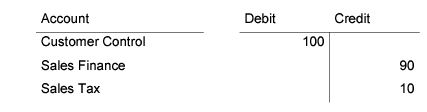
A customer invoice with a normal tax rate of 10% applied generates the following postings:
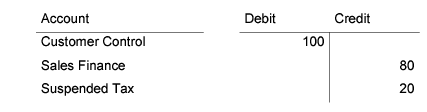
When a suspended tax rate of 20% is applied, the tax amount is posted to the Sales Invoice Suspended Tax account you defined for the suspended tax rate:
When the invoice has been paid, you create a customer payment and allocate it to the invoice to process the invoice amount. The system then generates a second tax posting if the Suspend Until Paid Status field is deselected on the entity record. If the Suspend Until Paid status field is selected, allocating a payment to an invoice does not generate final tax postings unless the payment status is also set to Paid.
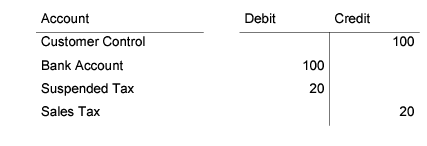
When the payment is paid, the system debits the Sales Invoice Suspended Tax account for the tax amount, and credits the normal sales tax account:
For more information on customer payments, see
QAD Financials User Guide.
The tax point date and period for the suspended tax postings is the same as the payment tax point date. When the GL or tax period for the original invoice posting is closed, the system displays an warning when the invoice with suspended tax is posted, but does not prevent the posting.
Suspended Tax on Other Customer Payment Types
Suspended tax can be applied to the following other types of customer payments:
• Invoice corrections, credit notes, and credit note corrections. The suspended tax postings are reversed for credit notes and credit note corrections.
• Manual payment of a customer draft.
• Customer payment selections for drafts.
• Allocation to an invoice using Banking Entry or Cashbox Entry.
• Allocation to a customer payment draft using Banking Entry or Cashbox Entry.
• Changing the status of a draft customer payment to Paid.
• Using Process Incoming Bank File to create new draft payments to be linked to invoices.
• Using Process Incoming Bank File to change an existing draft payment to Paid.
• Open Item Adjustment.
Note: A partial open item adjustment does not invoke suspended taxes.
• Cross-company payments. The additional posting lines are created in the entity of the invoice, and not that of the bank.
Calculating Suspended Tax Points
When the customer completes payment of an outstanding amount in payment stages, you define the point at which suspended taxes are calculated using the Suspended Tax field on the Entity Create/Modify screen.
This field has four options:
• Not applicable
• Till First Payment
Taxes are suspended on the whole payment amount when the first payment is made.
• Till Last Payment
Taxes are suspended on the whole payment amount when the final payment is made.
• Proportional to Payments
Taxes are suspended when the first partial payment is made, and the taxes due are proportional to the amount of the partial payment. The tax due in this case is calculated using the following formula:
Suspended Tax Amount = Total Tax (base) Amount * Payment Amount / Original Invoice Total
For information on setting up entities, see
QAD Financials User Guide.
When you change the payment stage on the Entity screen, the new level applies to new invoices and sales orders only. This flexibility lets you switch from suspended to normal taxes from one year to another.
For Draft customer payments, suspended taxes are changed to normal taxes when the draft is actually paid by the bank, and the payment status is changed to Paid.
Setting Up Suspended Tax
Configure suspended tax for a customer using the following steps:
1 Activate Suspended Tax for the entity by selecting a payment stage from the Suspended Tax drop-down list in Entity Modify. You can also use the Suspend Until Paid Status field to suspend the payment of taxes until the payment allocated to the invoice has a payment status of Paid.
For information on setting up entities, see
QAD Financials User Guide.
2 Use GTM to create a dedicated tax rate for suspended tax.
In Tax Rate Maintenance, create a tax type for delayed tax, specify the tax rate, and select the Suspended Delayed field.
Specify the AR invoice and credit note suspended tax accounts and the AP invoice and credit note delayed tax accounts to use when posting suspended and delayed taxes.
In Tax Environment Maintenance, create a tax environment record for suspended and delayed taxes.
List all ship-from and ship-to tax zone combinations for which suspended tax will apply.
Specify the tax zone of customers for which suspended tax applies.
3 In Customer Modify, Tax Info tab, select the suspended tax zone and suspended tax class for the customer.
When you create a customer invoice for this customer, the tax tab indicates that the suspended tax environment is used. The Suspended Tax field in the tax grid of the Tax tab is also selected. The CI Posting tab indicates that the tax posting is to the suspended tax account.
When the tax environment for a customer is configured for suspended tax, suspended taxes are applied by default to each new sales order and customer invoice you create.
The Tax Info prompt in Sales Order Maintenance displays the default tax environment for the customer, and you can select a non-suspended tax rate by changing the environment at this stage.
To change the tax environment on a manually created customer invoice:
1 On the Tax tab, delete the existing tax line on the grid.
2 Insert a new row and select the required tax environment.
3 Enter the total base amount for the invoice.
4 Click away from the grid.
The system applies the new tax rate to the invoice amount and recalculates the tax amount accruing.
Suspended Taxes and Reversed Payments
You can reverse an invoice payment using Open Item Adjustment or by changing the status of the payment to Void, Bounced or Initial. When you reverse the payment in this way, the suspended tax postings are also reversed.
When you change the payment status of a supplier payment to Void, delayed taxes are not reversed. Voiding a supplier payment does not re-open the paid invoices, but instead triggers the creation of a new payment record for the same invoices. This lets you issue a new payment. When you want to cancel the supplier payment completely, set the payment status to Bounced.