Item Attributes
Overview
Item attributes are specific characteristics that can be applied to items. Attributes serve as the basic building blocks necessary to support item attributes, lot attributes, quality control specifications, and quality control results. Attributes, which are used for items and quality control, can be applied across all domains.
An item attribute consists of an identifier, description, label identifier, and additional data for a characteristic that can be applied to an item. Each attribute has a unique identifier and an optional label identifier that supports the capability for an attribute to have labels that are appropriate for a user’s language. Like labels, once item attributes are defined in one domain, they are shared and available across all domains.
Creating an Item Attribute
Follow these steps to create an item attribute:
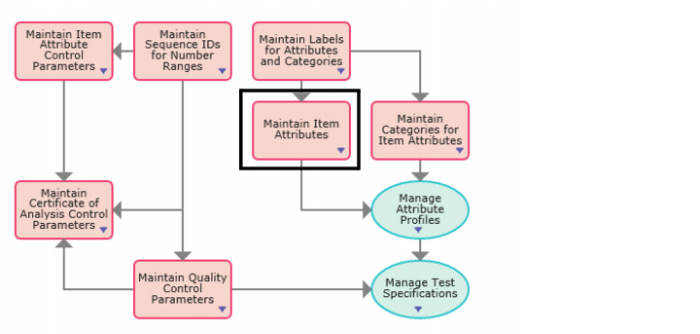
1 Open Item Attributes by selecting Maintain Item Attributes from the Manage Enterprise Item Attributes process map.
Manage Enterprise Item Attribute Process Map
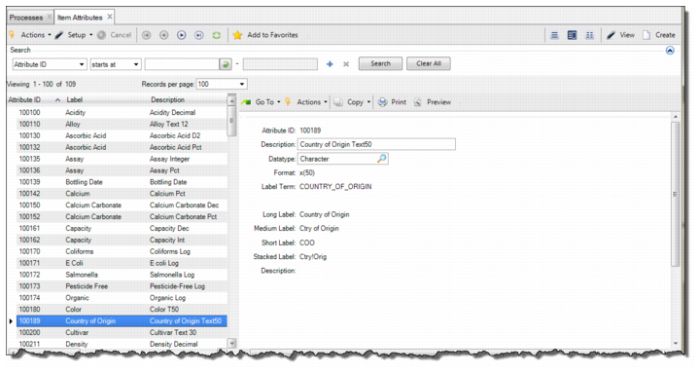
2 The Item Attribute browse displays a list of item attributes that can be assigned to items. To create an item attribute, click Create. A blank item attribute record opens.
Note: You can also use the Setup Item Attribute browse collection to create item attributes. Item Attributes, like label master records, are not limited to a single domain; they are available across domains.
Item Attribute Browse
3 Enter the required information in the following fields:
Attribute ID
Leave this field blank and click Next; the system automatically inserts an ID in this field. Otherwise, enter a unique alphanumeric ID of up to 32 characters for the attribute.
Note: For information about setting up the automatic assignment of attribute ID numbers, see
Item Attribute Control.
Description
Enter a short description to identify the attribute. When entering a description, the best practice is to indicate the name of the attribute and information about its datatype and format. This information is particularly useful when multiple attributes share the same label, but have different combinations of datatype and format. For example, if there are two attributes for capacity with integer and decimal datatypes, you can enter Capacity Int and Capacity Dec for the descriptions.
Datatype
Use the lookup and select the datatype (character, decimal, integer, date, or logical) associated with the attribute. If you select the date or logical datatype, the system automatically enters the datatype format in the Format field.
Note: Once an attribute is referenced by an attribute profile or test specification, you cannot modify the value for Datatype.
Format
Define the format for the datatype that was selected using standard programming and database conventions.
• Character. For a character datatype, enter the value in the form x(n), where n is the maximum number of characters that can be entered in this field. The value for n cannot be greater than 50.
• Decimal. For a decimal datatype, the following table contains examples of formats that can be entered depending on the desired value range:
Format | Value Range that can be entered |
>.99 | 0.00 - 9.99 |
>,>>9.99 | 0.00 - 9,999.99 |
>>>.9999% | 0.00 - 999.9999% |
• Integer. For an integer datatype, the following table contains examples of formats that can be entered depending on the desired value range:
Format | Value Range that can be entered |
>9 | 0 - 99 |
>,>>9 | 0 - 9,999 |
>9% | 0 - 99% |
• Date. For a date datatype, the format is system-defined as MM/DD/YY.
• Logical. For a logical datatype, the format is system-defined as Yes/No.
Note: If this item attribute is referenced by an attribute profile, you can modify the format for an item attribute. However, existing transaction history records are not updated. The system applies the updated format definition to records created after the change.
Label Term
Select a valid label term defined in Label Master Maintenance. The system uses this term and the defined attribute to determine the label that displays on the user interface. For more information about creating labels, see
QAD System Administration User Guide.
Note: If the value for Label Term is left blank or if a label master record does not exist for the label term, most attribute functions display the attribute description in place of a label.
Long Label
Displays the Label Term’s primary display label from the label master record.
Medium Label
Displays the Label Term’s medium display label from the label master record. The medium label is only displayed if the long label is too long to display on the screen.
Short Label
Displays the Label Term’s short display label from the label master record. The short label is only displayed if the long and medium labels are too long to display on the screen.
Stacked Label
Displays the Label Term’s stacked display label from the label master record.
Description
Displays the Label Term’s description from the label master record.
Input Value
Enter a valid value for this attribute to verify that you have correctly set up the datatype and format for the attribute.
Display With Format
Displays how the attribute appears in the user interface with its datatype and format for the input value.