Creating Orders From Receipt Transactions
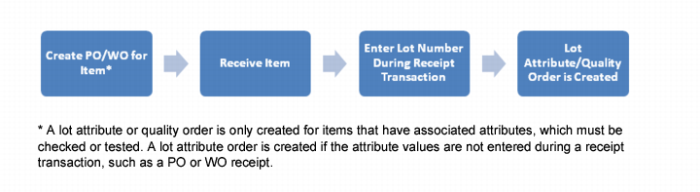
Follow these steps to create a lot attribute or quality order from a PO receipt:
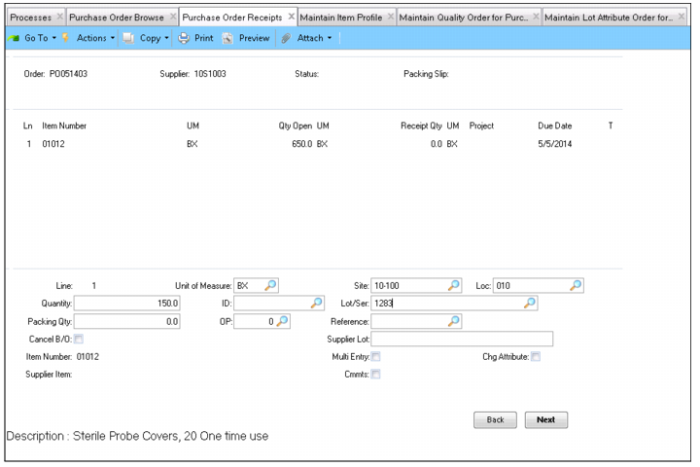
1 Open Purchase Order Receipts and enter the PO number. Click Next and enter the required receipt information, including line number, quantity, location, and so on. For more information about PO receipts, see
QAD Purchasing User Guide.
2 Enter the lot number in the Lot/Ser field and click Next.
Note: Lot attributes require an associated lot. You can only generate a lot attribute order if you specify a lot or serial when receiving an order.
Creating a Lot Attribute Order from a PO Receipt
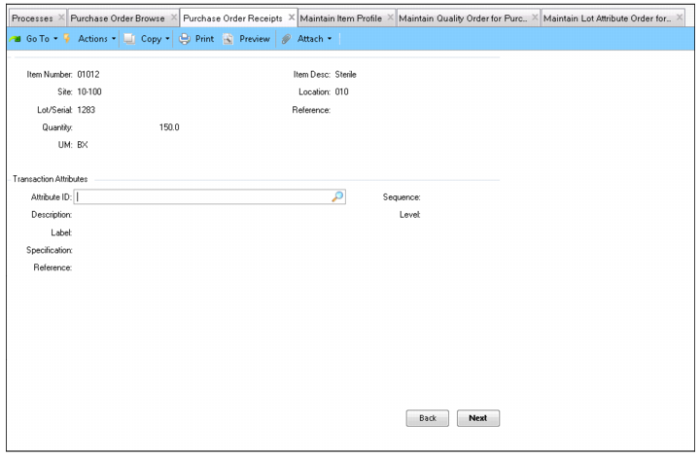
3 The attribute fields are displayed. To create a lot attribute order and enter the attribute values later, click Back to return to the PO receipts menu.
Creating a Lot Attribute Order from a PO Receipt
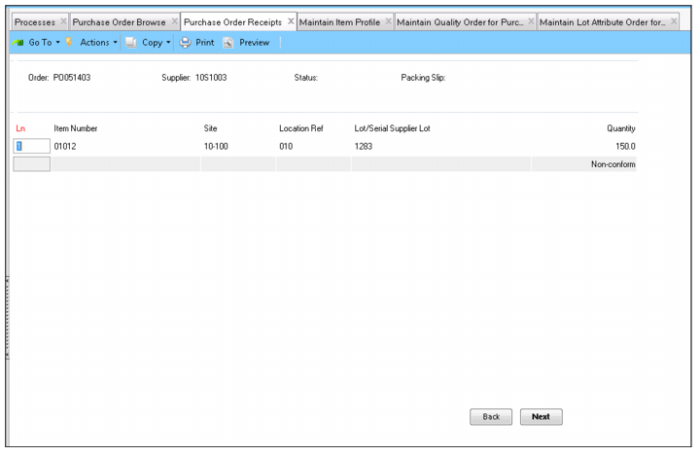
4 Click Next and then click Yes to display the PO lines being received.
5 The system displays the PO lines that have been received. If you did not enter the attribute information, the system displays the lines that are non-conforming.
Creating a Lot Attribute Order from a PO Receipt
6 Click Next and then click Yes to confirm that all the information is correct.
7 Click Next to complete the PO receipt transaction.