Entering Values in Lot Attribute Orders
Navigating to the Correct Type of Order
In IAQ, you can create attribute orders for inventory, purchasing, production, and sales. Depending on the type of order, navigate to the correct collection when entering attribute values.
Inventory - Maintain Lot Attribute Order Collection
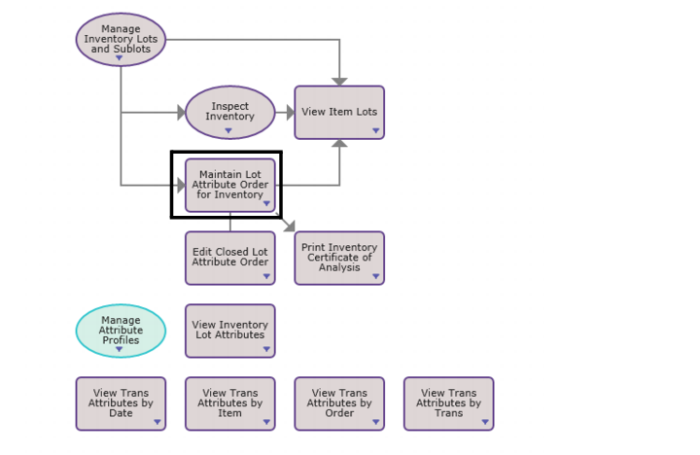
For inventory orders, select Maintain Lot Attribute Order from the Manage Inventory with Attributes process map.
Process Map - Manage Inventory with Attributes
Purchasing - Maintain Lot Attribute Order for Purchasing
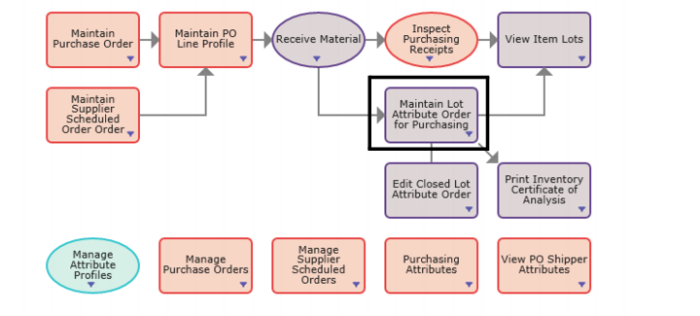
For purchase orders, select Maintain Lot Attribute Order for Purchasing from the Manage Purchasing with Attributes process map for orders created by purchase receipts.
Process Map - Manage Purchasing with Attributes
Production - Maintain Lot Attribute Order for Production
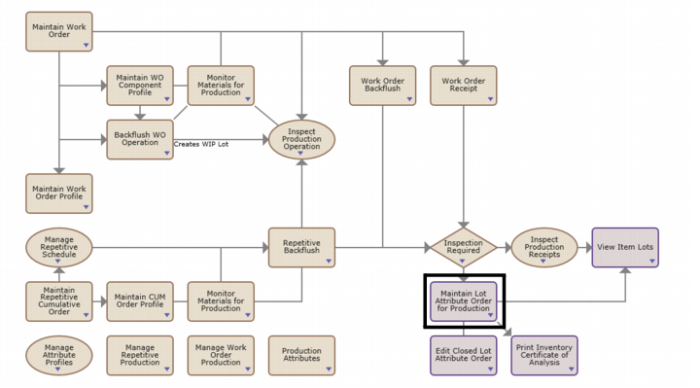
For production orders, select Maintain Lot Attribute Order for Production from the Manage Production with Attributes process map for orders created by work order and CUM order receipts.
Process Map - Manage Production with Attributes
Sales - Maintain Lot Attribute Order for Sales
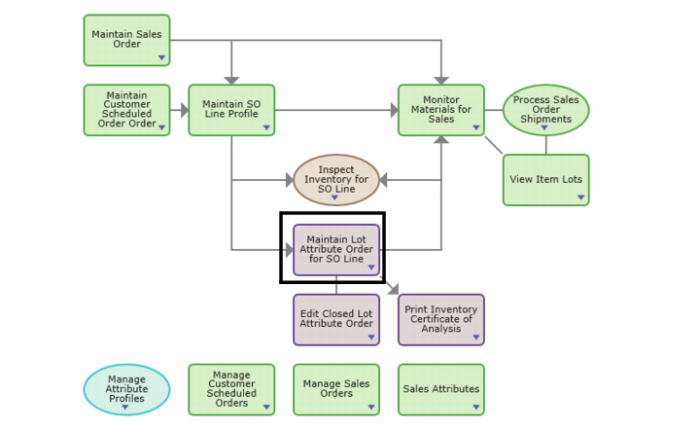
For sales orders, select Maintain Lot Attribute Order for SO Line from the Manage Sales with Attributes process map for orders created for an item lot and sales order line.
Process Map - Manage Lot Attribute Order for SO Line
Entering Attribute Values in Orders
Follow these steps to enter attribute values for open lot attribute orders:
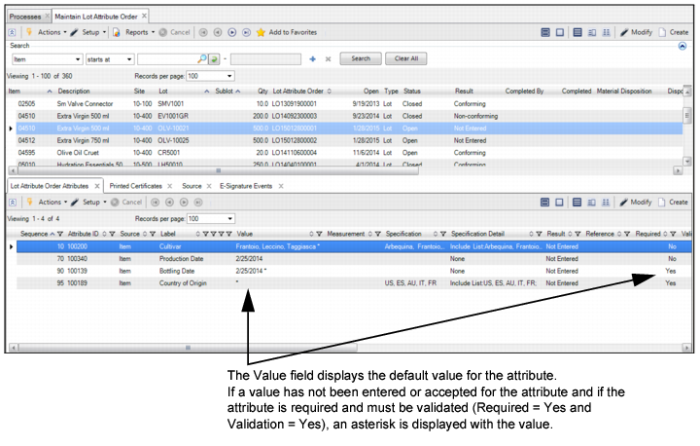
2 In the top browse, select the attribute order.
Maintain Lot Attribute Order for Purchasing Collection
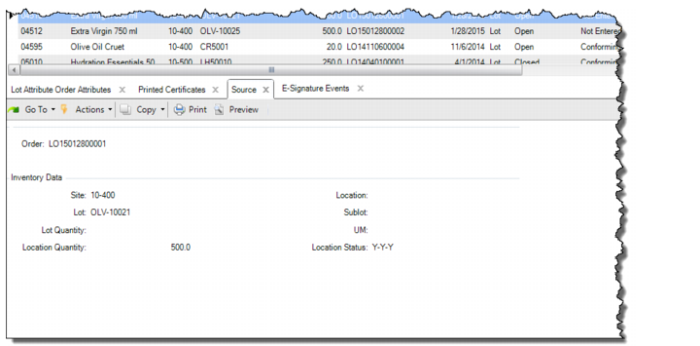
3 Optionally, select the Source tab in the second-level browse and verify that the correct attribute order is selected. The Source tab displays the associated purchasing, production, and inventory data, such as sales, work order, and transaction numbers and dates.
Maintain Lot Attribute Order - Source Tab
4 Double-click and open the attribute. The following fields are displayed:
Sequence
The sequence number for the attribute on this profile. The sequence determines the order in which attributes print on reports.
Source
Displays the source profile for the attribute.
Attribute ID
Displays the attribute ID associated with the lot attribute order.
Label
Displays the label for the selected attribute.
Specification
Displays the specifications for the attribute.
Test ID
Displays the test ID associated with the attribute.
Test Method
Displays the test method associated with the attribute.
Value
Enter the attribute value in this field.
Level
Displays the attribute level (item, lot, or sublot).
Result
Displays the result of the attribute value:
• Not Entered. The initial result for a lot attribute or quality order, when values have not been entered for any of the attributes.
• Conforming. The result when all of the attribute specifications (Validation = Yes) have conforming attribute values, and all of the attributes (Required = Yes) have been entered.
• Non-Conforming. The result when any of the attribute specifications (Validation = Yes) have non-conforming attribute values, and all of the attributes (Required = Yes) have been entered.
• Incomplete. The result when some of the attribute values have been entered, and there is at least one attribute value (Required = Yes) that has not been entered.
• Inconclusive. The result for a quality order when the result for any one of its attributes has been manually set to Inconclusive.
• No Data. The result for a quality order when the result for any one of its attributes has been manually set to No Data.
• Blank. The result when all of the attributes (Required = Yes) have been entered and there are no attributes with the Validation setting enabled.
Measurement
Displays how the attribute is measured or determined. For example, a measurement for flow rate might be expressed as “psi" or “liters/min.”
Reference
Optionally, enter any reference information in this field.
Remarks
Optionally, enter any remarks in this field.
5 Enter the attribute value in the Value field. Repeat these steps until all the attribute values have been entered.