Lot Attribute or Quality Orders Field Descriptions
Note: Lot Attribute and Quality Orders contain the same fields.
Lot Attribute or Quality Orders Field Descriptions
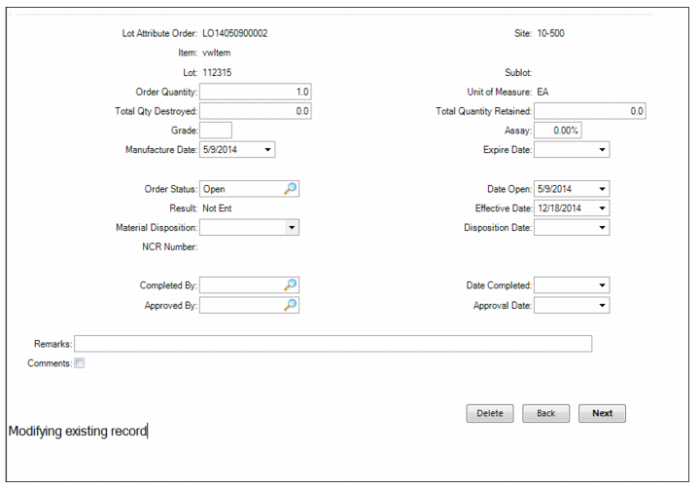
Lot attribute and quality orders contain the following fields:
Lot Attribute Order
This field displays the unique identifier for the lot attribute or quality order.
Item
This field displays the item number on the lot attribute or quality order.
Site
This field displays the site for inventory lot when the lot attribute or quality order was created.
Lot
This field displays the lot number for the lot attribute or quality order.
Sublot
This field displays the sublot for the lot attribute or quality order. This field is only used when you select the Use Inventory Reference as Sublot check box in Item Attribute Control.
Order Quantity
The lot quantity for the lot attribute or quality order. When there are multiple receipts for a production order, purchase order, or item lot and the lot attribute or quality order status is Open, the order quantity is updated automatically by receipt transactions.
Unit of Measure
This field displays the unit of measure for the item.
Total Quantity Destroyed
Enter the lot quantity that was scrapped or destroyed from the lot attribute or quality order. Items that are destroyed are typically from destructive testing. When the order status is changed to Closed, the system processes an inventory scrap transaction to issue the quantity destroyed from inventory.
Total Quantity Retained
Enter the quantity retained at a location from the lot attribute or quality order. Items that are retained are typically held for future retesting. When the order status is changed to Closed, the system processes an inventory transaction to transfer the quantity retained to a specified site and location.
Grade
Optionally, enter the grade of the inventory detail quantity. When the status of the order is changed to Closed, the system updates the Grade from the value on the lot attribute order.
Assay
Optionally, enter the value for assay for the inventory detail quantity for the lot attribute or quality order. When the status of the order is changed to Closed, the system updates the assay for the inventory detail from the value on the lot attribute order.
Manufacture Date
Optionally, enter the value for the manufacture date for the item lot. The initial value for this field is set to the date the item lot was created. The manufacture date for the item lot is updated when the status of the lot attribute or quality order is changed to Closed.
Expire Date
Optionally, enter the expiration date for the inventory detail for the lot attribute or quality order. When the status of the order is changed to Closed, the system updates the expire date for the inventory detail from the value on the lot attribute order.
Order Status
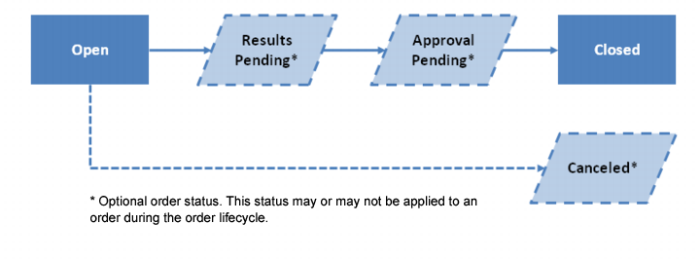
Each lot attribute order has an order status that determines its position in the lifecycle workflow.
Lot Attribute Order Lifecycle
Enter or select the following status codes for the lot attribute or quality order:
• Open. The initial status for a lot attribute or quality order. The status should be Open if the values for order attributes have not been entered or have not been fully completed. When the status is Open, modifications can be made to the lot attribute order data and orders that were manually created can be deleted.
• Results Pending. This status indicates that the results have not been fully completed for all the attributes. In this status, the order quantity is not automatically updated by receipts for the same item and lot. All other modifications are permitted, including changing the order status to Open.
• Approval Pending. The Approval Pending status indicates that attribute values have been completed, but that the material disposition and final approval for the order itself are still outstanding. When the status is Approval Pending, modification to lot order attributes is not permitted and there are no automatic changes to the lot quantity when processing additional receipts for the same lot. Other modifications for the lot attribute order record itself are permitted, including changing the order status to Open.
• Closed. Set the order status to Closed after all of the information for the lot attribute or quality order and its attributes has been approved. Change the status to Closed to update the item lot attributes to those recorded on the order, and to process inventory transactions for lot quantities destroyed, retained, and to be transferred to a different location or to be updated with a different inventory status code.
When the status is Closed, there can be no further modifications to the order, including its status. The order status must be closed for a certificate of analysis to be based on and printed using the attribute values and specifications on the lot attribute order.
To change the order status to Closed, values must have been entered for all profile attributes that have the Required setting enabled.
• Closed Edit Pending. This status is applied if a closed lot attribute order is being modified for corrections using Edit Closed Lot Attribute Order. If an order’s status is Closed, it can only be maintained using Edit Closed Lot Attribute Order. The status of an order with the Closed Edit Pending status can only be changed to Closed. A certificate of analysis cannot be printed for a lot attribute order while it is being modified for corrections.
If a certificate of analysis has been printed for a lot attribute order, then the lot attribute order cannot be edited for corrections.
• Canceled. Set the status to Canceled if no activity is required or performed for the lot attribute order. When the status is Canceled, then there can be no further modifications to the quality or lot attribute order, including its status.
• NCR in Process. The quality order status set by QAD QMS for a non-conforming order. QAD QMS applies this status after a person has set the order status to Approval Pending and QAD QMS has assigned an NCR number to the quality order but before the non-conformance report has been completed.
• NCR Complete. After the material disposition has been determined for a completed non-conformance report, QAD QMS sets the quality order status to NCR Complete.
• Cancel NCR. Set the status to Cancel NCR if the non-conforming order status was inadvertently set to Approval Pending and QAD QMS set the order status to NCR In Process and assigned an NCR number. Change the status from NCR In Process to Cancel NCR to notify QAD QMS to suspend and reverse the process of dispositioning the order. After QAD QMS receives and processes the notification to cancel the NCR process, it changes the order status from Cancel NCR to Results Pending.
Date Open
The date that the lot attribute or quality order was created.
Result
This field displays the result of the lot attribute or quality order. The result for the order is automatically updated as values for its attributes are entered. If necessary, you can manually override the result for an order.
• Not Entered. The initial result for a lot attribute or quality order before any attributes have been entered.
• Conforming. The result when all of the attribute specifications (Validation = Yes) have conforming attribute values, and all of the attributes (Required = Yes) have been entered.
• Non-Conforming. The result when any of the attribute specifications (Validation = Yes) have non-conforming attribute values, and all of the attributes (Required = Yes) have been entered.
• Incomplete. The result when some of the attribute values have been entered, and at least one attribute value (Required = Yes) has not been entered.
• Inconclusive. The result for a lot attribute or quality order when the result for any one of its attributes has been manually set to Inconclusive.
• No Data. The result for a lot attribute or quality order when the result for any one of its attributes has been manually set to No Data.
• Blank. The result when all of the attributes (Required = Yes) have been entered and there are no attributes with the Validation setting enabled.
Effective Date
This field displays the effective date, which determines when the general ledger (GL) Inventory account balance is updated. It has no effect on the inventory quantity-on-hand update, which always occurs immediately.
The default effective date is the system date, but you can modify it as needed. The system verifies that the effective date is within an open fiscal period.
Material Disposition
Enter or select the generalized code value that best describes the material disposition of the item lot. Generalized code values are set up using Generalized Codes Maintenance (36.2.13) for field name ql_mtl_disposition.
Disposition Date
Enter the date that the material disposition was applied to the order for the item lot.
NCR Number
This field displays the non-conformance report number. The NCR number is only displayed for quality orders and only if the integration between QAD EE Quality Module and QAD QMS NCR/CAPA Module is activated.
Completed By
Enter the employee identifier of the person who recorded the values for the lot attribute or quality order.
Date Completed
The date that the attribute values were completed.
Approved By
Enter the employee identifier of the person who reviewed and approved the contents of the lot attribute or quality order.
Approval Date
Enter the date that the lot attribute or quality order was approved.
Remarks
Enter remarks related to the lot attribute or quality order.
Comments
Select this check box to show comments when the system displays lot attribute or quality order data.