Maintain Quality Order Collection
In IAQ, there are quality order maintenance collections for inventory, sales, production, and purchasing.
• Maintain Quality Order. For inventory, access this collection from the Inspect Inventory process map.
• Maintain Quality Order for SO Line. For sales, access this collection from the Inspect Inventory for Sales Order process map.
• Maintain Quality Order for Production. For production, access this collection from the Inspect Production Receipts process map.
• Maintain Quality Order for Purchasing. For purchasing, access this collection from the Inspect Purchasing Receipts process map.
Maintain Quality Order Collection
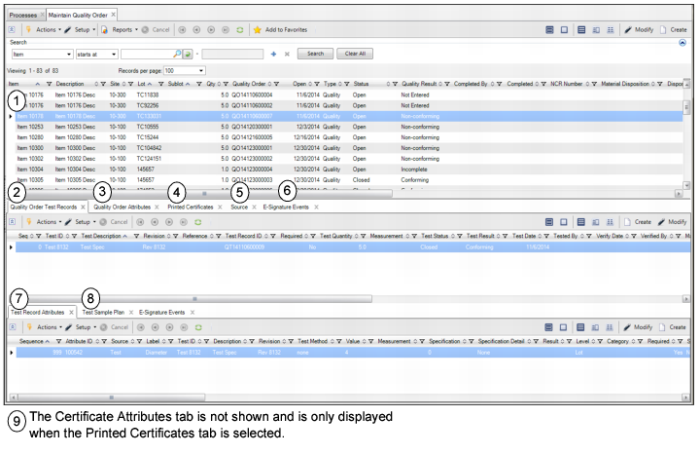
The Maintain Quality Order collection consists of the following browses and tabs:
1 Quality Order browse. Displays a list of all quality orders. Double-click the order to view detailed information about the quality order, such as order, item, and lot number, order status, quality result, and so on.
2 Quality Order Test Records tab. Displays the test records associated with the quality order. The test records are the individual quality tests that must be performed on the item lot. Double-click the test record to view detailed information about the record, such as test record ID, test result, test date, verify by, and so on. In this tab, you can view, modify, or add new test records to the quality order. To add a test record to a quality order, see
Adding Test Records to Quality Orders.
3 Quality Order Attributes tab. Displays the lot and sublot level attributes associated with the quality order, including attributes from test records and non-test attributes from profiles that do not require a quality test to be performed, such as harvest date, country of origin, or supplier lot number. In this tab, you can view, modify, or add new attributes to the quality order.
4 Printed Certificates tab. Displays the certificates of analysis that have been printed for a quality order with a Closed status.
5 Source tab. Displays the transaction information about how the quality order was created. For example, if the quality order was created from a PO, this tab displays the PO number, supplier, receipt information, transaction dates, and so on. Use this information to verify that you are accessing the correct quality order.
6 E-Signature Events tab. Displays the e-signature records created for the selected quality order. If e-signature functionality is enabled, when you change the status of a quality order to Approve Pending, Closed, or Canceled, the system prompts for an e-signature. The system processes data to record the event and displays the information on the E-Signature Events tab. Double-click the record to view e-signature event details.
For information about setting up e-signature functionality, see
QAD Security and Controls User Guide.
7 Test Record Attributes tab. Displays the attributes associated with the test record selected in the Quality Order Test Records tab. In this tab, you can view, add attributes to the test record, and enter the test results.
9 Certificate Attributes tab. Displays the attribute specifications and results for a printed certificate of analysis.