Creating Quality Orders
In IAQ, a quality order can be created automatically or manually. Quality orders are automatically created when you receive items from a supplier and perform the receipt transaction or when you receive a production order linked to a customer order. See
Creating a Quality Order from a Receipt Transaction.
You can manually create a quality order for an item lot in inventory or for an item lot in inventory that is associated with a sales order. See
Manually Creating a Quality Order.
Creating a Quality Order from a Receipt Transaction
Quality orders are created automatically by supplier or production receipt transactions for item lots that are linked to at least one released test specification. For the quality order to be created, the test specification must have at least one attribute. Optionally, it may have additional lot or sublot level profile attributes.
A quality order contains test records for linked test specifications with a Released status. A quality order also contains a complete list of the attribute specifications, values, and results that apply to the order:
• Test attribute specifications, values, and results
• Any non-test attribute specifications, values, and results for attributes defined on attribute profiles for characteristics such as supplier lot number, harvest date, and country of origin
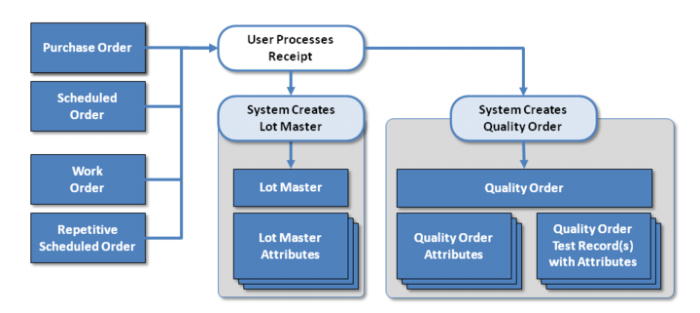
Quality Order Attributes shows how the system processes lots and quality orders following a purchase order. After the receipt of the purchase order, the system creates a lot master, generic to that item type, with associated lot attributes. It also creates a quality order with attributes specific to a test specification.
Quality Order Attributes
To create a quality order from a receipt transaction, see
Creating Orders From Receipt Transactions.
Manually Creating a Quality Order
IAQ allows you to manually create quality orders for the following business cases:
• Repeating any tests for an item lot in inventory.
• Verifying the conformance for an item lot, prior to shipment for a sales order or customer scheduled order line.
Follow these steps to manually create a quality order:
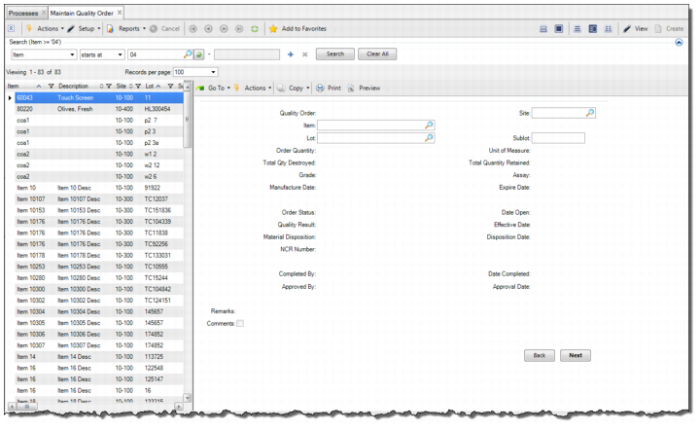
2 Click the Create button in the top-level browse. A blank quality order opens.
Manually Creating a Quality Order
Note: To add an item to an order, the item lot must be in inventory
4 When the item is added to the order, the associated test records and attributes are added to the order.
Adding Test Records to Quality Orders
Follow these steps to add a test record to a quality order:
2 In the top-level browse, select the quality order.
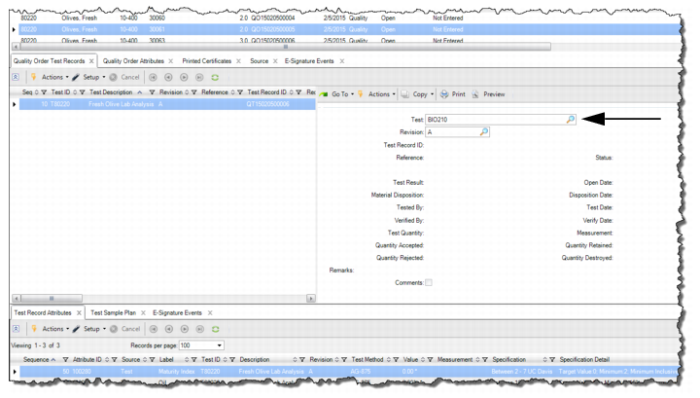
3 To add a test record, click Create on the Quality Order Test Records tab. Enter the test record in the Test field.
Adding a Test Record to a Quality Order
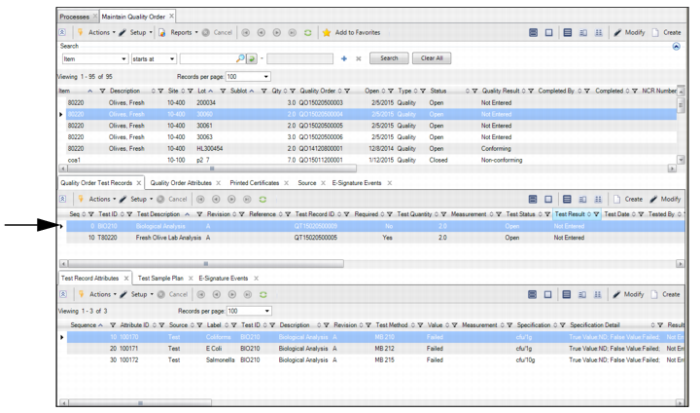
4 Click Next to save. The test record is added to the order.
Adding a Test Record to a Quality Order