Main Grid Frame
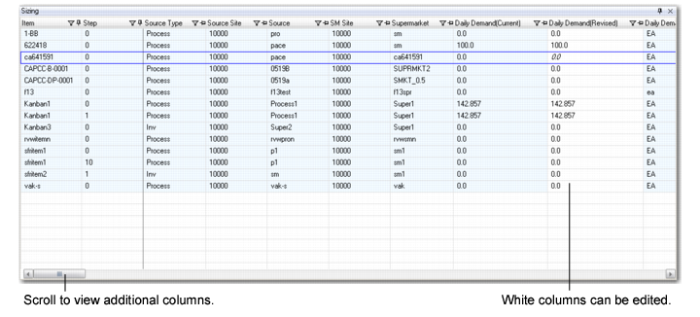
This frame displays selected kanban loop and process records in a spreadsheet-like view. Use the horizontal scroll bar to view additional columns.
You can edit fields in some columns; they are shown in white. When you select a row, the current values of editable columns are shown in italic type. Blue columns are read-only.
Grid Display Options
You can control several aspects of the display using QAD .NET UI features.
• Right-click the grid heading row and choose Columns to select or deselect columns to be displayed.
• Resize column width by dragging the borders.
• Move columns to the right or left by dragging and dropping the column heading.
• Click on a column heading to sort records based on values in that column. On headings with an arrowhead icon, click the icon to reverse the sort order.
• Use the pushpin icon to freeze columns in place during horizontal scrolling. Click a left-pointing icon so that it points down. The column moves to the left side of the frame and is locked in place. To unfreeze a column, click the icon so that it points to the left.
Note: On other UI elements, this same icon serves to auto-hide or minimize/maximize the frame.
• Click the filter icon to display a list of all the values in the current column, as well as All, Custom, Blank, and NonBlank options. Chose a value to filter the records in the grid.
• Choose the right-click option Return to Factory Settings to reverse all modifications to column settings.
Important: Click View|Save As to save your display changes to a specified file name. Otherwise, the workbench returns to the default settings next time you access it.
Note: Changes to display options apply to all users of the computer from which the changes are made.
Grids
The Kanban Sizing Workbench includes a single grid containing data related to loop sizing.
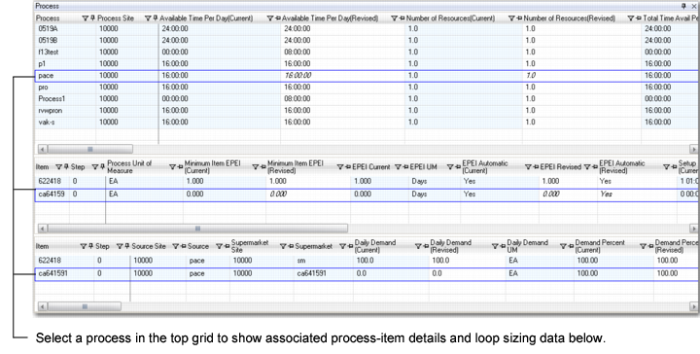
The Kanban Process Workbench has a three-part grid:
• The top grid has data related to the overall process.
• The middle grid provides process-item detail fields.
• The bottom grid is identical to the Kanban Sizing Workbench grid.
When you click on a process record in the top grid, the system displays process-item details and loop sizing information for the items produced by that process in the middle and bottom grids, respectively.
Main Grid, Kanban Sizing Workbench
Main Grid, Kanban Process Workbench
For descriptions of the fields available in the grids, see
Workbench Data.